주요 콘텐츠로 건너뛰기
수리 커뮤니티 가입 - 계정 만들기

Dell Inspiron 1525 RAM Replacement

필요한 것

  1. Dell Inspiron 1525 RAM Replacement, Battery: 1 단계, 이미지 1개 중 1개
    • Locate the battery release switch on the bottom of the laptop.

  2. Dell Inspiron 1525 RAM Replacement: 2 단계, 이미지 2개 중 1개 Dell Inspiron 1525 RAM Replacement: 2 단계, 이미지 2개 중 2개
    • Slide the battery release switch away from the lock symbol until you hear the battery click.

    • Slide the battery towards the back of the laptop until it comes free.

  3. Dell Inspiron 1525 RAM Replacement, Bottom Cover: 3 단계, 이미지 2개 중 1개 Dell Inspiron 1525 RAM Replacement, Bottom Cover: 3 단계, 이미지 2개 중 2개
    • Remove/loosen the eight 4.80 mm Phillips #1 screws securing the bottom panel.

    • The screws may only need to be loosened, as they are generally retained by plastic washers.

    • Remove the bottom panel.

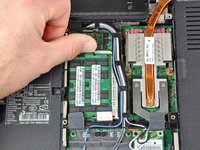
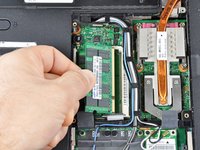
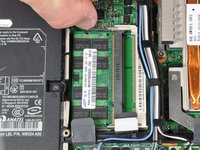
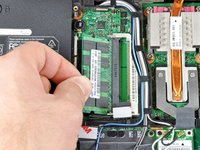
  4. Dell Inspiron 1525 RAM Replacement, RAM: 4 단계, 이미지 3개 중 1개 Dell Inspiron 1525 RAM Replacement, RAM: 4 단계, 이미지 3개 중 2개 Dell Inspiron 1525 RAM Replacement, RAM: 4 단계, 이미지 3개 중 3개
    • Push the white tabs on either side of the RAM chip outward. The chip should pop up a little.

    • Carefully remove the RAM chip by pulling it out at a slight vertical angle.

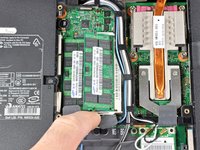
  5. Dell Inspiron 1525 RAM Replacement: 5 단계, 이미지 2개 중 1개 Dell Inspiron 1525 RAM Replacement: 5 단계, 이미지 2개 중 2개
    • Remove the lower RAM chip in the same fashion as the upper one.

결론

To reassemble your device, follow these instructions in reverse order.

다른 5명이 해당 안내서를 완성하였습니다.

작성자

2다른 기여자 명과 함께

Miroslav Djuric

160,539 평판

안내서 144개를 작성함

0가이드 댓글

댓글 쓰기

조회 통계:

지난 24시간: 1

지난 7일: 11

지난 30일: 35

전체 시간: 11,124