소개
The screen is an essential piece of hardware that, due to its delicate and large profile, is often damaged. In this guide, we will show you how to replace the screen on the Dell Inspiron 1526 Laptop.
필요한 것
-
-
-
Slide the unlock button to the left to release the battery.
-
Slide the battery away from the laptop to remove.
 FixBot에 문의하기
-
-
-
-
-
Flip the laptop over.
-
Lift the control cover by prying the right side of the cover with an iFixit opening tool.
-
-
-
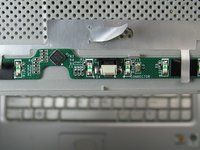
Carefully lift the control cover up and forward to reveal a single ribbon cable.
-
-
-
이 단계에 사용된 도구:Tweezers$4.99
-
Use tweezers to squeeze the tabs on the connector and remove the ribbon cable.
-
-
-
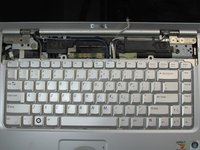
Remove the two 3mm Phillips #1 screws at the top of the keyboard where the control cover was.
-
-
-
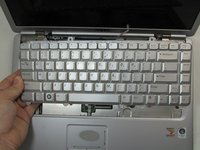
Lift the keyboard gently from the top, but do not remove completely.
-
Looking under the keyboard, towards the touch-pad in the center, lift up the black tab on the connector with tweezers for the keyboard ribbon cable.
-
-
-
-
Remove the six plastic pads around the bezel using an iFixit opening pick.
-
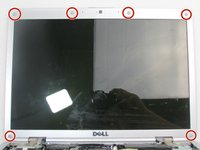
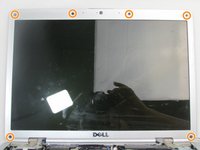
Remove the six 3mm Phillips #0 screws under each pad.
-
-
-
Open the computer so that it rests flat on the table.
-
Separate the bezel from the black plastic frame using a spudger.
-
-
-
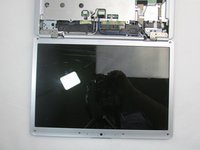
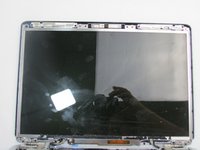
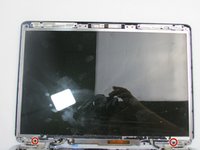
Remove the two 3mm Phillips #1 screws at the bottom of the display panel.
-
Lift the display slightly from the top, then pull outwards.
-
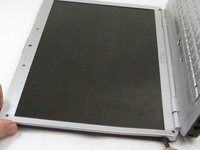
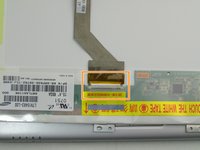
Flip the display panel around to the back.
-
Disconnect the connector and remove the ribbon cable.
-
-




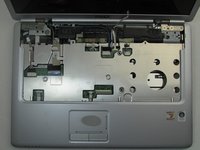






To reassemble your device, follow these instructions in reverse order.

팀

Embry-Riddle Aeronautical University, Team S20-G3, Branham Fall 2019 Embry-Riddle Aeronautical University, Team S20-G3, Branham Fall 2019 회원
ERAU-BRANHAM-F19S20G3
4 회원들
안내서 20개를 작성함
