주요 콘텐츠로 건너뛰기
수리 커뮤니티 가입 - 계정 만들기

Dell Inspiron 6000 Screen Replacement

필요한 것

  1. Dell Inspiron 6000 Screen Replacement, Battery: 1 단계, 이미지 1개 중 1개
    • To prevent injury, make sure the laptop is unplugged before removing the battery.

    • Flip the laptop over, bottom-side up.

    댓글 쓰기

  2. Dell Inspiron 6000 Screen Replacement: 2 단계, 이미지 1개 중 1개
    • Push the switch next to the battery.

    • At the same time, lift the battery away from the laptop.

    댓글 쓰기

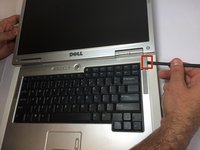
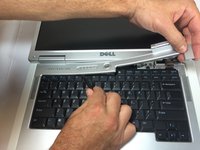
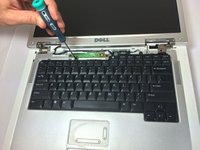
  3. Dell Inspiron 6000 Screen Replacement, Keyboard: 3 단계, 이미지 3개 중 1개 Dell Inspiron 6000 Screen Replacement, Keyboard: 3 단계, 이미지 3개 중 2개 Dell Inspiron 6000 Screen Replacement, Keyboard: 3 단계, 이미지 3개 중 3개
    • Place the laptop on flat surface.

    • Carefully open the laptop at far as it will go so that the back of screen is touching the flat surface.

    • Carefully take a spudger and separate part of the cover at the red circle.

    댓글 쓰기

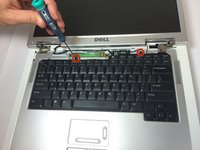
  4. Dell Inspiron 6000 Screen Replacement: 4 단계, 이미지 2개 중 1개 Dell Inspiron 6000 Screen Replacement: 4 단계, 이미지 2개 중 2개
    • Remove two 4 mm Philips #00 screws.

    댓글 쓰기

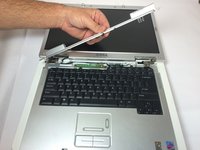
  5. Dell Inspiron 6000 Screen Replacement: 5 단계, 이미지 1개 중 1개
    • Gently lift the keyboard away from the laptop without harming the cord that is located at the bottom of the keyboard.

    댓글 쓰기

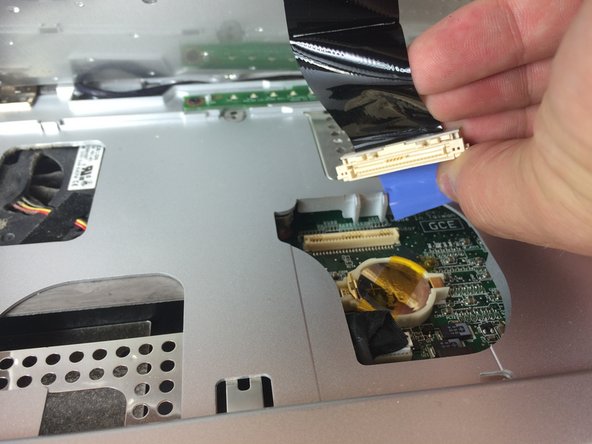
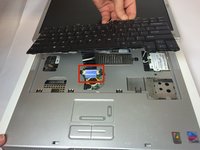
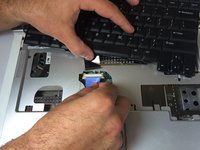
  6. Dell Inspiron 6000 Screen Replacement: 6 단계, 이미지 3개 중 1개 Dell Inspiron 6000 Screen Replacement: 6 단계, 이미지 3개 중 2개 Dell Inspiron 6000 Screen Replacement: 6 단계, 이미지 3개 중 3개
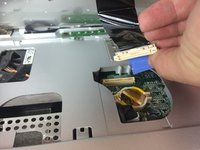
    • Gently pull the blue tab up until it comes away from computer.

    댓글 쓰기

  7. Dell Inspiron 6000 Screen Replacement, Screen: 7 단계, 이미지 1개 중 1개
    • Remove one 4mm Philips #00 screw to completely disengage blue tab.

    댓글 쓰기

  8. Dell Inspiron 6000 Screen Replacement: 8 단계, 이미지 1개 중 1개
    • Pull and disconnect the blue tab.

    댓글 쓰기

  9. Dell Inspiron 6000 Screen Replacement: 9 단계, 이미지 1개 중 1개
    • Disconnect the black and white wires.

    댓글 쓰기

  10. Dell Inspiron 6000 Screen Replacement: 10 단계, 이미지 1개 중 1개
    • Remove four 4mm Philips #00 screws at the hinges for the screen.

    댓글 쓰기

  11. Dell Inspiron 6000 Screen Replacement: 11 단계, 이미지 1개 중 1개
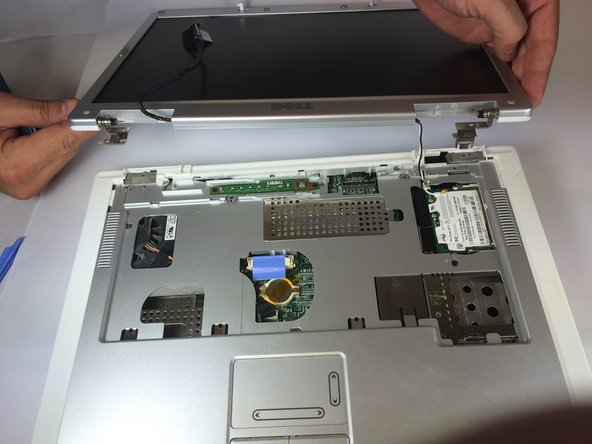
    • Separate the top panel of the laptop from the bottom panel.

    댓글 쓰기

  12. Dell Inspiron 6000 Screen Replacement: 12 단계, 이미지 2개 중 1개 Dell Inspiron 6000 Screen Replacement: 12 단계, 이미지 2개 중 2개
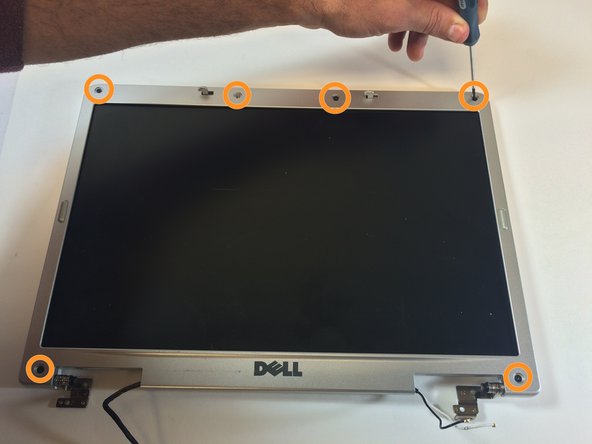
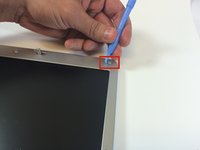
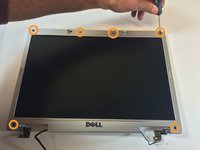
    • Use the plastic opening tools to remove the six rubber screw covers in the corners.

    • Remove six 4 mm #00 Philips screws located in the corners.

    댓글 쓰기

  13. Dell Inspiron 6000 Screen Replacement: 13 단계, 이미지 2개 중 1개 Dell Inspiron 6000 Screen Replacement: 13 단계, 이미지 2개 중 2개
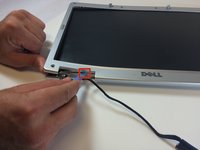
    • Insert the plastic opening tools between the screen holders.

    • Go completely around the screen, separating the screen holders with the plastic opening tools.

    댓글 쓰기

  14. Dell Inspiron 6000 Screen Replacement: 14 단계, 이미지 2개 중 1개 Dell Inspiron 6000 Screen Replacement: 14 단계, 이미지 2개 중 2개
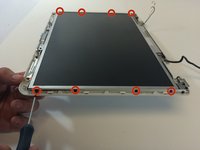
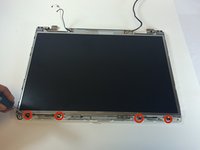
    • Remove 12 4mm #00 Philips screws at the perimeter of the screen.

    댓글 쓰기

  15. Dell Inspiron 6000 Screen Replacement: 15 단계, 이미지 2개 중 1개 Dell Inspiron 6000 Screen Replacement: 15 단계, 이미지 2개 중 2개
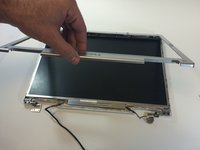
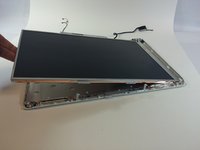
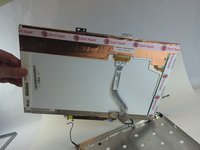
    • Gently lift the screen from the holder.

    • Do not touch the copper part of the bottom side of the screen.

    댓글 쓰기

결론

To reassemble your device, follow these instructions in reverse order.

취소: 해당 안내서를 완성하지 않았습니다.

다른 3명이 해당 안내서를 완성하였습니다.

작성자

4다른 기여자 명과 함께

Jacob DeWar

회원 가입일: 09/23/14

563 평판

안내서 3개를 작성함

USF Tampa, Team 11-1, Blackwell Fall 2014 USF Tampa, Team 11-1, Blackwell Fall 2014 회원

USFT-BLACKWELL-F14S11G1

5 회원들

안내서 7개를 작성함

0가이드 댓글

댓글 쓰기

조회 통계:

지난 24시간: 0

지난 7일: 14

지난 30일: 41

전체 시간: 3,055