주요 콘텐츠로 건너뛰기
수리 커뮤니티 가입 - 계정 만들기

Dell Optiplex SX280 RAM Replacement

  1. Dell Optiplex SX280 RAM Replacement, Panel Cover: 1 단계, 이미지 1개 중 1개
    • Make sure the computer is turned off, by selecting the start menu and choosing “Shut Down”.

    • Ensure all cables, speakers and other devices are unplugged and turned off before opening the computer case.

  2. Dell Optiplex SX280 RAM Replacement: 2 단계, 이미지 2개 중 1개 Dell Optiplex SX280 RAM Replacement: 2 단계, 이미지 2개 중 2개
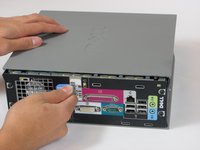
    • Lay the computer on its side; you will see a blue knob.

    • Turn this knob 90 deg clockwise.

  3. Dell Optiplex SX280 RAM Replacement: 3 단계, 이미지 2개 중 1개 Dell Optiplex SX280 RAM Replacement: 3 단계, 이미지 2개 중 2개
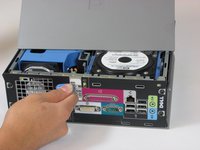
    • Slide the panel case forward about 1/2 inch while knob is turned.

    • Lift panel case off computer.

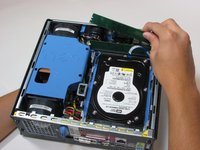
  4. Dell Optiplex SX280 RAM Replacement, RAM: 4 단계, 이미지 1개 중 1개
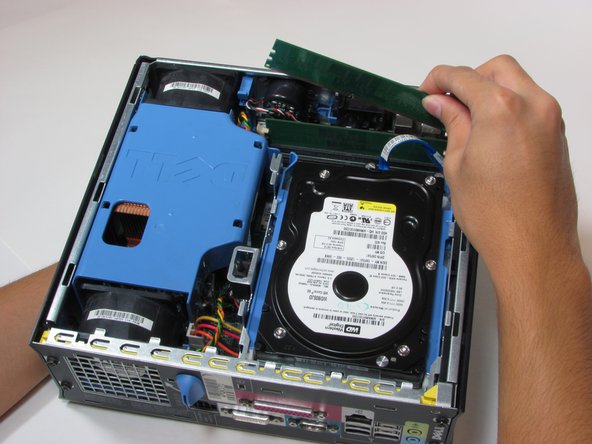
    • The RAM are the two green cards in the corner of the computer.

    • At each end of the card, there are two white clips securing the RAM to the Motherboard.

  5. Dell Optiplex SX280 RAM Replacement: 5 단계, 이미지 2개 중 1개 Dell Optiplex SX280 RAM Replacement: 5 단계, 이미지 2개 중 2개
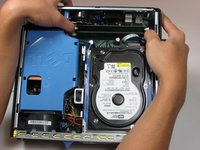
    • Push down both white clips with your thumbs until you hear a click.

    • The RAM cards can now be removed.

결론

To reassemble your device, follow these instructions (steps 1-3) in reverse order.

다른 8명이 해당 안내서를 완성하였습니다.

작성자

5다른 기여자 명과 함께

Wyatt

회원 가입일: 10/06/10

784 평판

안내서 6개를 작성함

Cal Poly, Team 22-4, Maness Fall 2010 Cal Poly, Team 22-4, Maness Fall 2010 회원

CPSU-MANESS-F10S22G4

4 회원들

안내서 26개를 작성함

0가이드 댓글

댓글 쓰기

조회 통계:

지난 24시간: 0

지난 7일: 6

지난 30일: 15

전체 시간: 5,615