주요 콘텐츠로 건너뛰기
수리 커뮤니티 가입 - 계정 만들기

Dell Studio 1537 Hard Drive Replacement

필요한 것

  1. Dell Studio 1537 Hard Drive Replacement, Battery: 1 단계, 이미지 2개 중 1개 Dell Studio 1537 Hard Drive Replacement, Battery: 1 단계, 이미지 2개 중 2개
    • Ensure the laptop is turned off and unplugged before attempting to remove any piece.

    • Place the laptop lid down so the underside is visible.

    • Pull battery release switch and gently pull the battery directly away from the switch.

  2. Dell Studio 1537 Hard Drive Replacement, Back Cover: 2 단계, 이미지 1개 중 1개
    • Identify the back cover of the laptop.

  3. Dell Studio 1537 Hard Drive Replacement: 3 단계, 이미지 1개 중 1개
    • Unscrew and remove all of the 6.0mm screws with a Phillips #1 screwdriver.

  4. Dell Studio 1537 Hard Drive Replacement: 4 단계, 이미지 1개 중 1개
    • Lift the back cover off of the laptop.

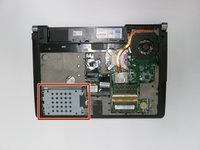
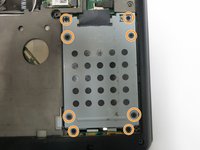
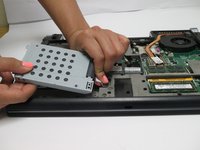
  5. Dell Studio 1537 Hard Drive Replacement, Hard Drive: 5 단계, 이미지 2개 중 1개 Dell Studio 1537 Hard Drive Replacement, Hard Drive: 5 단계, 이미지 2개 중 2개
    • Unscrew all of the 6.0 mm screws with a Phillips #1 screwdriver holding the hard drive cage on the computer.

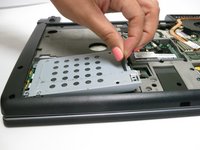
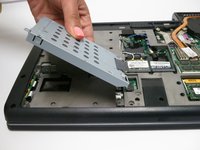
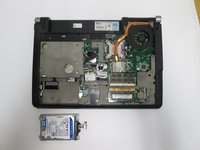
  6. Dell Studio 1537 Hard Drive Replacement: 6 단계, 이미지 2개 중 1개 Dell Studio 1537 Hard Drive Replacement: 6 단계, 이미지 2개 중 2개
    • Lift the hard drive cage out of the laptop.

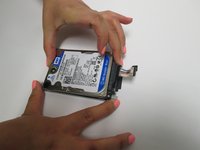
  7. Dell Studio 1537 Hard Drive Replacement: 7 단계, 이미지 3개 중 1개 Dell Studio 1537 Hard Drive Replacement: 7 단계, 이미지 3개 중 2개 Dell Studio 1537 Hard Drive Replacement: 7 단계, 이미지 3개 중 3개
    • Pull tab to unplug the drive from the computer

    • Pull the hard drive out of the hard drive tray.

결론

To reassemble your device, follow these instructions in reverse order.

다른 3명이 해당 안내서를 완성하였습니다.

작성자

3다른 기여자 명과 함께

Zach Dylag

회원 가입일: 03/24/15

575 평판

안내서 4개를 작성함

Baylor, Team 6-2, Shaver Spring 2015 Baylor, Team 6-2, Shaver Spring 2015 회원

BU-SHAVER-S15S6G2

3 회원들

안내서 4개를 작성함

1가이드 댓글

Straightforward process with step by step guide. Thank you Zach.

Katharine Church - 답글

댓글 쓰기

조회 통계:

지난 24시간: 0

지난 7일: 7

지난 30일: 21

전체 시간: 2,664