주요 콘텐츠로 건너뛰기
수리 커뮤니티 가입 - 계정 만들기

Dell Studio 1555 Display Replacement

필요한 것

  1. Dell Studio 1555 Display Replacement, Battery: 1 단계, 이미지 1개 중 1개
    • Turn off and unplug the laptop.

    • Failure to properly turn off device before handling the battery could result in electrical shock.

    • Flip the laptop so the underside is facing up with the battery closest to you.

    댓글 쓰기

  2. Dell Studio 1555 Display Replacement: 2 단계, 이미지 3개 중 1개 Dell Studio 1555 Display Replacement: 2 단계, 이미지 3개 중 2개 Dell Studio 1555 Display Replacement: 2 단계, 이미지 3개 중 3개
    • Slide the locking switch to the left to release the battery.

    댓글 쓰기

  3. Dell Studio 1555 Display Replacement: 3 단계, 이미지 1개 중 1개
    • Gently pull the battery away from the device.

    댓글 쓰기

  4. Dell Studio 1555 Display Replacement, Display: 4 단계, 이미지 2개 중 1개 Dell Studio 1555 Display Replacement, Display: 4 단계, 이미지 2개 중 2개
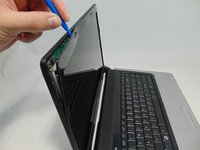
    • Insert a plastic opening tool between the bezel and the display cover.

    • Wiggle it to the release the latches.

    • Separate the bezel from the cover.

    댓글 쓰기

  5. Dell Studio 1555 Display Replacement: 5 단계, 이미지 2개 중 1개 Dell Studio 1555 Display Replacement: 5 단계, 이미지 2개 중 2개
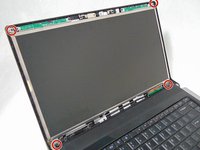
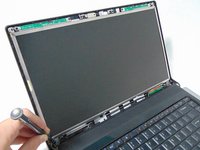
    • Remove the four 3 mm screws securing the LCD using the #1 Phillips screwdriver.

    댓글 쓰기

  6. Dell Studio 1555 Display Replacement: 6 단계, 이미지 1개 중 1개
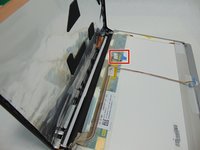
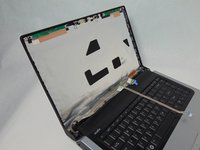
    • Separate the LCD assembly from the display cover so you will be able to access the webcam cable.

    • Unplug the camera cable.

    댓글 쓰기

  7. Dell Studio 1555 Display Replacement: 7 단계, 이미지 2개 중 1개 Dell Studio 1555 Display Replacement: 7 단계, 이미지 2개 중 2개
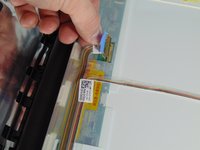
    • Place the LCD face down on the top cover.

    • Remove the sticky tape securing the video cable connector.

    • Unplug the video cable from the screen.

    댓글 쓰기

  8. Dell Studio 1555 Display Replacement: 8 단계, 이미지 3개 중 1개 Dell Studio 1555 Display Replacement: 8 단계, 이미지 3개 중 2개 Dell Studio 1555 Display Replacement: 8 단계, 이미지 3개 중 3개
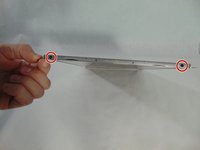
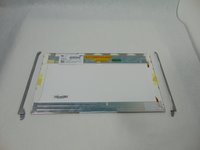
    • Remove the LCD from the laptop.

    • Remove the four 3mm screws holding the mounting brackets using the #1 Phillips screwdriver. Two on each side.

    • You will have to transfer the mounting brackets to the new screen.

    댓글 쓰기

결론

To reassemble your device, follow these instructions in reverse order.

취소: 해당 안내서를 완성하지 않았습니다.

다른 3명이 해당 안내서를 완성하였습니다.

작성자

3다른 기여자 명과 함께

Josh Boone

회원 가입일: 10/10/16

586 평판

안내서 4개를 작성함

Sam Houston State, Team 12-3, Blackburne Fall 2016 Sam Houston State, Team 12-3, Blackburne Fall 2016 회원

SHSU-BLACKBURNE-F16S12G3

3 회원들

안내서 6개를 작성함

0가이드 댓글

댓글 쓰기

조회 통계:

지난 24시간: 3

지난 7일: 10

지난 30일: 40

전체 시간: 1,894