소개
The RAM is the part that collects the data for the computer. You will want to replace this because the computer is running slow. Replacing the RAM will allow the laptop to run faster.
필요한 것
-
-
Turn the laptop upside down.
-
Use a T5 Torx Screwdriver to remove the ten 3 mm long screws from the perimeter of the back of the laptop.
 FixBot에 문의하기
-
-
-
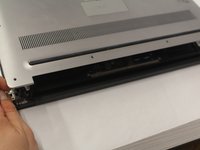
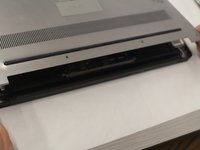
Open up the information panel door (on the middle of the back side).
-
While holding the door open, use a Phillips #00 Screwdriver to remove the two 10 mm long screws.
-
-
-
-
Carefully lift the 2 corners of the back panel close to the hinge upwards, to release the whole panel.
-
-
-
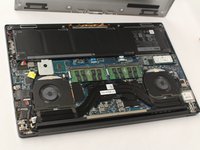
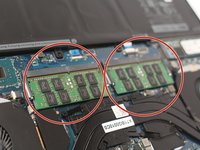
There are 2 separate RAM sticks.
-
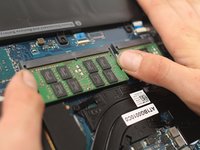
Gently push down on the 2 outside tabs of the RAM stick you want to replace.
-
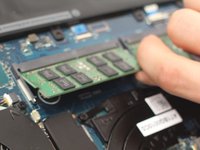
While still pushing down, gently push the tabs outwards, causing the RAM stick to flip up.
-
-
-
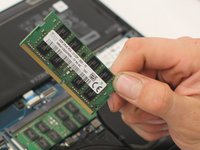
Firmly grasp the RAM stick from the flipped up edge and gently pull out, to release the RAM stick.
-






To reassemble your device, follow these instructions in reverse order.
다른 6명이 해당 안내서를 완성하였습니다.

팀

UW Stout, Team S6-G1, Ogden Fall 2018 UW Stout, Team S6-G1, Ogden Fall 2018 회원
UWSTOUT-OGDEN-F18S6G1
4 회원들
안내서 23개를 작성함
