주요 콘텐츠로 건너뛰기
수리 커뮤니티 가입 - 계정 만들기

Dell XPS M140 Screen Replacement

필요한 것

  1. Dell XPS M140 Screen Replacement, Battery: 1 단계, 이미지 1개 중 1개
    • Turn over the laptop.

  2. Dell XPS M140 Screen Replacement: 2 단계, 이미지 3개 중 1개 Dell XPS M140 Screen Replacement: 2 단계, 이미지 3개 중 2개 Dell XPS M140 Screen Replacement: 2 단계, 이미지 3개 중 3개
    • Open the slide lock and pull out the battery.

  3. Dell XPS M140 Screen Replacement, Screen: 3 단계, 이미지 3개 중 1개 Dell XPS M140 Screen Replacement, Screen: 3 단계, 이미지 3개 중 2개 Dell XPS M140 Screen Replacement, Screen: 3 단계, 이미지 3개 중 3개
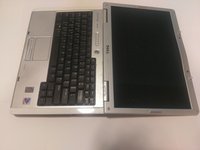
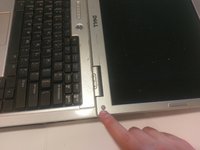
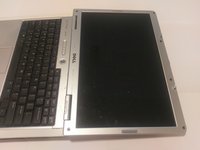
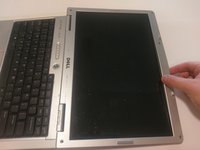
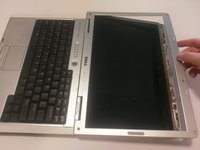
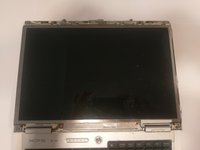
    • The plastic casing around the screen has a gray rubber circle, lining the perimeter of the casing.

    • Remove the casing by peeling them off. This will expose the screws underneath.

  4. Dell XPS M140 Screen Replacement: 4 단계, 이미지 1개 중 1개
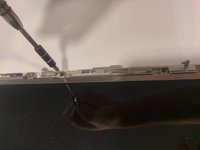
    • Unscrew the screws on the casing that you just exposed.

  5. Dell XPS M140 Screen Replacement: 5 단계, 이미지 3개 중 1개 Dell XPS M140 Screen Replacement: 5 단계, 이미지 3개 중 2개 Dell XPS M140 Screen Replacement: 5 단계, 이미지 3개 중 3개
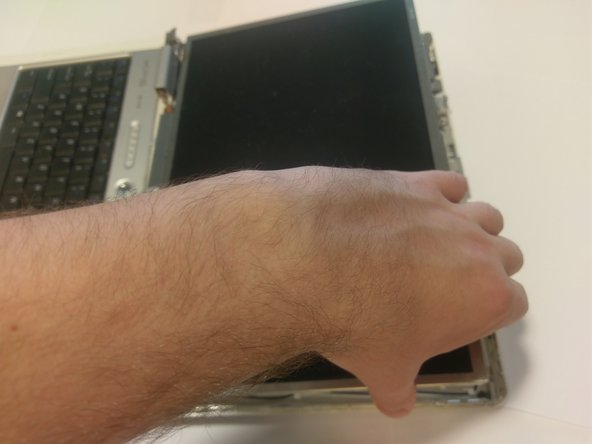
    • With care, pop off the plastic clips sourrounding the casing.

    • Run your hand, or a tool, around the perimeter, to remove the casing.

  6. Dell XPS M140 Screen Replacement: 6 단계, 이미지 3개 중 1개 Dell XPS M140 Screen Replacement: 6 단계, 이미지 3개 중 2개 Dell XPS M140 Screen Replacement: 6 단계, 이미지 3개 중 3개
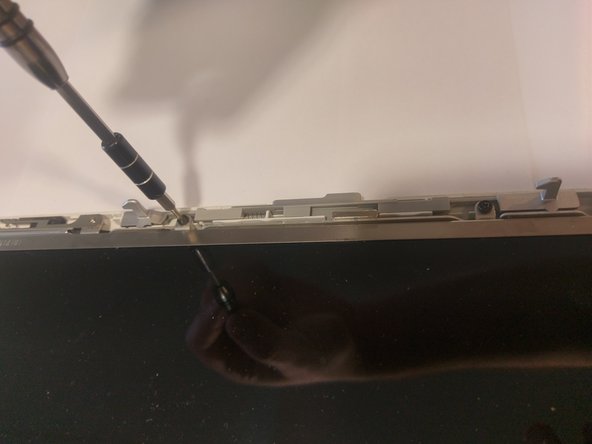
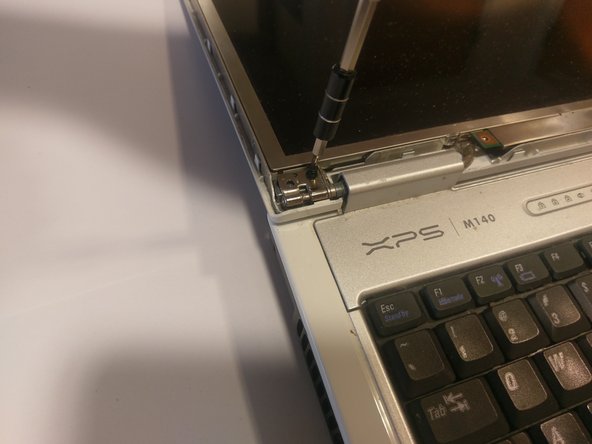
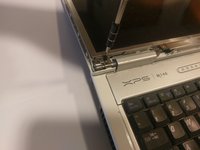
    • Once the casing is removed, more screws should be exposed.

    • Remove every screw.

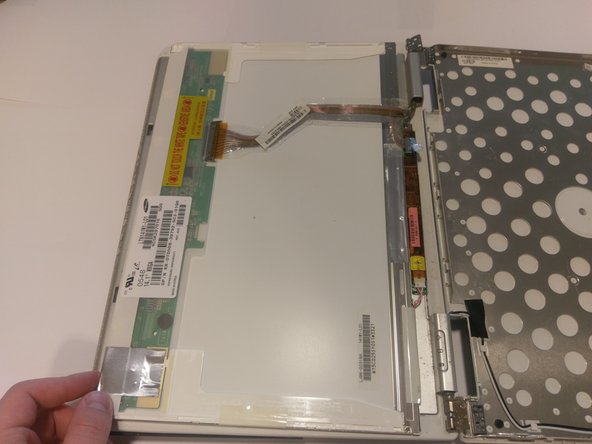
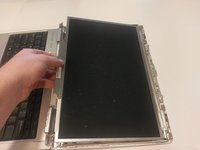
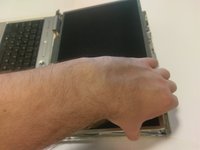
  7. Dell XPS M140 Screen Replacement: 7 단계, 이미지 3개 중 1개 Dell XPS M140 Screen Replacement: 7 단계, 이미지 3개 중 2개 Dell XPS M140 Screen Replacement: 7 단계, 이미지 3개 중 3개
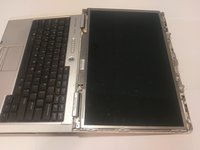
    • Once all of the screws are removed, the screen should be loose.

    • Gently pick it up and place it face down onto the keyboard.

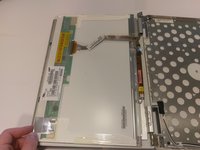
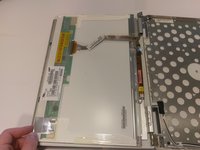
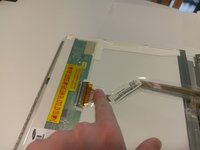
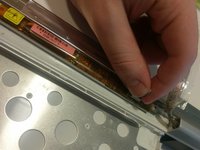
  8. Dell XPS M140 Screen Replacement: 8 단계, 이미지 3개 중 1개 Dell XPS M140 Screen Replacement: 8 단계, 이미지 3개 중 2개 Dell XPS M140 Screen Replacement: 8 단계, 이미지 3개 중 3개
    • There should be two connections.

    • One with a blue looking handle, and one with clips.

    • To remove the connection with the clips, squeeze the two clips together and pull the ribbon cable.

    • To remove the connection with the blue handle, gently pull on the blue handle, it should come right off.

결론

To reassemble your device, follow these instructions in reverse order.

작성자

6다른 기여자 명과 함께

Travis Morazzini

회원 가입일: 03/20/17

207 평판

안내서 2개를 작성함

UMass Dartmouth, Team S9-G5, Martin Spring 2017 UMass Dartmouth, Team S9-G5, Martin Spring 2017 회원

UMASSD-MARTIN-S17S9G5

4 회원들

안내서 5개를 작성함

0가이드 댓글

댓글 쓰기

조회 통계:

지난 24시간: 0

지난 7일: 1

지난 30일: 8

전체 시간: 444