주요 콘텐츠로 건너뛰기

DualSense Edge Rear Case Replacement

필요한 것

  1. DualSense Edge Rear Case Replacement, Remove the front trim: 1 단계, 이미지 3개 중 1개 DualSense Edge Rear Case Replacement, Remove the front trim: 1 단계, 이미지 3개 중 2개 DualSense Edge Rear Case Replacement, Remove the front trim: 1 단계, 이미지 3개 중 3개
    • Place the controller on a work surface with the joysticks facing down.

    • Use a spudger or your finger to slide the Release tab to the left. The front trim should fall to the table.

    • If the front trim doesn't fall open, make sure the front trim has room to fall down and the Release tab is pushed all the way to the left.

    • Lift the controller up, leaving the front trim on the table.

    • During reassembly, insert the front trim at an angle so the top slots in first, then lower the trim into place and snap it onto the controller.

  2. DualSense Edge Rear Case Replacement, Remove the joysticks: 2 단계, 이미지 3개 중 1개 DualSense Edge Rear Case Replacement, Remove the joysticks: 2 단계, 이미지 3개 중 2개 DualSense Edge Rear Case Replacement, Remove the joysticks: 2 단계, 이미지 3개 중 3개
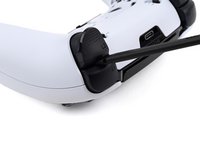
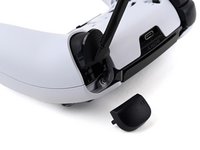
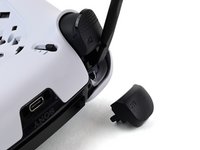
    • Flip the controller over so the joysticks are facing up.

    • Lift the metal lever that holds the joystick in place until the joystick slides out slightly.

    • Slide the joystick out from its slot.

  3. DualSense Edge Rear Case Replacement: 3 단계, 이미지 1개 중 1개
    • Repeat this process to remove the other joystick.

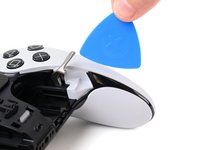
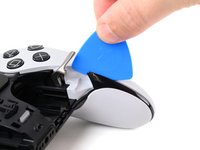
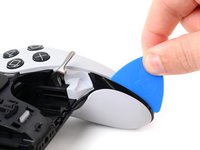
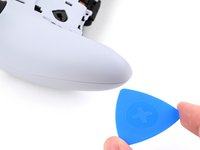
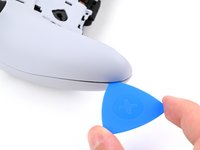
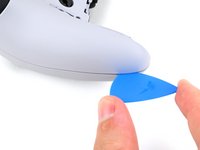
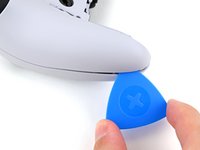
  4. DualSense Edge Rear Case Replacement, Insert an opening pick: 4 단계, 이미지 3개 중 1개 DualSense Edge Rear Case Replacement, Insert an opening pick: 4 단계, 이미지 3개 중 2개 DualSense Edge Rear Case Replacement, Insert an opening pick: 4 단계, 이미지 3개 중 3개
    • The rear trim is held in place by fragile plastic clips. Work slowly and gently to avoid breaking the clips.

    • If you installed the back button paddles included with your controller, remove them before beginning this process.

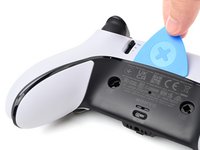
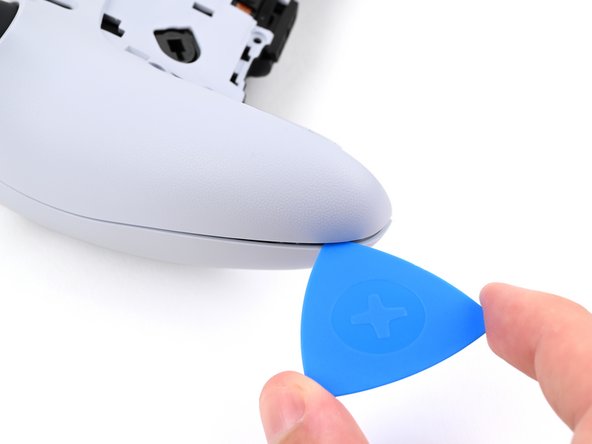
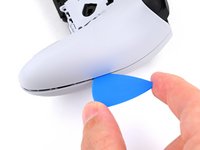
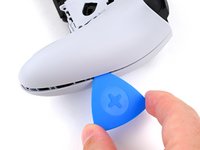
    • Insert the flat edge of an opening pick between the black portion of the rear trim and the top cover, near the joystick lever.

    • Slide the opening pick towards the bottom of the grip to release the clips.

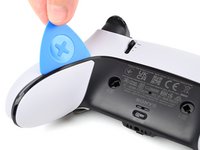
  5. DualSense Edge Rear Case Replacement, Release the clips: 5 단계, 이미지 2개 중 1개 DualSense Edge Rear Case Replacement, Release the clips: 5 단계, 이미지 2개 중 2개
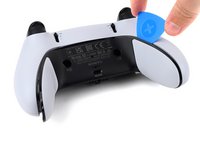
    • Slide the pick around to the rear of the controller and flip the controller over so the buttons are facing down.

    • Slide the opening pick around the edge of the rear trim to release the clips.

  6. DualSense Edge Rear Case Replacement, Remove the rear trim: 6 단계, 이미지 3개 중 1개 DualSense Edge Rear Case Replacement, Remove the rear trim: 6 단계, 이미지 3개 중 2개 DualSense Edge Rear Case Replacement, Remove the rear trim: 6 단계, 이미지 3개 중 3개
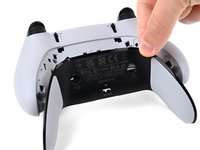
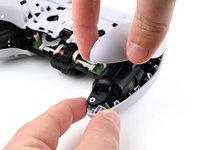
    • Slide the opening along the edge of the trim on the other grip.

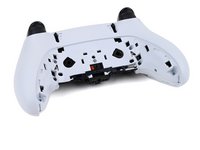
    • Once all clips are released, remove the trim.

    • If at any point the trim feels stuck, stop and look for any clips that may have re-engaged and release them with the opening pick to avoid damaging them.

  7. DualSense Edge Rear Case Replacement, Remove the L1 and R1 buttons: 7 단계, 이미지 3개 중 1개 DualSense Edge Rear Case Replacement, Remove the L1 and R1 buttons: 7 단계, 이미지 3개 중 2개 DualSense Edge Rear Case Replacement, Remove the L1 and R1 buttons: 7 단계, 이미지 3개 중 3개
    • The L1 and R1 buttons are held in by two clips. If only one clip releases, move your spudger to the other side of the button to release the remaining clip. Don't continue prying on one side after a clip is released, or you risk breaking the other clip.

    • Insert the flat end of a spudger in the gap between the L1 and L2 buttons.

    • Use the spudger to pry out the L1 button.

    • The buttons tend to shoot out in this step. You can place your thumb over the button to prevent this.

    • Repeat this process to remove the R1 button.

  8. DualSense Edge Rear Case Replacement, Remove the screws: 8 단계, 이미지 2개 중 1개 DualSense Edge Rear Case Replacement, Remove the screws: 8 단계, 이미지 2개 중 2개
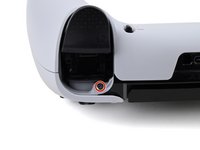
    • Remove the two 6.4 mm screws behind the L1 and R1 buttons.

    • Use a JIS J0 driver or an official iFixit Phillips PH0 driver, which is designed to be cross-compatible with JIS screws. Using a screwdriver other than an official iFixit driver or a JIS driver may result in stripped screws.

  9. DualSense Edge Rear Case Replacement, Lift the release bar spring: 9 단계, 이미지 2개 중 1개 DualSense Edge Rear Case Replacement, Lift the release bar spring: 9 단계, 이미지 2개 중 2개
    • Rotate the controller so the grips are pointing towards you.

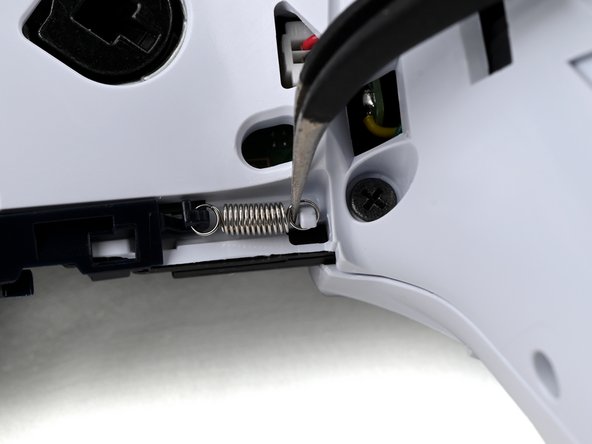
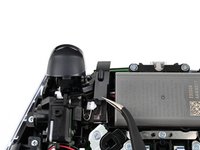
    • Use a pair of angled tweezers to lift the right end of the release bar spring off of the white post.

    • The spring is located below the RB button.

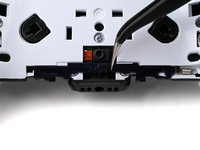
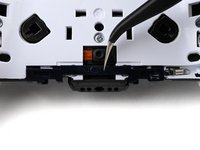
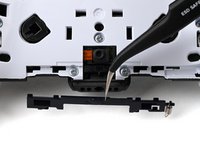
  10. DualSense Edge Rear Case Replacement, Remove the trim release bar: 10 단계, 이미지 3개 중 1개 DualSense Edge Rear Case Replacement, Remove the trim release bar: 10 단계, 이미지 3개 중 2개 DualSense Edge Rear Case Replacement, Remove the trim release bar: 10 단계, 이미지 3개 중 3개
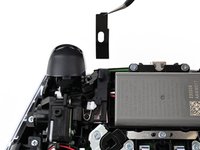
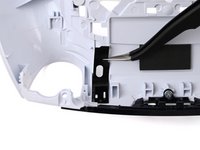
    • Use a pair of tweezers or your fingers to slide the release bar to the left.

    • Slide the release bar away from the controller to remove it.

  11. DualSense Edge Rear Case Replacement, Remove the rear case screws: 11 단계, 이미지 1개 중 1개
    • Remove the nine screws securing the rear case:

    • Seven 6.4 mm‑long screws

    • Two 10.5 mm‑long screws

  12. DualSense Edge Rear Case Replacement, Insert an opening pick: 12 단계, 이미지 2개 중 1개 DualSense Edge Rear Case Replacement, Insert an opening pick: 12 단계, 이미지 2개 중 2개
    • Insert the point an opening pick in the gap along the outside edge of one of the controller grips, near the bottom.

  13. DualSense Edge Rear Case Replacement, Separate the rear case: 13 단계, 이미지 3개 중 1개 DualSense Edge Rear Case Replacement, Separate the rear case: 13 단계, 이미지 3개 중 2개 DualSense Edge Rear Case Replacement, Separate the rear case: 13 단계, 이미지 3개 중 3개
    • Pry with the opening pick to separate the rear case from the front case by releasing the clips that hold them together.

    • Continue prying along the edge of the controller until one side is separated.

  14. DualSense Edge Rear Case Replacement: 14 단계, 이미지 2개 중 1개 DualSense Edge Rear Case Replacement: 14 단계, 이미지 2개 중 2개
    • Repeat this process to separate the other side of the rear case.

  15. DualSense Edge Rear Case Replacement, Remove the rear case: 15 단계, 이미지 3개 중 1개 DualSense Edge Rear Case Replacement, Remove the rear case: 15 단계, 이미지 3개 중 2개 DualSense Edge Rear Case Replacement, Remove the rear case: 15 단계, 이미지 3개 중 3개
    • If at any point the case feels stuck, stop and look for any clips that may have re-engaged and release them with the opening pick to avoid damaging them.

    • Hold the main body of the controller with one hand.

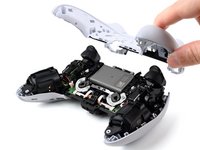
    • Lift the rear case with your other hand. It should lift at an angle.

    • Pushing slightly towards the L and R buttons, lift the rear case off of the controller and remove it.

    • During reassembly, make sure the plastic covers for the adaptive trigger assembly adjustment sliders are correctly installed over the sliders.

  16. DualSense Edge Rear Case Replacement, Replace the slider covers: 16 단계, 이미지 3개 중 1개 DualSense Edge Rear Case Replacement, Replace the slider covers: 16 단계, 이미지 3개 중 2개 DualSense Edge Rear Case Replacement, Replace the slider covers: 16 단계, 이미지 3개 중 3개
    • The rear case holds two small plastic covers for the adaptive trigger assembly adjustment sliders. These may have come off during removal. Place them back in the rear cover now to avoid losing them.

    • Use a pair of tweezers or your fingers to lift the cover from the controller.

    • Slide the flat end of the cover under the plastic tab in the rear case.

    • Make sure it is placed so it can move freely in its groove. The edge with the notch should be towards the middle of the controller.

    • If a cover got bent during the rear case removal or reassembly process, apply a small amount of heat with a hair dryer to restore it to its original shape.

    • During reassembly, you can use a small piece of painter's tape on the outside of the rear case to hold the covers in place.

결론

To reassemble your device, follow these instructions in reverse order.

Repair didn’t go as planned? Try some basic troubleshooting, or ask our Answers community for help.

다른 한 분이 해당 안내서를 완성하였습니다.

Spencer Pennington

회원 가입일: 09/09/23

23,308 평판

안내서 125개를 작성함

Guide Team Guide Team 회원

Staff

10 회원들

안내서 15,885개를 작성함

0가이드 댓글

댓글 쓰기

조회 통계:

지난 24시간: 20

지난 7일: 105

지난 30일: 388

전체 시간: 4,263