주요 콘텐츠로 건너뛰기
수리 커뮤니티 가입 - 계정 만들기

Gateway MA7 Fan Replacement

필요한 것

  1. Gateway MA7 Fan Replacement, Fan: 1 단계, 이미지 1개 중 1개
    • Before starting this replacement, make sure the device is powered off and the battery is removed.

    • This particular device is missing the battery.

    • To remove your battery, slide the plastic tabs on the back of the laptop and pull the battery out of the device.

  2. Gateway MA7 Fan Replacement: 2 단계, 이미지 3개 중 1개 Gateway MA7 Fan Replacement: 2 단계, 이미지 3개 중 2개 Gateway MA7 Fan Replacement: 2 단계, 이미지 3개 중 3개
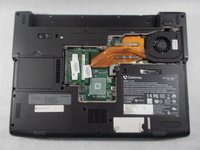
    • Remove the seven 6mm screws from the back panel with a Phillips #0 screwdriver.

  3. Gateway MA7 Fan Replacement: 3 단계, 이미지 3개 중 1개 Gateway MA7 Fan Replacement: 3 단계, 이미지 3개 중 2개 Gateway MA7 Fan Replacement: 3 단계, 이미지 3개 중 3개
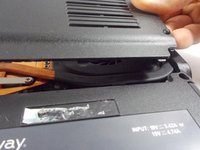
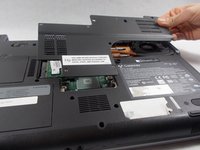
    • Pull upwards on the top of the plastic panel to remove it.

    • With the exception of the screw marked "K", all of the screws will remain connected to the plastic piece.

  4. Gateway MA7 Fan Replacement: 4 단계, 이미지 2개 중 1개 Gateway MA7 Fan Replacement: 4 단계, 이미지 2개 중 2개
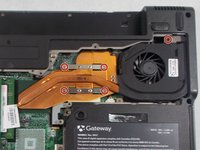
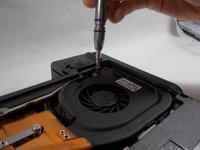
    • Remove the five 6 mm screws with a Phillips #0 screw driver to detach the fan and cooling unit from the motherboard.

    • The four screws on the silver metal bands of the fan will not come off of the actual component.

  5. Gateway MA7 Fan Replacement: 5 단계, 이미지 3개 중 1개 Gateway MA7 Fan Replacement: 5 단계, 이미지 3개 중 2개 Gateway MA7 Fan Replacement: 5 단계, 이미지 3개 중 3개
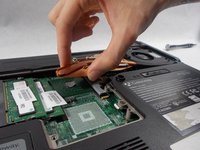
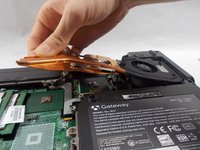
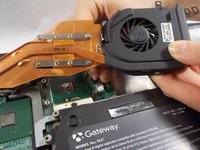
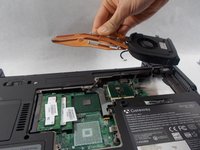
    • Lifting from the left side of the fan, start to pull the fan off of the motherboard.

    • Be sure not to pull the fan all the way off the motherboard yet. Before it can be completely removed the cables must be disconnected.

    • There may be thermal paste adhering the fan to the motherboard. Be sure to lift the fan slowly and gently.

  6. Gateway MA7 Fan Replacement: 6 단계, 이미지 3개 중 1개 Gateway MA7 Fan Replacement: 6 단계, 이미지 3개 중 2개 Gateway MA7 Fan Replacement: 6 단계, 이미지 3개 중 3개
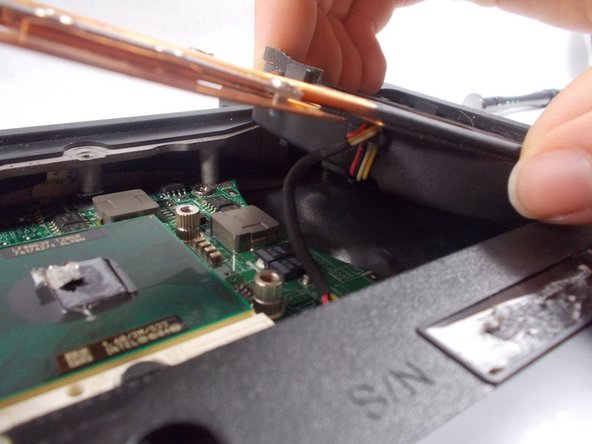
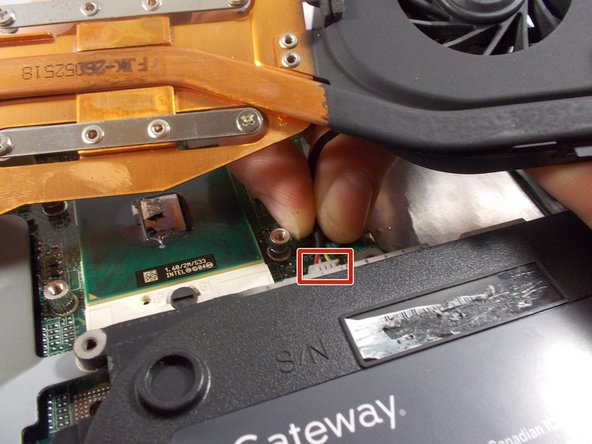
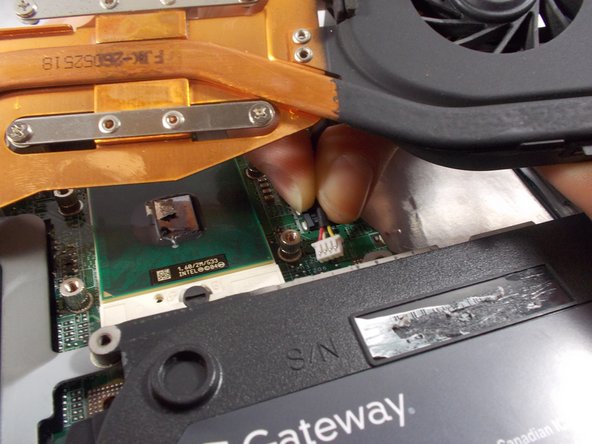
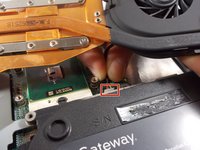
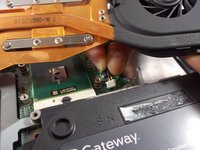
    • In order to properly remove the fan, disconnect the cable that is attached to the motherboard.

    • Gently grasp the connecting cable from under the fan and pull it out of the socket on the motherboard to disconnect it.

  7. Gateway MA7 Fan Replacement: 7 단계, 이미지 3개 중 1개 Gateway MA7 Fan Replacement: 7 단계, 이미지 3개 중 2개 Gateway MA7 Fan Replacement: 7 단계, 이미지 3개 중 3개
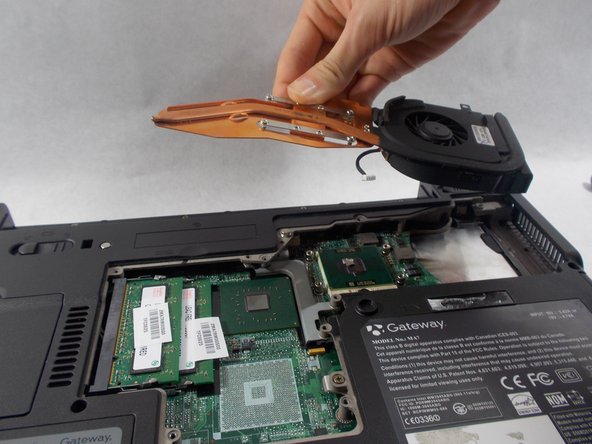
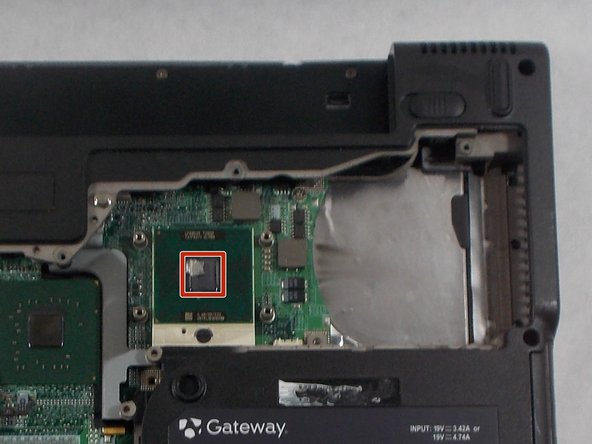
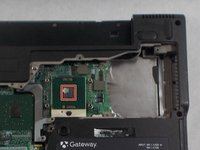
    • With the screws removed and the cable disconnected, just lift the fan off the motherboard to remove it.

    • When you replace the fan, be sure to reapply thermal paste here.

결론

To reassemble your device, follow these instructions in reverse order.

작성자

1다른 기여자 명과 함께

Cameron Sheedy

회원 가입일: 03/05/18

145 평판

안내서 1개를 작성함

UMass Dartmouth, Team S6-G2, Bernier Spring 2018 UMass Dartmouth, Team S6-G2, Bernier Spring 2018 회원

UMASSD-BERNIER-S18S6G2

3 회원들

안내서 8개를 작성함

0가이드 댓글

댓글 쓰기

조회 통계:

지난 24시간: 2

지난 7일: 6

지난 30일: 31

전체 시간: 769