주요 콘텐츠로 건너뛰기
수리 커뮤니티 가입 - 계정 만들기

Gateway SA1 Screen Replacement

필요한 것

  1. Gateway SA1 Screen Replacement, Battery: 1 단계, 이미지 1개 중 1개
    • Move the latch to the right of the battery to unlock.

    댓글 쓰기

  2. Gateway SA1 Screen Replacement: 2 단계, 이미지 1개 중 1개
    • Slide the latch on the left directly below the battery to unlock and pull out the battery as shown.

    • The latch must be held in position to remove the battery.

    댓글 쓰기

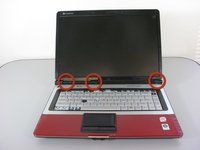
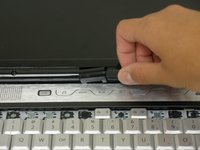
  3. Gateway SA1 Screen Replacement, Screen: 3 단계, 이미지 2개 중 1개 Gateway SA1 Screen Replacement, Screen: 3 단계, 이미지 2개 중 2개
    • Remove the hinge covers by lifting each with the sharp point of the spudger.

    • Notice that the middle cover has a different shape and is more difficult to remove.

    댓글 쓰기

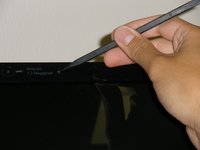
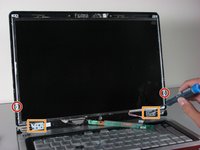
  4. Gateway SA1 Screen Replacement: 4 단계, 이미지 2개 중 1개 Gateway SA1 Screen Replacement: 4 단계, 이미지 2개 중 2개
    • Remove the six screw covers on the front bezel with the sharp point of the spudger.

    • The bottom two are more difficult to remove.

    댓글 쓰기

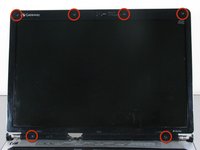
  5. Gateway SA1 Screen Replacement: 5 단계, 이미지 1개 중 1개
    • Remove the six 5.9 mm Philips screws securing the screen bezel.

    댓글 쓰기

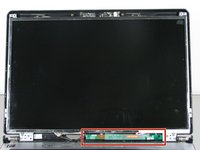
  6. Gateway SA1 Screen Replacement: 6 단계, 이미지 3개 중 1개 Gateway SA1 Screen Replacement: 6 단계, 이미지 3개 중 2개 Gateway SA1 Screen Replacement: 6 단계, 이미지 3개 중 3개
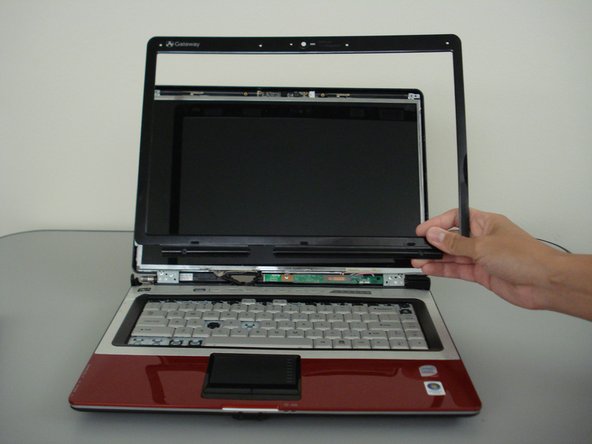
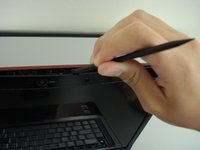
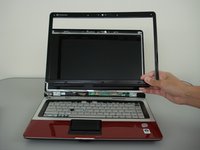
    • Remove the front bezel by prying it off with the wedged end of the spudger.

    • Verify that your spudger does not touch the LCD.

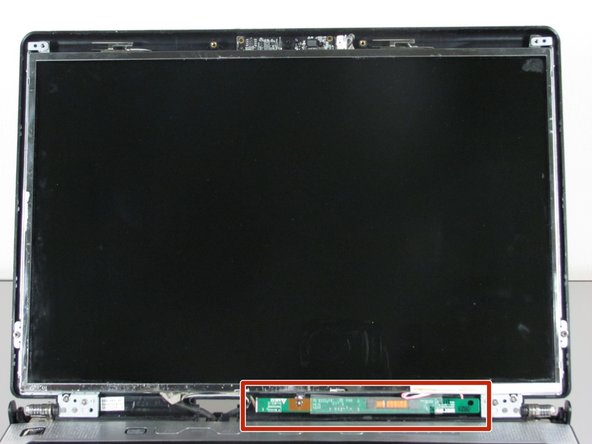
    • The screen inverter is now exposed below the LCD.

    댓글 쓰기

  7. Gateway SA1 Screen Replacement: 7 단계, 이미지 1개 중 1개
    • Remove the single 3.8mm Phillips screw mounting the screen inverter to the computer.

    댓글 쓰기

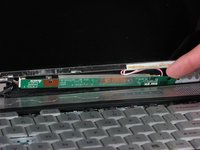
  8. Gateway SA1 Screen Replacement: 8 단계, 이미지 2개 중 1개 Gateway SA1 Screen Replacement: 8 단계, 이미지 2개 중 2개
    • Use your finger, or the spudger, to pry the inverter board out.

    • This exposes the wires behind it.

    댓글 쓰기

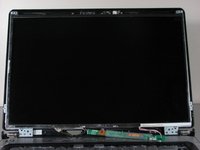
  9. Gateway SA1 Screen Replacement: 9 단계, 이미지 1개 중 1개
    • Unplug the LCD back light cables from the right side of the screen inverter.

    댓글 쓰기

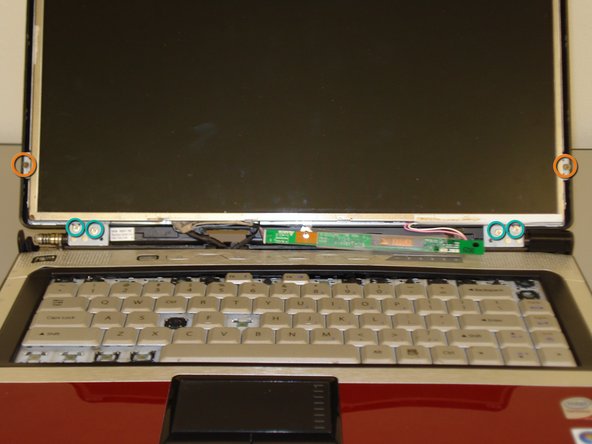
  10. Gateway SA1 Screen Replacement: 10 단계, 이미지 2개 중 1개 Gateway SA1 Screen Replacement: 10 단계, 이미지 2개 중 2개
    • Remove the six screws that mount the screen to the hinge mounts.

    • Two 2.5 mm Phillips screws.

    • Four 3.8 mm Phillips screws.

    댓글 쓰기

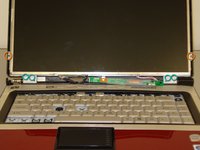
  11. Gateway SA1 Screen Replacement: 11 단계, 이미지 1개 중 1개
    • Unplug the cable from the webcam board.

    • Be gentle, do not use excessive force or you may break the connection.

    댓글 쓰기

  12. Gateway SA1 Screen Replacement: 12 단계, 이미지 1개 중 1개
    • Separate the screen from the display cover.

    • Do not touch the back of the screen.

    댓글 쓰기

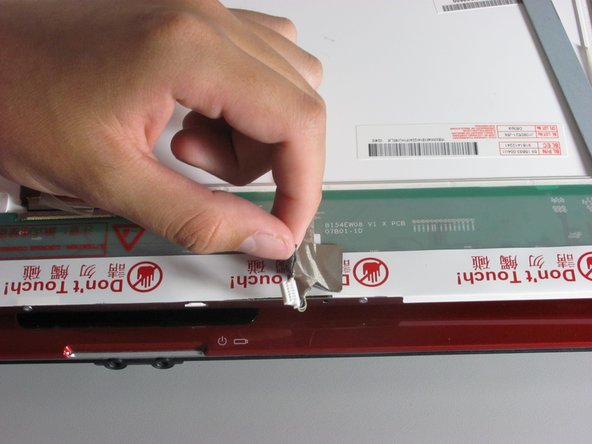
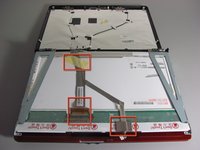
  13. Gateway SA1 Screen Replacement: 13 단계, 이미지 2개 중 1개 Gateway SA1 Screen Replacement: 13 단계, 이미지 2개 중 2개
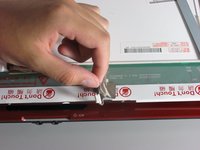
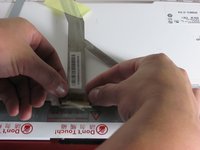
    • Remove the three tape strips that hold down the cables.

    • Be careful not to tear any of the tape. The piece holding down the webcam wires is especially delicate.

    댓글 쓰기

  14. Gateway SA1 Screen Replacement: 14 단계, 이미지 2개 중 1개 Gateway SA1 Screen Replacement: 14 단계, 이미지 2개 중 2개
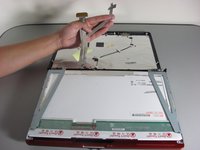
    • Unplug the display data cable from the screen connector.

    • This connection is very fragile; do not use excessive force.

    • The screen should now be free from all wire connections.

    댓글 쓰기

  15. Gateway SA1 Screen Replacement: 15 단계, 이미지 1개 중 1개
    • Remove the four 2.8 mm Phillips screws that secure the screen to the mounting bracket using a screwdriver.

    • There will be two screws on either side of the mounting bracket.

    댓글 쓰기

  16. Gateway SA1 Screen Replacement: 16 단계, 이미지 1개 중 1개
    • You can now remove and replace the screen.

    댓글 쓰기

결론

To reassemble your device, follow these instructions in reverse order.

취소: 해당 안내서를 완성하지 않았습니다.

다른 2명이 해당 안내서를 완성하였습니다.

작성자

9다른 기여자 명과 함께

Diego Carteno

회원 가입일: 04/15/10

273 평판

안내서 7개를 작성함

Cal Poly, Team 24-20, Regan Spring 2010 Cal Poly, Team 24-20, Regan Spring 2010 회원

CPSU-REGAN-S10S24G20

4 회원들

안내서 14개를 작성함

0가이드 댓글

댓글 쓰기

조회 통계:

지난 24시간: 4

지난 7일: 12

지난 30일: 53

전체 시간: 19,423