주요 콘텐츠로 건너뛰기
수리 커뮤니티 가입 - 계정 만들기

HP 15-R263DX RAM Replacement

필요한 것

  1. HP 15-R263DX RAM Replacement, Battery: 1 단계, 이미지 2개 중 1개 HP 15-R263DX RAM Replacement, Battery: 1 단계, 이미지 2개 중 2개
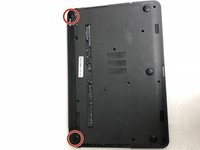
    • Eject the battery from the computer by sliding the two clips on the bottom of the computer toward the center of the computer.

    • Slide the battery out as shown in the picture.

    댓글 쓰기

  2. HP 15-R263DX RAM Replacement, Optical Drive: 2 단계, 이미지 2개 중 1개 HP 15-R263DX RAM Replacement, Optical Drive: 2 단계, 이미지 2개 중 2개
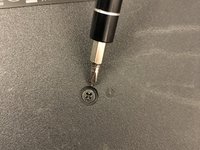
    • Using a Phillips #1 screwdriver, remove the small screw next to the disc engraving shown in the picture.

    댓글 쓰기

  3. HP 15-R263DX RAM Replacement: 3 단계, 이미지 1개 중 1개
    • Gently slide the optical drive out of the side of the computer.

    댓글 쓰기

  4. HP 15-R263DX RAM Replacement, HP 15-R263DX Disassembly: 4 단계, 이미지 2개 중 1개 HP 15-R263DX RAM Replacement, HP 15-R263DX Disassembly: 4 단계, 이미지 2개 중 2개
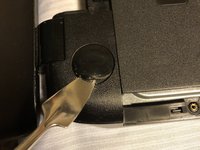
    • Locate the two corner grips on the hinge side of the computer.

    • Using a metal spudger, remove the two corner grips to reveal the screws.

    댓글 쓰기

  5. HP 15-R263DX RAM Replacement: 5 단계, 이미지 1개 중 1개
    • Remove the 11 small screws on the bottom of the computer that are shown in the picture.

    댓글 쓰기

  6. HP 15-R263DX RAM Replacement: 6 단계, 이미지 1개 중 1개
    • Remove the 2 small screws that are on the bottom side of the disc tray slot.

    • These screws are shorter and wider than the others.

    댓글 쓰기

  7. HP 15-R263DX RAM Replacement: 7 단계, 이미지 2개 중 1개 HP 15-R263DX RAM Replacement: 7 단계, 이미지 2개 중 2개
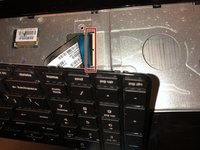
    • Once the keyboard is loose, do not immediately pull away from computer. It is attached by the ribbon connector.

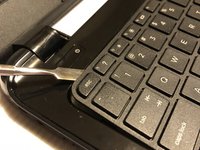
    • Using a spudger, pry around the edges of the keyboard until all clips are disengaged and the keyboard is loose from the computer.

    • To disconnect the ribbon connector, flip up the black clip shown in the picture.

    • Gently pull the ribbon until disconnected.

    댓글 쓰기

  8. HP 15-R263DX RAM Replacement: 8 단계, 이미지 2개 중 1개 HP 15-R263DX RAM Replacement: 8 단계, 이미지 2개 중 2개
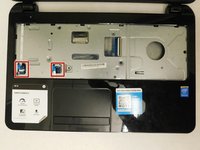
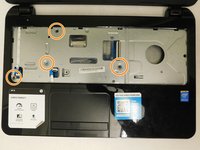
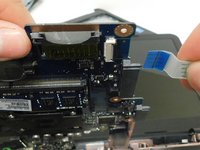
    • Disconnect the other two ribbon connectors underneath the keyboard by fliping up the black clips.

    • Remove the 4 small screws shown in the picture.

    댓글 쓰기

  9. HP 15-R263DX RAM Replacement: 9 단계, 이미지 1개 중 1개
    • Disengage the face plate clips by prying the case away from around the outer edge of the face plate with a metal wedge.

    • The face plate can then be lifted away from the computer.

    댓글 쓰기

  10. HP 15-R263DX RAM Replacement, Hard Drive: 10 단계, 이미지 1개 중 1개
    • Remove the 2 black screws holding the hard drive to the computer frame.

    댓글 쓰기

  11. HP 15-R263DX RAM Replacement: 11 단계, 이미지 2개 중 1개 HP 15-R263DX RAM Replacement: 11 단계, 이미지 2개 중 2개
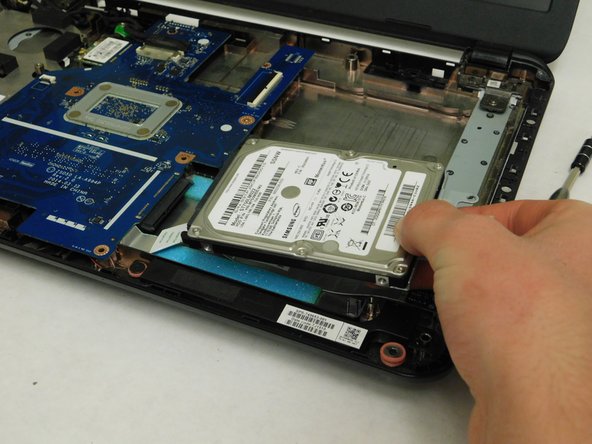
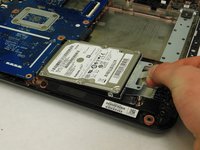
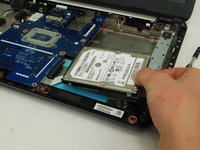
    • Gently slide the hard drive away from the motherboard to disconnect it.

    • After it's disconnected, lift the hard drive up to remove it from the computer.

    댓글 쓰기

  12. HP 15-R263DX RAM Replacement, RAM: 12 단계, 이미지 1개 중 1개
    • Remove the 2 screws holding the motherboard into the case of the laptop.

    댓글 쓰기

  13. HP 15-R263DX RAM Replacement: 13 단계, 이미지 2개 중 1개 HP 15-R263DX RAM Replacement: 13 단계, 이미지 2개 중 2개
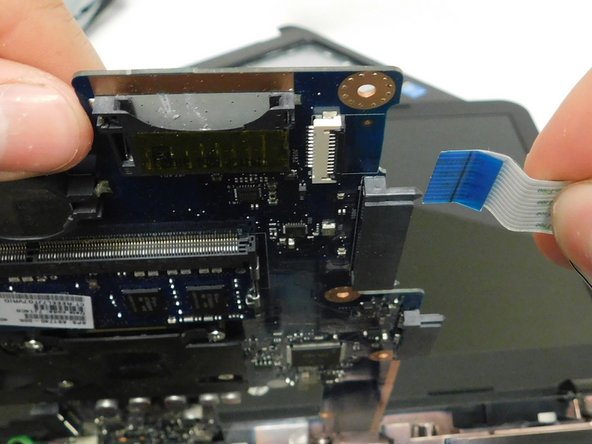
    • Remove the connections around the motherboard.

    • There is a connection hidden underneath the board. Remove this one last as you will need to lift the motherboard up to access it.

    댓글 쓰기

  14. HP 15-R263DX RAM Replacement: 14 단계, 이미지 2개 중 1개 HP 15-R263DX RAM Replacement: 14 단계, 이미지 2개 중 2개
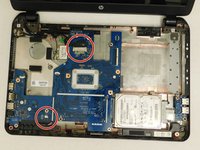
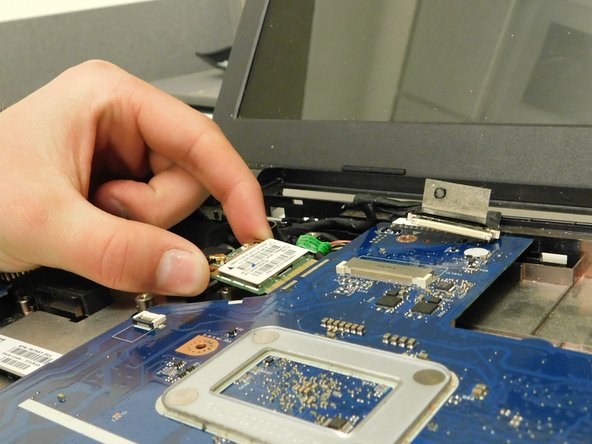
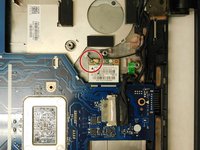
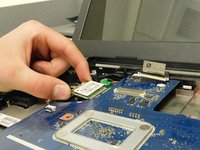
    • Remove the screw holding the WiFi chip in place.

    • Slide the chip away from the motherboard and set it elsewhere inside the computer.

    댓글 쓰기

  15. HP 15-R263DX RAM Replacement: 15 단계, 이미지 1개 중 1개
    • Flip the motherboard over to access the underside revealing the RAM.

    댓글 쓰기

  16. HP 15-R263DX RAM Replacement: 16 단계, 이미지 2개 중 1개 HP 15-R263DX RAM Replacement: 16 단계, 이미지 2개 중 2개
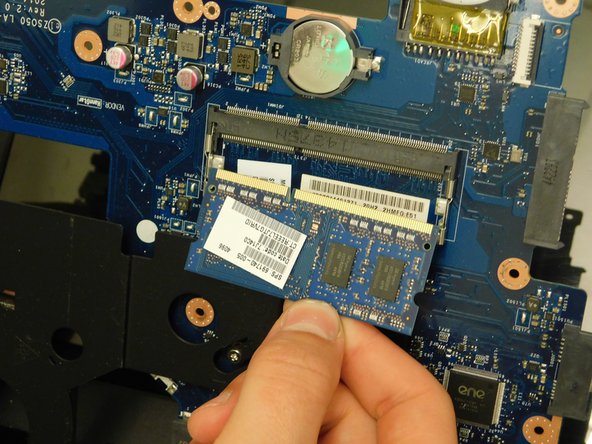
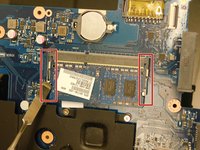
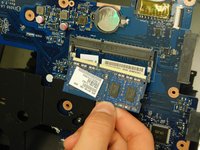
    • Remove the RAM chip by simultaneously prying the 2 spring clips away from the RAM.

    • The RAM will pop up when both clips are completely released.

    댓글 쓰기

결론

To reassemble your device, follow these instructions in reverse order.

취소: 해당 안내서를 완성하지 않았습니다.

다른 5명이 해당 안내서를 완성하였습니다.

작성자

3다른 기여자 명과 함께

Drake Hort

회원 가입일: 03/05/18

487 평판

안내서 3개를 작성함

1가이드 댓글

is this laptop model ram upgradable?

Gordon Velupillai - 답글 공유
댓글 쓰기

조회 통계:

지난 24시간: 1

지난 7일: 8

지난 30일: 34

전체 시간: 1,880