주요 콘텐츠로 건너뛰기
수리 커뮤니티 가입 - 계정 만들기

HP 15-db0004dx Fan Replacement

필요한 것

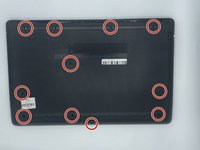
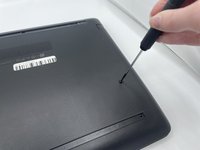
  1. HP 15-db0004dx Fan Replacement, Bottom Case: 1 단계, 이미지 2개 중 1개 HP 15-db0004dx Fan Replacement, Bottom Case: 1 단계, 이미지 2개 중 2개
    • Turn the laptop off and unplug it before starting.

    • Flip your laptop over, face down.

  2. HP 15-db0004dx Fan Replacement: 2 단계, 이미지 1개 중 1개
    • Peel off the two long rubber grips running lengthwise on the laptop.

  3. HP 15-db0004dx Fan Replacement: 3 단계, 이미지 2개 중 1개 HP 15-db0004dx Fan Replacement: 3 단계, 이미지 2개 중 2개
    • Using a Phillips #000 screwdriver, remove the eleven 10 mm screws located on the underside of the laptop, that are holding the back panel in place.

  4. HP 15-db0004dx Fan Replacement: 4 단계, 이미지 1개 중 1개
    • Carefully slide the optical drive out of the laptop.

  5. HP 15-db0004dx Fan Replacement: 5 단계, 이미지 1개 중 1개
    • Use a plastic opening tool to separate the back panel from the laptop.

    • For an easier removal, start at the corner and run the tool along the edge of the cover.

    • If you do not have a plastic opening tool, open it carefully using your hands, as shown.

    • Be careful to not bend the back panel, or to not apply too much pressure and force, doing so could cause the panel to break.

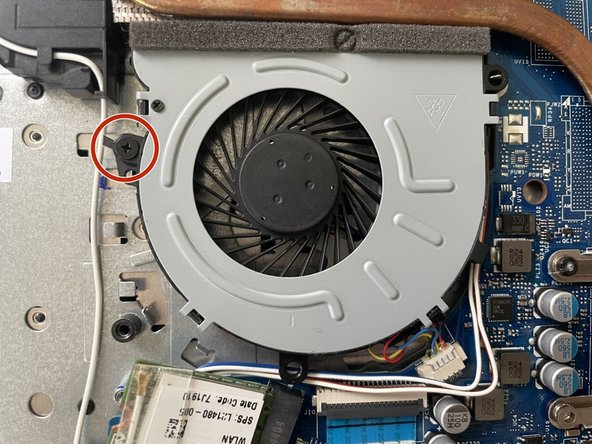
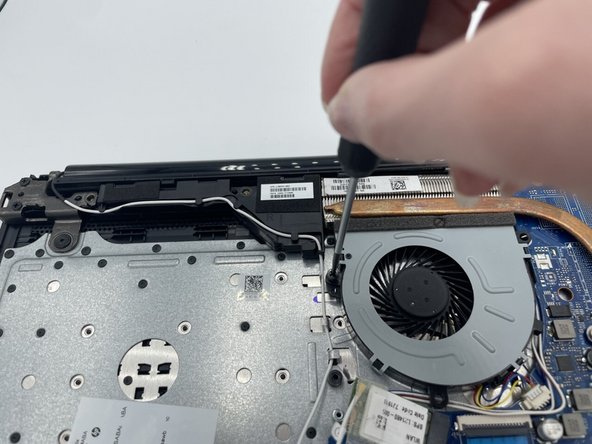
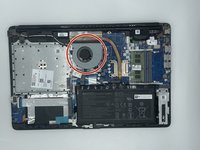
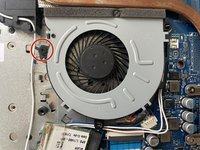
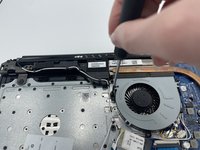
  6. HP 15-db0004dx Fan Replacement, Fan: 6 단계, 이미지 3개 중 1개 HP 15-db0004dx Fan Replacement, Fan: 6 단계, 이미지 3개 중 2개 HP 15-db0004dx Fan Replacement, Fan: 6 단계, 이미지 3개 중 3개
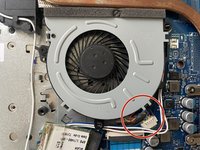
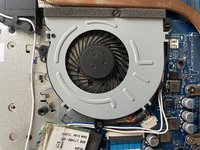
    • Using a Phillips #000 screwdriver remove the 5mm screw holding the fan in place.

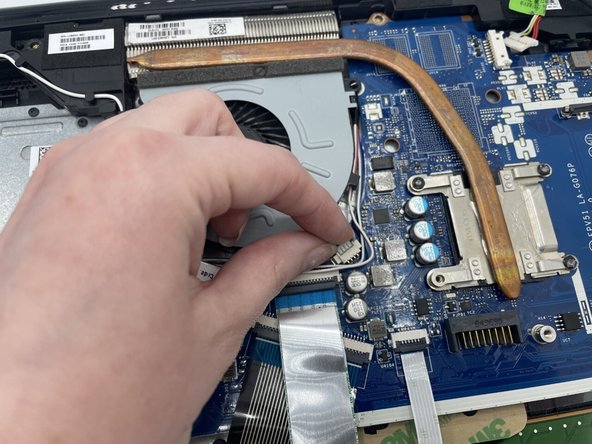
  7. HP 15-db0004dx Fan Replacement: 7 단계, 이미지 3개 중 1개 HP 15-db0004dx Fan Replacement: 7 단계, 이미지 3개 중 2개 HP 15-db0004dx Fan Replacement: 7 단계, 이미지 3개 중 3개
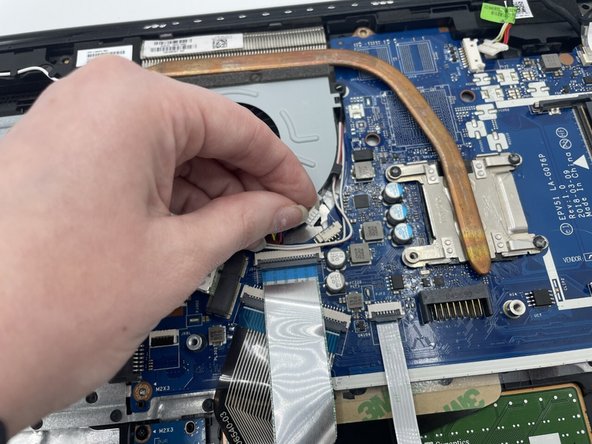
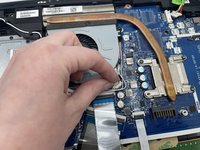
    • After the screw is removed, carefully unplug the set of wires with one of each colored, red, black, yellow, and blue, from the white connector it is secured at.

    • To unplug it gently pull the white connector from the adapter, possibly in a back and forth motion to free it.

    • DO NOT pull on the wires, doing so could cause damage to the wires, or for them to become disconnected to the white adapter they are attached to.

  8. HP 15-db0004dx Fan Replacement: 8 단계, 이미지 3개 중 1개 HP 15-db0004dx Fan Replacement: 8 단계, 이미지 3개 중 2개 HP 15-db0004dx Fan Replacement: 8 단계, 이미지 3개 중 3개
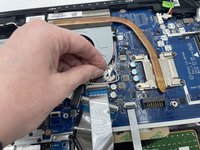
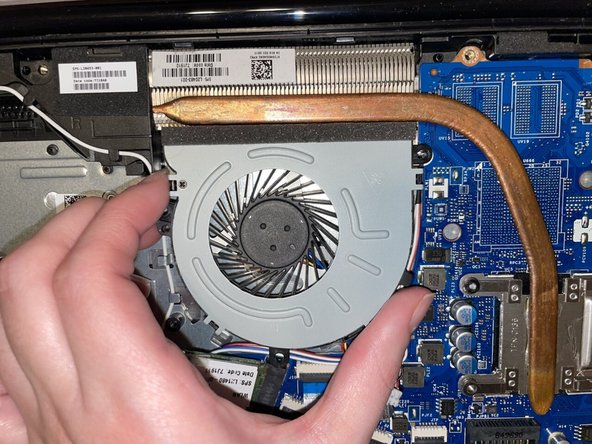
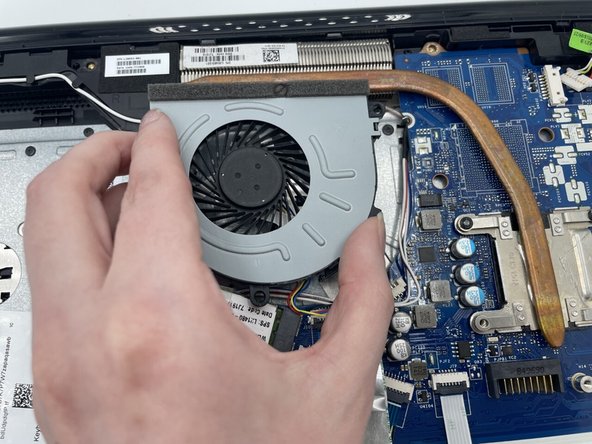
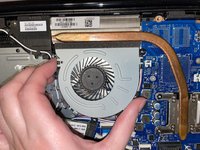
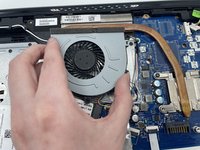
    • Carefully remove the fan from the laptop.

    • Be careful with removal as to not bend or break anything. There is a metal peg shown in the image, that the fan is secured on that could potentially bend

결론

To reassemble your device, follow these instructions in reverse order.

작성자

1다른 기여자 명과 함께

Britanni Arizola

회원 가입일: 09/22/22

586 평판

안내서 3개를 작성함

0가이드 댓글

댓글 쓰기

조회 통계:

지난 24시간: 2

지난 7일: 11

지난 30일: 44

전체 시간: 401