주요 콘텐츠로 건너뛰기
수리 커뮤니티 가입 - 계정 만들기

HP Chromebook 14-Q010DX Fan Replacement

필요한 것

  1. HP Chromebook 14-Q010DX Fan Replacement, Keyboard and Touchpad: 1 단계, 이미지 2개 중 1개 HP Chromebook 14-Q010DX Fan Replacement, Keyboard and Touchpad: 1 단계, 이미지 2개 중 2개
    • Flip the laptop so the base of the laptop is facing you.

    • Using the #00 screwdriver, unscrew the 13 screws.

  2. HP Chromebook 14-Q010DX Fan Replacement: 2 단계, 이미지 3개 중 1개 HP Chromebook 14-Q010DX Fan Replacement: 2 단계, 이미지 3개 중 2개 HP Chromebook 14-Q010DX Fan Replacement: 2 단계, 이미지 3개 중 3개
    • Warning! When prying open a laptop it could require some force, but it also has fragile connectors underneath. Use caution so as to avoid breaking these connectors.

    • Start from the top right corner of the laptop and work clockwise with an iFixit opening tool or spudger to pry the keyboard from the frame of the laptop.

  3. HP Chromebook 14-Q010DX Fan Replacement: 3 단계, 이미지 3개 중 1개 HP Chromebook 14-Q010DX Fan Replacement: 3 단계, 이미지 3개 중 2개 HP Chromebook 14-Q010DX Fan Replacement: 3 단계, 이미지 3개 중 3개
    • Warning! Handle the flaps and ribbon cables with care to prevent damage.

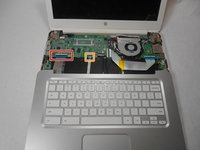
    • Gently pull the keyboard in the opposite direction of the screen, so the wires beneath are exposed.

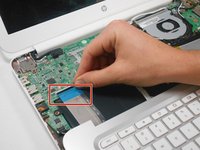
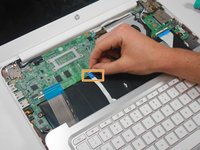
    • Lift the black flap and pull the blue ribbon gently towards you until it is disconnected.

    • Lift the white flap and pull the blue ribbon towards you until it is disconnected.

  4. HP Chromebook 14-Q010DX Fan Replacement: 4 단계, 이미지 1개 중 1개
    • Lift keyboard slightly and remove the strip gently to prevent damaging any parts.

    • The tape has no function other than to keep the wire tucked away.

  5. HP Chromebook 14-Q010DX Fan Replacement: 5 단계, 이미지 1개 중 1개
    • Set aside the detached keyboard.

  6. HP Chromebook 14-Q010DX Fan Replacement, Fan replacement for a HP Chromebook: 6 단계, 이미지 3개 중 1개 HP Chromebook 14-Q010DX Fan Replacement, Fan replacement for a HP Chromebook: 6 단계, 이미지 3개 중 2개 HP Chromebook 14-Q010DX Fan Replacement, Fan replacement for a HP Chromebook: 6 단계, 이미지 3개 중 3개
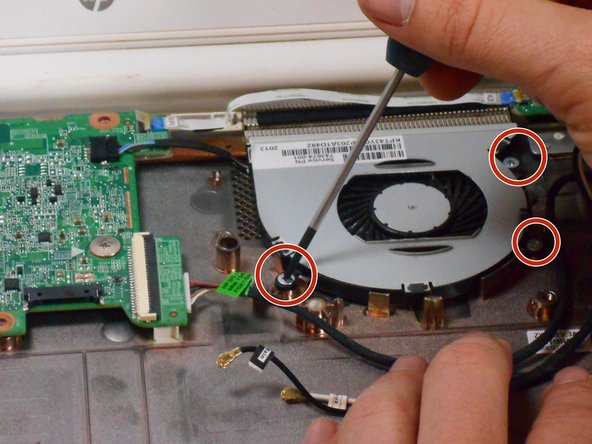
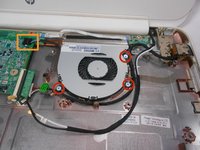
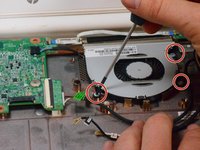
    • Remove the 3 screws around the fan.

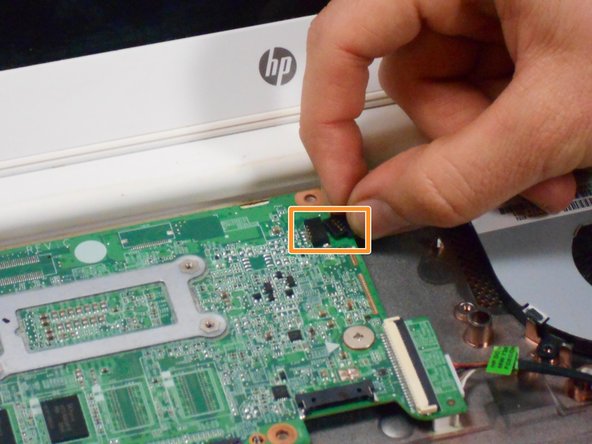
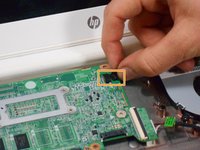
    • Using your fingers or the spudger, disconnect the cable connecting the fan to the motherboard.

  7. HP Chromebook 14-Q010DX Fan Replacement: 7 단계, 이미지 1개 중 1개
    • Once the cable connecting the fan to the motherboard is revomed gently remove fan with hands.

결론

To reassemble your device, follow these instructions in reverse order.

다른 5명이 해당 안내서를 완성하였습니다.

작성자

5다른 기여자 명과 함께

Kevin Piper

회원 가입일: 01/16/15

1,599 평판

안내서 6개를 작성함

USF Tampa, Team 17-2, Watkins Winter 2015 USF Tampa, Team 17-2, Watkins Winter 2015 회원

USFT-WATKINS-W15S17G2

4 회원들

안내서 8개를 작성함

1가이드 댓글

댓글 쓰기

조회 통계:

지난 24시간: 0

지난 7일: 2

지난 30일: 6

전체 시간: 4,045