주요 콘텐츠로 건너뛰기
수리 커뮤니티 가입 - 계정 만들기

HP Elitebook 2740p Screen Replacement

필요한 것

  1. HP Elitebook 2740p Screen Replacement, Battery: 1 단계, 이미지 1개 중 1개
    • Slide the lock tab to the right.

  2. HP Elitebook 2740p Screen Replacement: 2 단계, 이미지 1개 중 1개
    • Lift and remove the battery from the battery compartment.

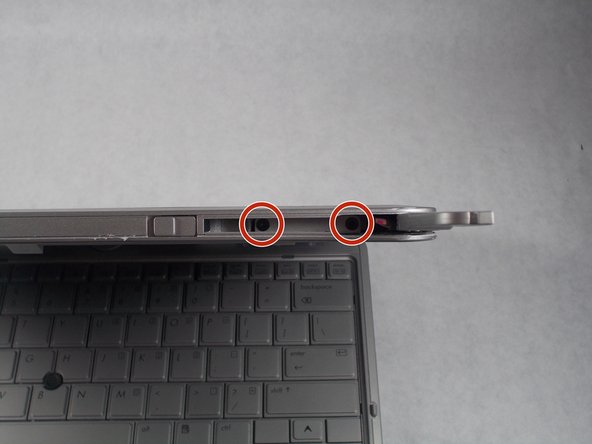
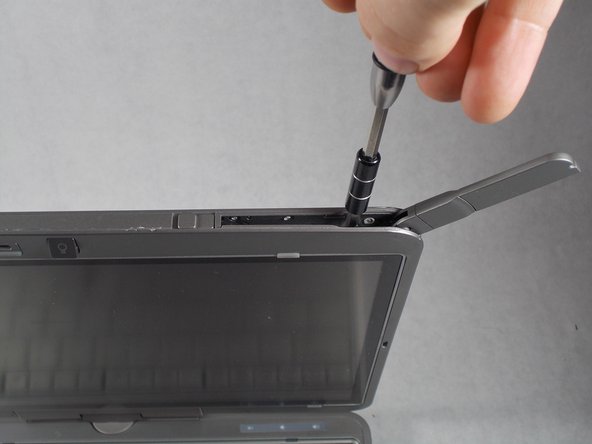
  3. HP Elitebook 2740p Screen Replacement, Screen: 3 단계, 이미지 3개 중 1개 HP Elitebook 2740p Screen Replacement, Screen: 3 단계, 이미지 3개 중 2개 HP Elitebook 2740p Screen Replacement, Screen: 3 단계, 이미지 3개 중 3개
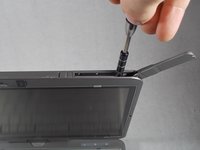
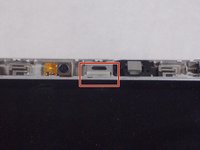
    • Locate the radio antenna on the right side of the top edge of the screen. Slide the latch to release the antenna.

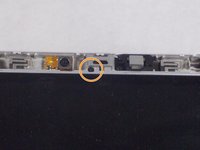
    • Use a Phillips #0 screwdriver to remove the two 4 mm screws recessed in the antenna housing.

  4. HP Elitebook 2740p Screen Replacement: 4 단계, 이미지 3개 중 1개 HP Elitebook 2740p Screen Replacement: 4 단계, 이미지 3개 중 2개 HP Elitebook 2740p Screen Replacement: 4 단계, 이미지 3개 중 3개
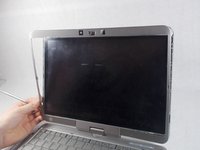
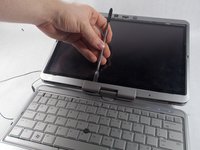
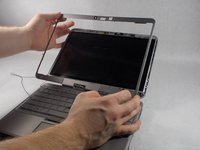
    • Use a metal spudger to separate bezel from laptop body. there are tabs holding the bezel on along the entire bezel.

    • Pay special attention to the hinge cover at the bottom. It has tabs at both the top and bottom.

    • Remove the bezel from the laptop.

  5. HP Elitebook 2740p Screen Replacement: 5 단계, 이미지 3개 중 1개 HP Elitebook 2740p Screen Replacement: 5 단계, 이미지 3개 중 2개 HP Elitebook 2740p Screen Replacement: 5 단계, 이미지 3개 중 3개
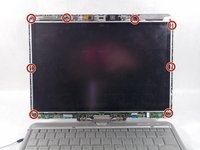
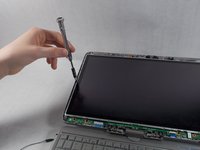
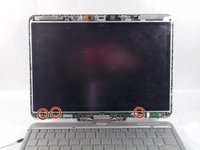
    • Use a Phillips #0 screwdriver to remove the eight 4 mm screws that hold the frame of the screen in place.

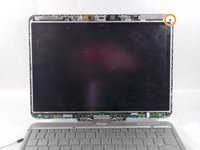
    • Use a Phillips #00 screwdriver to remove the single 3 mm screw at the corner of the frame.

  6. HP Elitebook 2740p Screen Replacement: 6 단계, 이미지 3개 중 1개 HP Elitebook 2740p Screen Replacement: 6 단계, 이미지 3개 중 2개 HP Elitebook 2740p Screen Replacement: 6 단계, 이미지 3개 중 3개
    • Use a Phillips #0 screwdriver to remove the two 4 mm screws that hold the tilt button in place.

    • Remove the tilt button.

  7. HP Elitebook 2740p Screen Replacement: 7 단계, 이미지 3개 중 1개 HP Elitebook 2740p Screen Replacement: 7 단계, 이미지 3개 중 2개 HP Elitebook 2740p Screen Replacement: 7 단계, 이미지 3개 중 3개
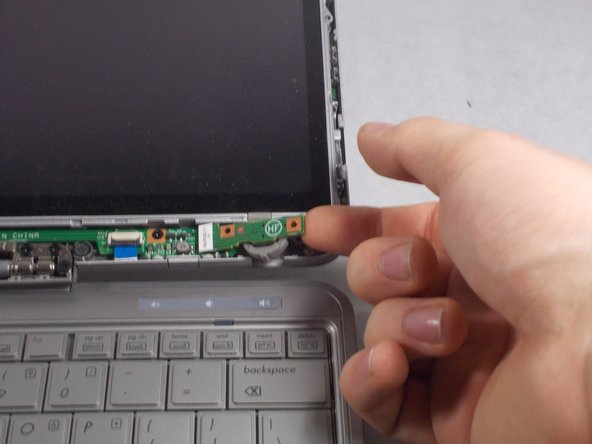
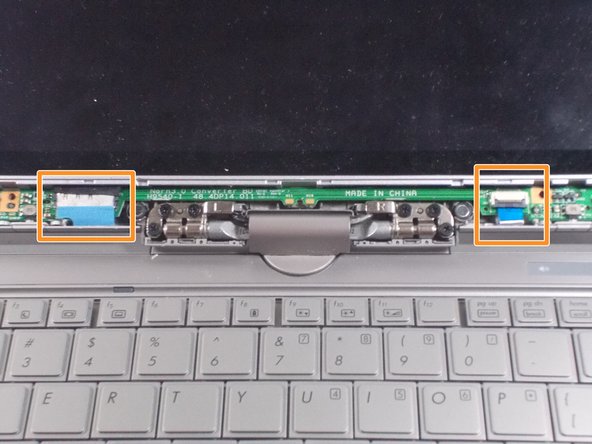
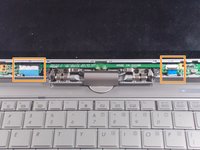
    • Use a Phillips #0 screwdriver to remove the three screws that secure the tablet-mode button board.

    • Disconnect the two blue ribbon cables and gently pull them free.

    • Remove the PCB board from the screen housing.

  8. HP Elitebook 2740p Screen Replacement: 8 단계, 이미지 3개 중 1개 HP Elitebook 2740p Screen Replacement: 8 단계, 이미지 3개 중 2개 HP Elitebook 2740p Screen Replacement: 8 단계, 이미지 3개 중 3개
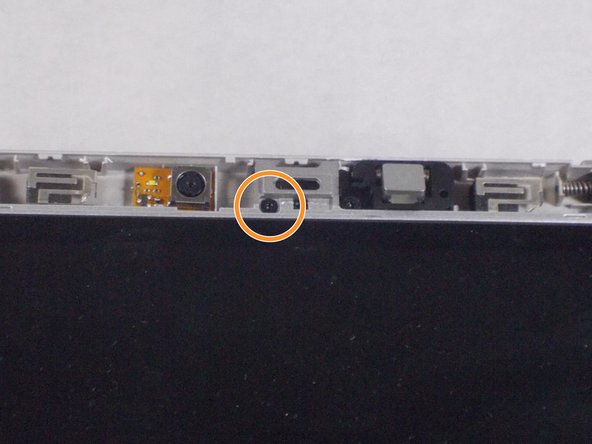
    • Remove the gray rubber pad at the top of the screen next to the camera.

    • Remove the 3mm screw with a Phillips #0 screwdriver

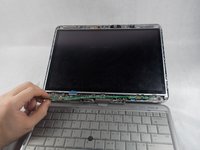
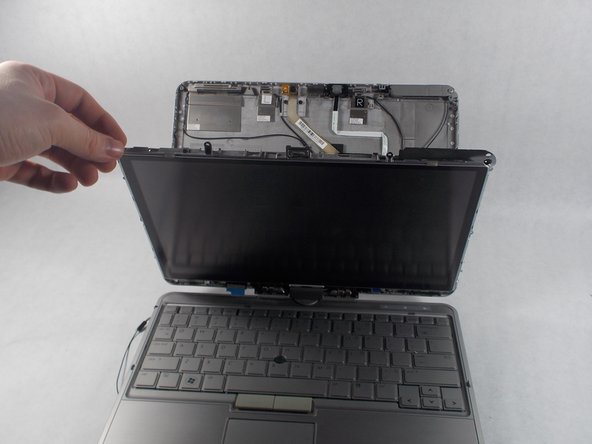
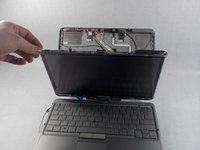
    • Carefully tilt the screen down onto the keayboard

  9. HP Elitebook 2740p Screen Replacement: 9 단계, 이미지 2개 중 1개 HP Elitebook 2740p Screen Replacement: 9 단계, 이미지 2개 중 2개
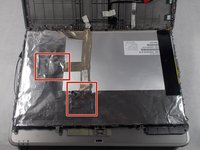
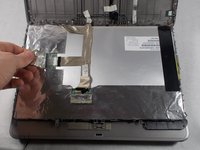
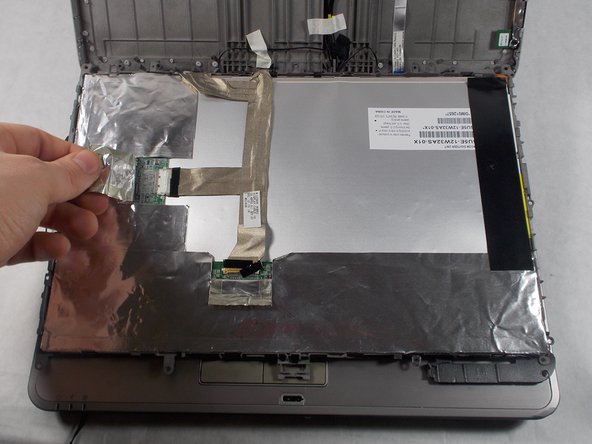
    • Fold the protective foil back from the ribbon cables.

  10. HP Elitebook 2740p Screen Replacement: 10 단계, 이미지 3개 중 1개 HP Elitebook 2740p Screen Replacement: 10 단계, 이미지 3개 중 2개 HP Elitebook 2740p Screen Replacement: 10 단계, 이미지 3개 중 3개
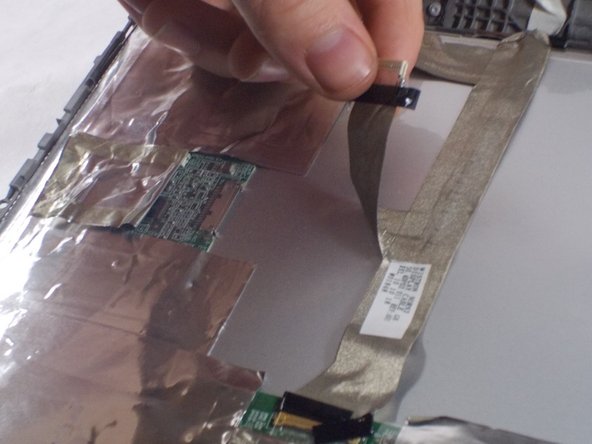
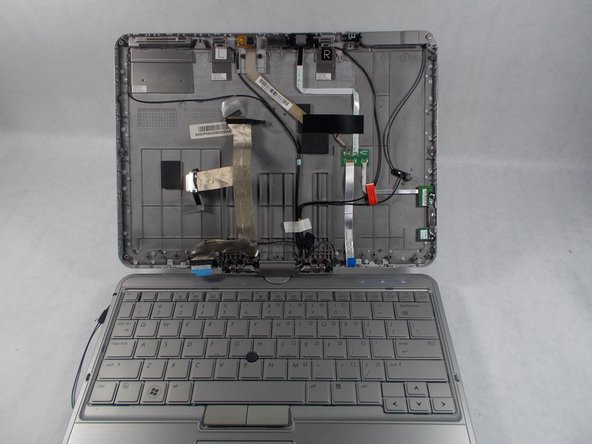
    • Unseat display ribbon cables.

    • Ribbon cables are secured with tape. Do not force the cables out of their sockets.

    • Remove the screen.

결론

To reassemble your device, follow these instructions in reverse order.

다른 4명이 해당 안내서를 완성하였습니다.

작성자

1다른 기여자 명과 함께

Joseph Hazel

회원 가입일: 03/24/17

353 평판

안내서 2개를 작성함

UMass Dartmouth, Team S8-G4, Valliere Spring 2018 UMass Dartmouth, Team S8-G4, Valliere Spring 2018 회원

UMASSD-VALLIERE-S18S8G4

3 회원들

안내서 6개를 작성함

0가이드 댓글

댓글 쓰기

조회 통계:

지난 24시간: 0

지난 7일: 13

지난 30일: 43

전체 시간: 1,758