주요 콘텐츠로 건너뛰기
수리 커뮤니티 가입 - 계정 만들기

Insignia Flex 8 Screen Replacement

필요한 것

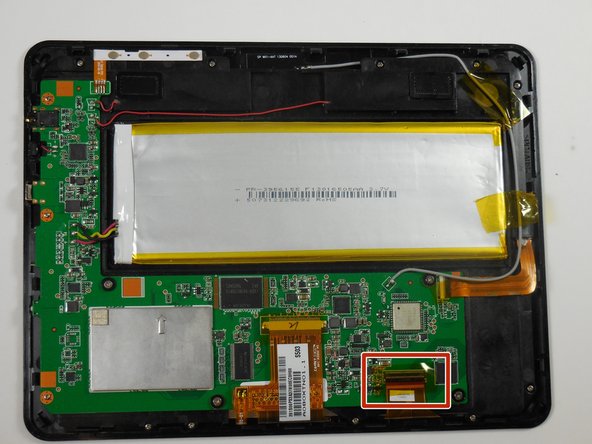
    1. Insignia Flex 8 Screen Replacement, Circuit Board: 1 단계, 이미지 1개 중 1개
      • Turn off the power to your tablet to avoid injury.

      • Position the tablet so that the screen is face down and the power button is located in the upper left hand corner.

      • Hold down the power button for five seconds until the tablet powers down.

      댓글 쓰기

    2. Insignia Flex 8 Screen Replacement: 2 단계, 이미지 2개 중 1개 Insignia Flex 8 Screen Replacement: 2 단계, 이미지 2개 중 2개
      • Remove the back casing from the screen by sliding a credit card or a similarly thin but firm object in between the casing and the screen.

      • You may need to use a spudger to initially create separation between the screen and the casing.

      • Run this object around the perimeter of the tablet until there is separation between the casing and the screen.

      • Remove the back casing and set aside.

      댓글 쓰기

    3. Insignia Flex 8 Screen Replacement: 3 단계, 이미지 2개 중 1개 Insignia Flex 8 Screen Replacement: 3 단계, 이미지 2개 중 2개
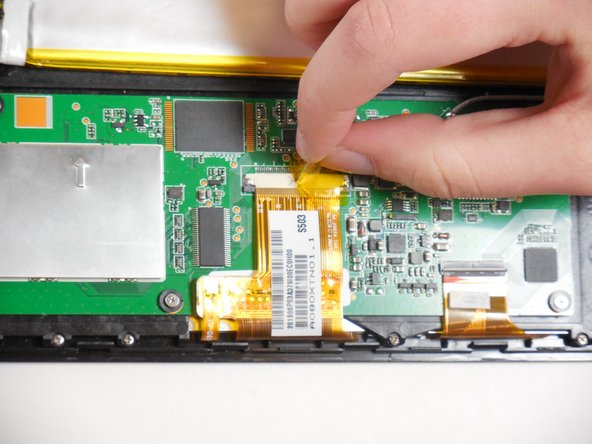
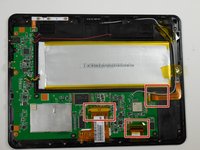
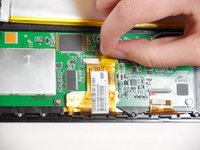
      • Peel tape off of ribbon connectors. Starting at the power button, work clockwise around the tablet.

      댓글 쓰기

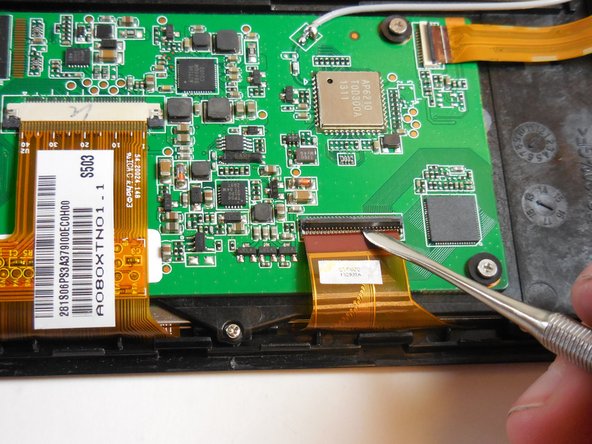
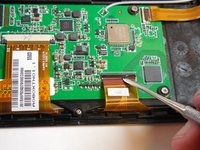
    4. Insignia Flex 8 Screen Replacement: 4 단계, 이미지 3개 중 1개 Insignia Flex 8 Screen Replacement: 4 단계, 이미지 3개 중 2개 Insignia Flex 8 Screen Replacement: 4 단계, 이미지 3개 중 3개
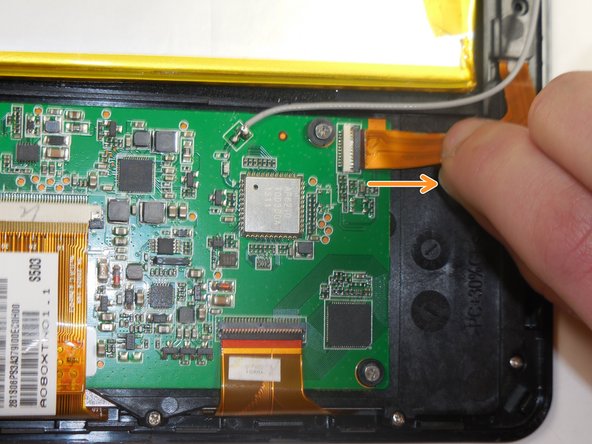
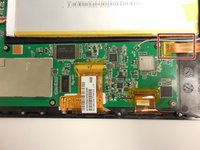
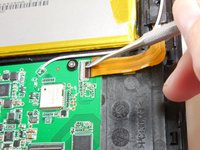
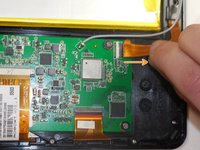
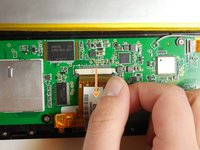
      • To remove the camera ribbon cable, lift the flap using a spudger.

      • Pull the ribbon directly back to release it.

      댓글 쓰기

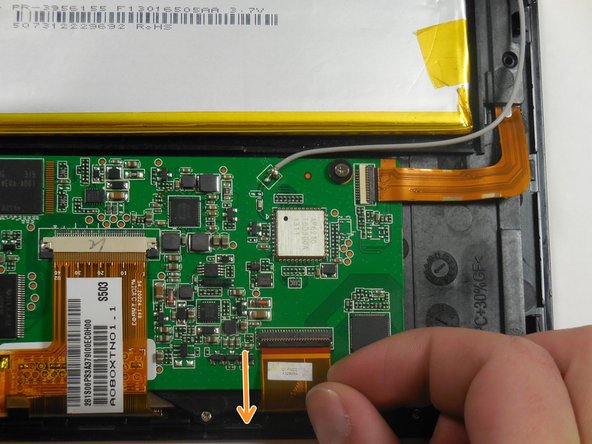
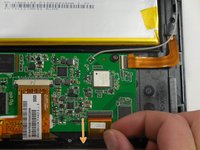
    5. Insignia Flex 8 Screen Replacement: 5 단계, 이미지 3개 중 1개 Insignia Flex 8 Screen Replacement: 5 단계, 이미지 3개 중 2개 Insignia Flex 8 Screen Replacement: 5 단계, 이미지 3개 중 3개
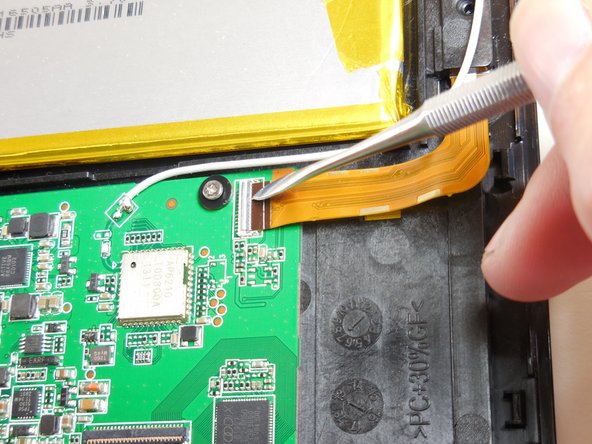
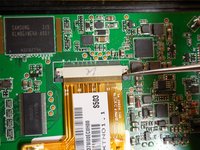
      • Remove the second ribbon cable by prying up the black flap using a spudger.

      • Pull the ribbon cable horizontally directly away from the battery.

      댓글 쓰기

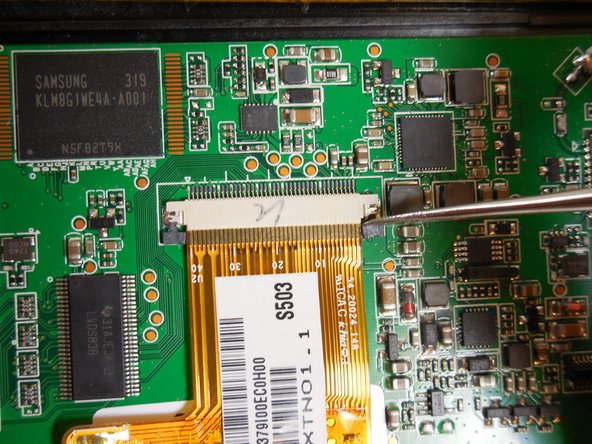
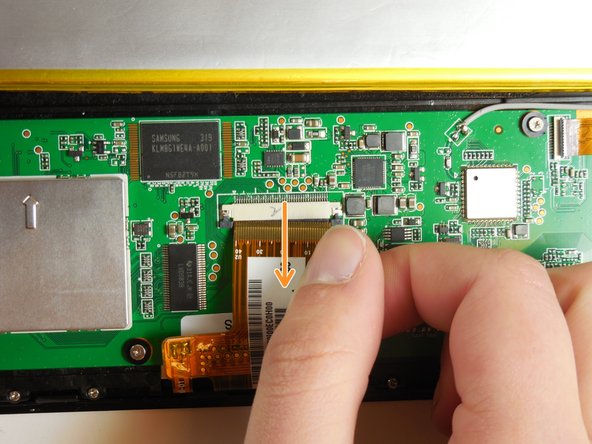
    6. Insignia Flex 8 Screen Replacement: 6 단계, 이미지 3개 중 1개 Insignia Flex 8 Screen Replacement: 6 단계, 이미지 3개 중 2개 Insignia Flex 8 Screen Replacement: 6 단계, 이미지 3개 중 3개
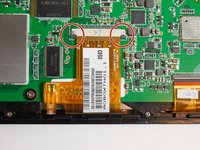
      • Remove the final ribbon cable by pulling back the two black tabs on either side of the ribbon cable.

      • Pull the ribbon horizontally directly away from the battery.

      댓글 쓰기

    7. Insignia Flex 8 Screen Replacement: 7 단계, 이미지 2개 중 1개 Insignia Flex 8 Screen Replacement: 7 단계, 이미지 2개 중 2개
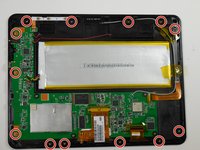
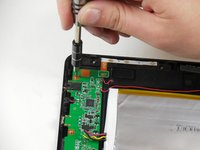
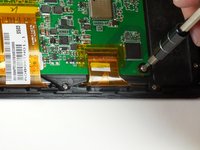
      • Unscrew the thirteen 4.75mm screws around the perimeter of the tablet using a PH 00 screwdriver.

      댓글 쓰기

    8. Insignia Flex 8 Screen Replacement: 8 단계, 이미지 2개 중 1개 Insignia Flex 8 Screen Replacement: 8 단계, 이미지 2개 중 2개
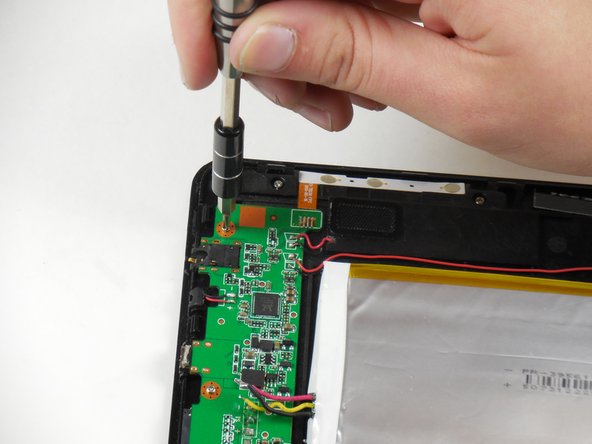
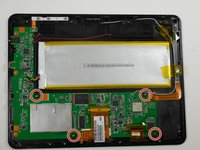
      • Unscrew the four 3.75mm screws and plastic washers using a PH 00 screwdriver.

      • Lift up the circuit board.

      댓글 쓰기

    9. Insignia Flex 8 Screen Replacement: 9 단계, 이미지 1개 중 1개
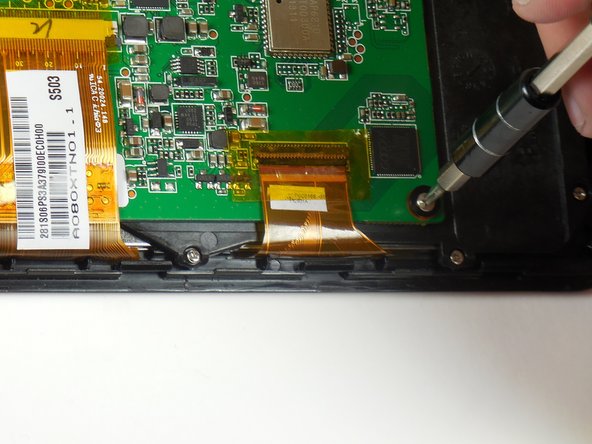
      • Unscrew the final two screws that were underneath the circuit board.

      • These screws are near the charging port and USB adapter.

      • These screws are also 3.75mm and can be interchanged with the second set of screws only.

      댓글 쓰기

    10. Insignia Flex 8 Screen Replacement: 10 단계, 이미지 1개 중 1개
      • Lift the circuit board and black internal mounting piece away from the screen.

      • Set the circuit board aside.

      • Be careful of the soldered antenna as you separate the pieces.

      • Be careful of the soldered ribbon that is connected to the power source. This ribbon is fragile.

      댓글 쓰기

    1. Insignia Flex 8 Screen Replacement, Screen: 11 단계, 이미지 1개 중 1개
      • Slide the spudger in between the silver screen and the black border

      댓글 쓰기

    2. Insignia Flex 8 Screen Replacement: 12 단계, 이미지 1개 중 1개
      • Pry up the LCD display and lift it away from the plastic screen.

      댓글 쓰기

결론

To reassemble your device, follow these instructions in reverse order.

취소: 해당 안내서를 완성하지 않았습니다.

다른 5명이 해당 안내서를 완성하였습니다.

작성자

1다른 기여자 명과 함께

Tyler Tyrrell

회원 가입일: 03/11/15

890 평판

안내서 4개를 작성함

Colorado Springs, Team 5-5, Panko Spring 2015 Colorado Springs, Team 5-5, Panko Spring 2015 회원

UCCS-PANKO-S15S5G5

3 회원들

안내서 54개를 작성함

0가이드 댓글

댓글 쓰기

조회 통계:

지난 24시간: 0

지난 7일: 4

지난 30일: 43

전체 시간: 8,683