주요 콘텐츠로 건너뛰기
수리 커뮤니티 가입 - 계정 만들기

Lenovo G70-80 RAM Replacement

필요한 것

  1. Lenovo G70-80 RAM Replacement, Battery: 1 단계, 이미지 1개 중 1개
    • Turn off the computer.

    • Set the computer upside down with the back facing up.

  2. Lenovo G70-80 RAM Replacement: 2 단계, 이미지 2개 중 1개 Lenovo G70-80 RAM Replacement: 2 단계, 이미지 2개 중 2개
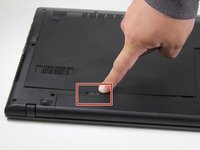
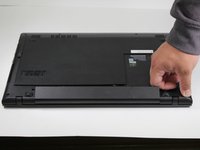
    • Located directly below the bottom plate will be two switches near where the battery is located.

    • With the battery facing you, slide the battery switch on the right side of the laptop towards the right.

    • To ensure the switch on the right is unlocked, look for a red indicator next to the switch.

  3. Lenovo G70-80 RAM Replacement: 3 단계, 이미지 2개 중 1개 Lenovo G70-80 RAM Replacement: 3 단계, 이미지 2개 중 2개
    • Slide the left battery release switch to the left.

    • While holding the switch to the left, lift the battery to remove it from the computer.

  4. Lenovo G70-80 RAM Replacement: 4 단계, 이미지 2개 중 1개 Lenovo G70-80 RAM Replacement: 4 단계, 이미지 2개 중 2개
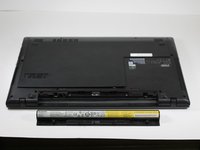
    • Remove the battery.

  5. Lenovo G70-80 RAM Replacement, RAM: 5 단계, 이미지 3개 중 1개 Lenovo G70-80 RAM Replacement, RAM: 5 단계, 이미지 3개 중 2개 Lenovo G70-80 RAM Replacement, RAM: 5 단계, 이미지 3개 중 3개
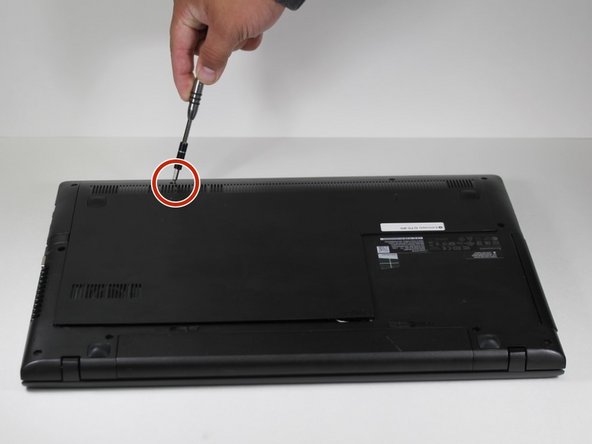
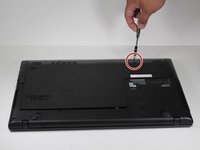
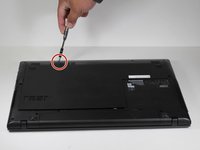
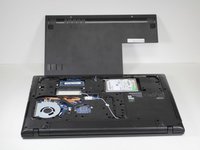
    • Remove the placeholder screws and pull off the backplate.

  6. Lenovo G70-80 RAM Replacement: 6 단계, 이미지 3개 중 1개 Lenovo G70-80 RAM Replacement: 6 단계, 이미지 3개 중 2개 Lenovo G70-80 RAM Replacement: 6 단계, 이미지 3개 중 3개
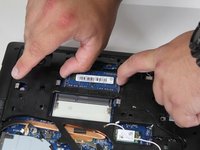
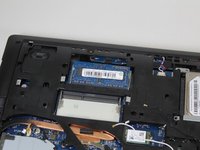
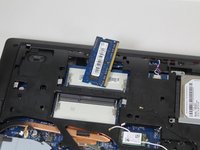
    • Carefully pull the two metal retaining clips away from the sides of the RAM module.

    • As the clips release, the RAM module should pop up at an angle.

    • Remove the RAM from the device.

결론

To reassemble your device, follow these instructions in reverse order.

다른 한 분이 해당 안내서를 완성하였습니다.

작성자

4다른 기여자 명과 함께

Alexis Buford

회원 가입일: 02/28/17

677 평판

안내서 5개를 작성함

0가이드 댓글

댓글 쓰기

조회 통계:

지난 24시간: 0

지난 7일: 7

지난 30일: 46

전체 시간: 1,444