소개
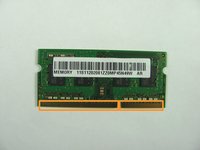
This guide explains how to replace the RAM in the Lenovo Y50 Touch laptop.
RAM is essentially your computer's short-term memory. It stores temporary data that your computer processor needs to run applications and open files. Your laptop's speed is partially determined by the amount of RAM it has. Adding additional RAM to your laptop can improve its processing speed.
Before beginning, make sure to power off your laptop completely and disconnect from any external power source.
필요한 것
-
-
-
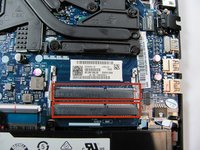
The RAM should be located at the indicated area inside the laptop.
-
-
-
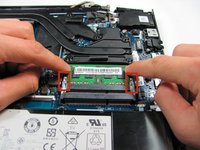
Release the clamps securing the RAM by pushing each clamp away from the RAM.
-
-
-
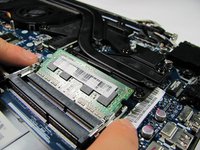
Gently unplug the RAM from its port.
-
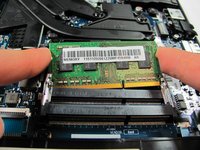
You can replace up to two RAM sticks for this laptop. Just repeat step 4 for the second RAM port.
-
Pay attention to the arrangement of the pins on the RAM. When replacing the RAM, make sure the pins line up with the pins on the RAM port.
-


 FixBot에 문의하기




To reassemble your device, follow these instructions in reverse order.
다른 9명이 해당 안내서를 완성하였습니다.

팀

Cal Poly, Team 18-1, Maness Winter 2015 Cal Poly, Team 18-1, Maness Winter 2015 회원
CPSU-MANESS-W15S18G1
5 회원들
안내서 15개를 작성함
