주요 콘텐츠로 건너뛰기
수리 커뮤니티 가입 - 계정 만들기

Logitech Circle Ribbon Cable Replacement

필요한 것

  1. Logitech Circle Ribbon Cable Replacement, Ribbon Cable: 1 단계, 이미지 2개 중 1개 Logitech Circle Ribbon Cable Replacement, Ribbon Cable: 1 단계, 이미지 2개 중 2개
    • Wedge the plastic opening tool under the black circle lens and gently pry it off.

    • The lens is only attached with sticky tape and should remove relatively easily.

  2. Logitech Circle Ribbon Cable Replacement: 2 단계, 이미지 2개 중 1개 Logitech Circle Ribbon Cable Replacement: 2 단계, 이미지 2개 중 2개
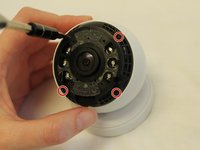
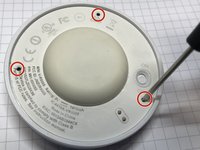
    • Remove the four 3mm Phillips #0 screws that hold down the first ring.

  3. Logitech Circle Ribbon Cable Replacement: 3 단계, 이미지 2개 중 1개 Logitech Circle Ribbon Cable Replacement: 3 단계, 이미지 2개 중 2개
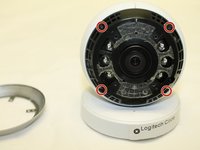
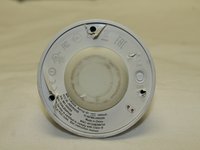
    • Remove the four 3mm Phillips #0 screws that hold down the second ring.

  4. Logitech Circle Ribbon Cable Replacement: 4 단계, 이미지 2개 중 1개 Logitech Circle Ribbon Cable Replacement: 4 단계, 이미지 2개 중 2개
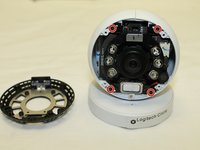
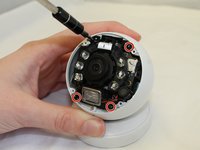
    • Remove the four 3mm Phillips #0 screws that hold down the final ring. Do not remove the lens/battery bundle yet.

    • The lens/battery bundle is attached to the base by a ribbon cable that can break, so be very careful handling the circle.

  5. Logitech Circle Ribbon Cable Replacement: 5 단계, 이미지 2개 중 1개 Logitech Circle Ribbon Cable Replacement: 5 단계, 이미지 2개 중 2개
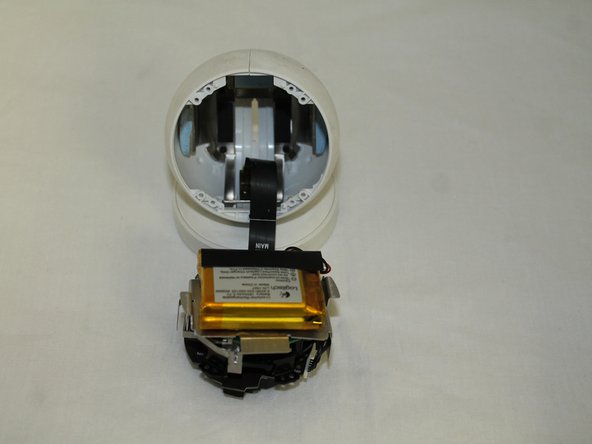
    • Gently remove the lens/battery bundle from the base of the circle, being mindful of the ribbon cable.

  6. Logitech Circle Ribbon Cable Replacement: 6 단계, 이미지 2개 중 1개 Logitech Circle Ribbon Cable Replacement: 6 단계, 이미지 2개 중 2개
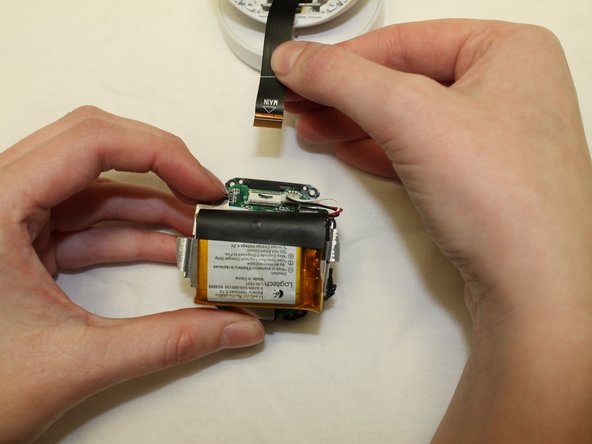
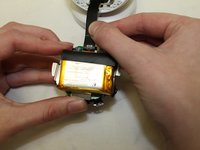
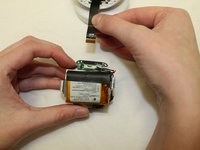
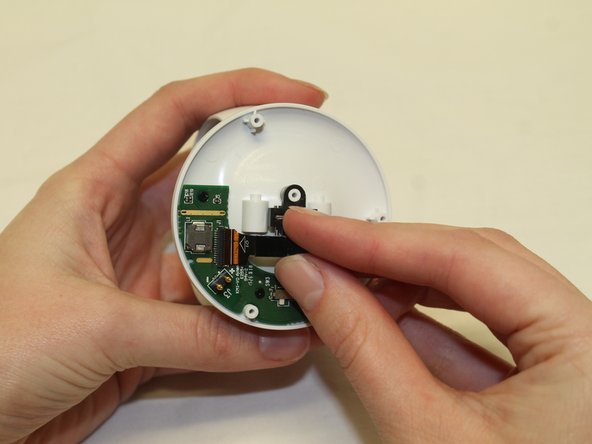
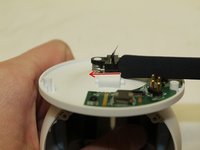
    • Gently pull the ribbon cable loose from the lens/battery bundle.

    • While this is not an entirely necessary step, it helps to ensure the ribbon cable will not break during the rest of the replacement.

  7. Logitech Circle Ribbon Cable Replacement: 7 단계, 이미지 3개 중 1개 Logitech Circle Ribbon Cable Replacement: 7 단계, 이미지 3개 중 2개 Logitech Circle Ribbon Cable Replacement: 7 단계, 이미지 3개 중 3개
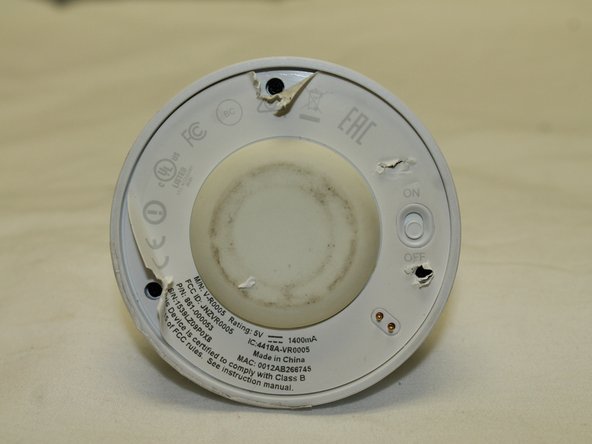
    • Once the old ribbon cable has been detached from the lens/battery bundle it's time to release the other side from the base.

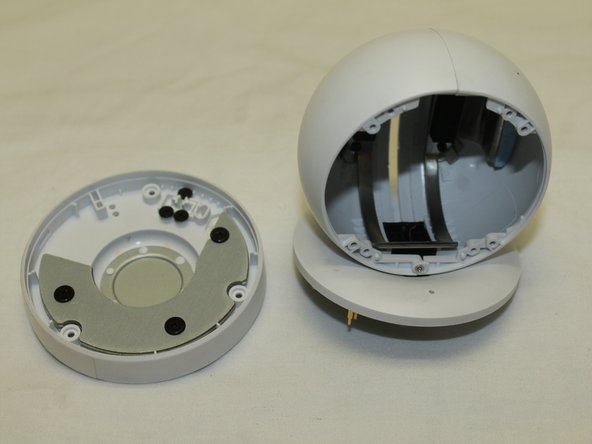
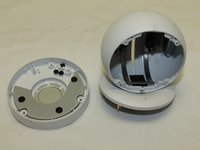
    • Locate the screws holding the base together by feeling for the soft spots underneath the manufacturer's sticker. Punch through with your screwdriver and remove the three 3mm Phillips #0 screws.

    • The two pieces of the base can now be easily pulled apart.

  8. Logitech Circle Ribbon Cable Replacement: 8 단계, 이미지 2개 중 1개 Logitech Circle Ribbon Cable Replacement: 8 단계, 이미지 2개 중 2개
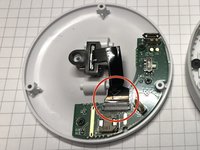
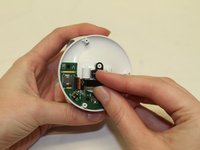
    • Gently pull the ribbon cable loose from its connection to the base.

  9. Logitech Circle Ribbon Cable Replacement: 9 단계, 이미지 2개 중 1개 Logitech Circle Ribbon Cable Replacement: 9 단계, 이미지 2개 중 2개
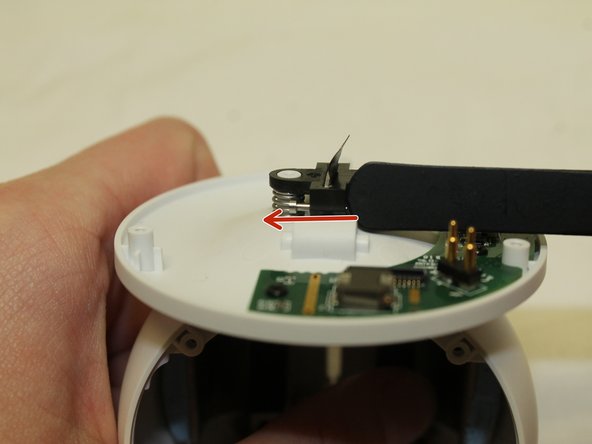
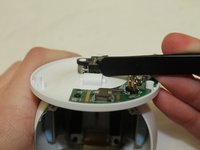
    • Slide the push pin holding the plastic connector/ribbon cable in place out on both sides.

  10. Logitech Circle Ribbon Cable Replacement: 10 단계, 이미지 1개 중 1개
    • Remove the black plastic connector and the two springs from the base of the device.

  11. Logitech Circle Ribbon Cable Replacement: 11 단계, 이미지 1개 중 1개
    • Reach inside the circle and pull the ribbon cable free from the device.

결론

To reassemble your device, follow these instructions in reverse order.

작성자

2다른 기여자 명과 함께

Haley Williams

회원 가입일: 09/28/17

112 평판

안내서 1개를 작성함

University of Maine, Team S1-G4, Diaz Fall 2017 University of Maine, Team S1-G4, Diaz Fall 2017 회원

UMAINE-DIAZ-F17S1G4

3 회원들

안내서 8개를 작성함

6가이드 댓글

where can I buy such a cable?

kersop@gmail.com

Nico Kersop - 답글
The cable I received from China is not the right one. Where do you buy the correct one?

Helen - 답글

Can you advise where to buy the correct cable?

Michele Ingratta - 답글

I have cable has beark off. I need that cable.

Where can I find

Alican Döşlü - 답글

i also need that cable

l_samin - 답글

댓글 쓰기

조회 통계:

지난 24시간: 2

지난 7일: 15

지난 30일: 49

전체 시간: 2,445