주요 콘텐츠로 건너뛰기
수리 커뮤니티 가입 - 계정 만들기

Logitech Harmony Smart Keyboard On/Off Switch Replacement

필요한 것

  1. Logitech Harmony Smart Keyboard On/Off Switch Replacement, Back Panel: 1 단계, 이미지 2개 중 1개 Logitech Harmony Smart Keyboard On/Off Switch Replacement, Back Panel: 1 단계, 이미지 2개 중 2개
    • Turn keyboard over to the backside.

    댓글 쓰기

  2. Logitech Harmony Smart Keyboard On/Off Switch Replacement: 2 단계, 이미지 3개 중 1개 Logitech Harmony Smart Keyboard On/Off Switch Replacement: 2 단계, 이미지 3개 중 2개 Logitech Harmony Smart Keyboard On/Off Switch Replacement: 2 단계, 이미지 3개 중 3개
    • Press and slide up on the upper battery latch, using both thumbs.

    댓글 쓰기

  3. Logitech Harmony Smart Keyboard On/Off Switch Replacement: 3 단계, 이미지 1개 중 1개
    • Remove the two AA batteries and set them aside.

    댓글 쓰기

  4. Logitech Harmony Smart Keyboard On/Off Switch Replacement: 4 단계, 이미지 2개 중 1개 Logitech Harmony Smart Keyboard On/Off Switch Replacement: 4 단계, 이미지 2개 중 2개
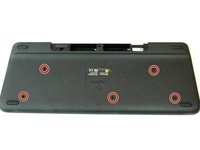
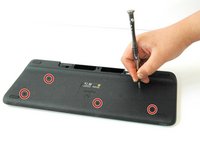
    • Unscrew all five 4.0 mm screws, using Phillips #1 screwdriver.

    댓글 쓰기

  5. Logitech Harmony Smart Keyboard On/Off Switch Replacement: 5 단계, 이미지 2개 중 1개 Logitech Harmony Smart Keyboard On/Off Switch Replacement: 5 단계, 이미지 2개 중 2개
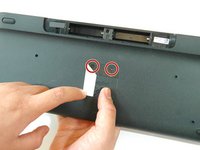
    • Peel off the center sticker to reveal two hidden 4.0 mm screws.

    • Unscrew these two screws with a Phillips #1 screwdriver.

    댓글 쓰기

  6. Logitech Harmony Smart Keyboard On/Off Switch Replacement: 6 단계, 이미지 3개 중 1개 Logitech Harmony Smart Keyboard On/Off Switch Replacement: 6 단계, 이미지 3개 중 2개 Logitech Harmony Smart Keyboard On/Off Switch Replacement: 6 단계, 이미지 3개 중 3개
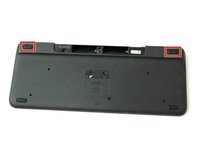
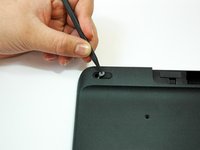
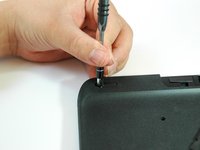
    • Lift both top left and top right rubber stickers halfway, using the sharp end of the plastic spudger.

    • Unscrew a total of two 4.0 mm screws, under the rubber stickers, using a Phillips #1 screwdriver.

    댓글 쓰기

  7. Logitech Harmony Smart Keyboard On/Off Switch Replacement: 7 단계, 이미지 2개 중 1개 Logitech Harmony Smart Keyboard On/Off Switch Replacement: 7 단계, 이미지 2개 중 2개
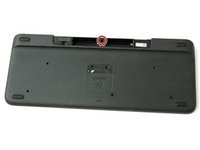
    • Unscrew the top center 4.0 mm screw, in the battery compartment, using the Phillips #1 screwdriver.

    • Now, you should have a total of ten 4.0 mm screws set aside.

    댓글 쓰기

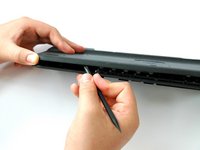
  8. Logitech Harmony Smart Keyboard On/Off Switch Replacement: 8 단계, 이미지 3개 중 1개 Logitech Harmony Smart Keyboard On/Off Switch Replacement: 8 단계, 이미지 3개 중 2개 Logitech Harmony Smart Keyboard On/Off Switch Replacement: 8 단계, 이미지 3개 중 3개
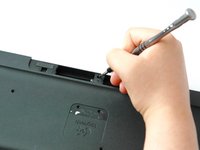
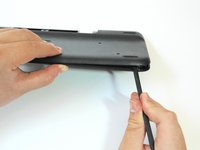
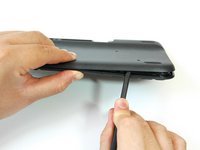
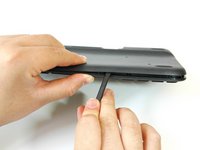
    • Wedge the flat end of the spudger between the back panel and front panel.

    • Slide the flat end of the spudger from right to left to pry the two panels apart.

    댓글 쓰기

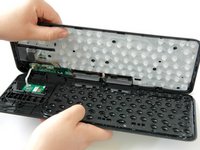
  9. Logitech Harmony Smart Keyboard On/Off Switch Replacement: 9 단계, 이미지 3개 중 1개 Logitech Harmony Smart Keyboard On/Off Switch Replacement: 9 단계, 이미지 3개 중 2개 Logitech Harmony Smart Keyboard On/Off Switch Replacement: 9 단계, 이미지 3개 중 3개
    • Separate the back panel from the front panel completely, using both hands.

    • A white ribbon flex cable will remain connected to both panels.

    • Pull the panels apart slowly and gently, or the white ribbon flex cable may be unsafely removed.

    댓글 쓰기

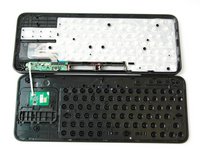
  10. Logitech Harmony Smart Keyboard On/Off Switch Replacement, On/Off Switch: 10 단계, 이미지 3개 중 1개 Logitech Harmony Smart Keyboard On/Off Switch Replacement, On/Off Switch: 10 단계, 이미지 3개 중 2개 Logitech Harmony Smart Keyboard On/Off Switch Replacement, On/Off Switch: 10 단계, 이미지 3개 중 3개
    • Grip the lower end of the ribbon flex cable (white band) using your thumb and index finger.

    • Then slide the strip out toward yourself in a scooping motion.

    • Now, you should have two completely separated panel pieces.

    댓글 쓰기

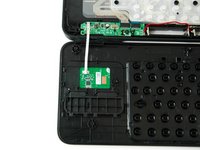
  11. Logitech Harmony Smart Keyboard On/Off Switch Replacement: 11 단계, 이미지 3개 중 1개 Logitech Harmony Smart Keyboard On/Off Switch Replacement: 11 단계, 이미지 3개 중 2개 Logitech Harmony Smart Keyboard On/Off Switch Replacement: 11 단계, 이미지 3개 중 3개
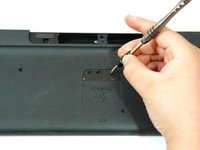
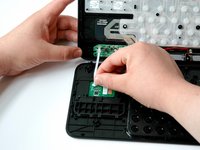
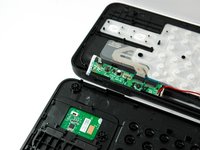
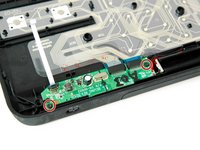
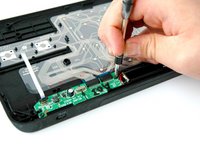
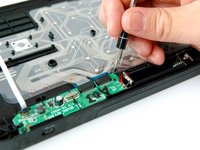
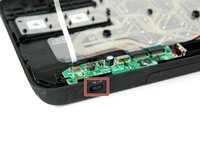
    • Set aside the front panel and locate the green card atop the on/off switch on the back panel.

    • Unscrew the two 4.0 mm screws on either side of the green card using a Phillips #1 screwdriver.

    댓글 쓰기

  12. Logitech Harmony Smart Keyboard On/Off Switch Replacement: 12 단계, 이미지 3개 중 1개 Logitech Harmony Smart Keyboard On/Off Switch Replacement: 12 단계, 이미지 3개 중 2개 Logitech Harmony Smart Keyboard On/Off Switch Replacement: 12 단계, 이미지 3개 중 3개
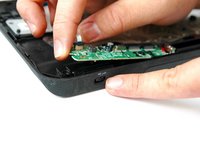
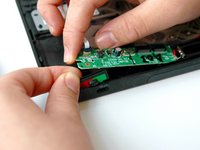
    • Lift up and hold the left side of the green card with one index finger.

    • Grip and pull the on/off switch out with your other index finger and thumb.

    댓글 쓰기

결론

To reassemble your device, follow these instructions in reverse order.

취소: 해당 안내서를 완성하지 않았습니다.

다른 2명이 해당 안내서를 완성하였습니다.

작성자

4다른 기여자 명과 함께

Hayley Nichols

회원 가입일: 09/05/17

525 평판

안내서 4개를 작성함

CSU Fullerton, Team S1-G2, Bruce Fall 2017 CSU Fullerton, Team S1-G2, Bruce Fall 2017 회원

CSUF-BRUCE-F17S1G2

3 회원들

안내서 10개를 작성함

1가이드 댓글

please share switch rear side.. and where could we buy this switch.. ?

Praveen Krishnan - 답글 공유

댓글 쓰기

조회 통계:

지난 24시간: 1

지난 7일: 3

지난 30일: 31

전체 시간: 5,154