주요 콘텐츠로 건너뛰기

Logitech Wireless K360 Key Cap Replacement

필요한 것

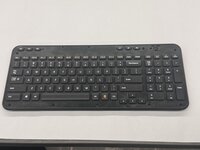
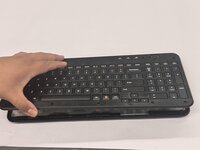
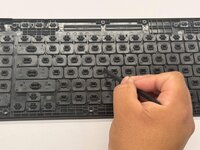
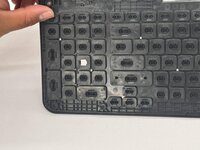
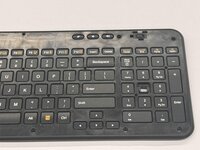
  1. Logitech Wireless K360 Key Cap Replacement, Key Cap: 1 단계, 이미지 3개 중 1개 Logitech Wireless K360 Key Cap Replacement, Key Cap: 1 단계, 이미지 3개 중 2개 Logitech Wireless K360 Key Cap Replacement, Key Cap: 1 단계, 이미지 3개 중 3개
    • Use a Jimmy to pry off the keyboard cover.

    • When reapplying the keyboard cover, glue may be required to keep adhesive properties.

  2. Logitech Wireless K360 Key Cap Replacement: 2 단계, 이미지 2개 중 1개 Logitech Wireless K360 Key Cap Replacement: 2 단계, 이미지 2개 중 2개
    • Remove the eight 6 mm screws using a Phillips #0 screwdriver.

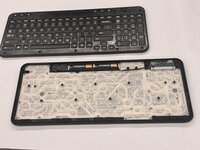
  3. Logitech Wireless K360 Key Cap Replacement: 3 단계, 이미지 3개 중 1개 Logitech Wireless K360 Key Cap Replacement: 3 단계, 이미지 3개 중 2개 Logitech Wireless K360 Key Cap Replacement: 3 단계, 이미지 3개 중 3개
    • Remove the top half of the keyboard.

    • If there are issues removing the top half of the keyboard you can try using something thin to get into the crevices.

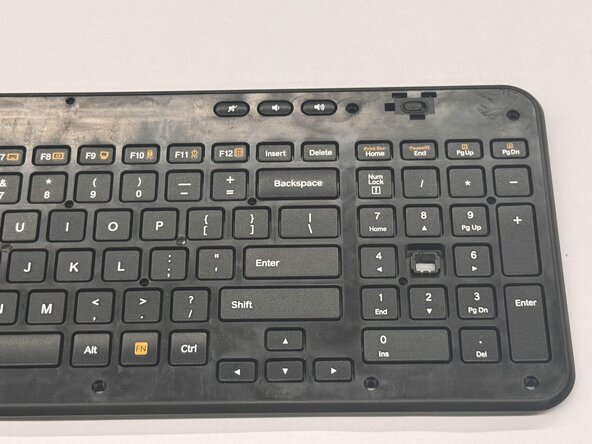
  4. Logitech Wireless K360 Key Cap Replacement: 4 단계, 이미지 3개 중 1개 Logitech Wireless K360 Key Cap Replacement: 4 단계, 이미지 3개 중 2개 Logitech Wireless K360 Key Cap Replacement: 4 단계, 이미지 3개 중 3개
    • Flip the top half of the keyboard over.

    • Use tweezers or an iFixit opening tool to pinch the damaged key cap out of the top half.

결론

To reassemble your device, follow these instructions in reverse order.

작성자

1다른 기여자 명과 함께

Othon Sanchez

회원 가입일: 02/20/25

321 평판

안내서 2개를 작성함

CSU Los Angeles, Team 7-3, Kershman Spring 2025 CSU Los Angeles, Team 7-3, Kershman Spring 2025 회원

CSULA-KERSHMAN-S25S7G3

5 회원들

안내서 4개를 작성함

0가이드 댓글

댓글 쓰기

조회 통계:

지난 24시간: 1

지난 7일: 5

지난 30일: 34

전체 시간: 251