주요 콘텐츠로 건너뛰기

Microsoft Surface Pro 2 Camera Replacement

필요한 것

  1. Microsoft Surface Pro 2 Camera Replacement, LCD Display: 1 단계, 이미지 2개 중 1개 Microsoft Surface Pro 2 Camera Replacement, LCD Display: 1 단계, 이미지 2개 중 2개
    • To avoid electrical shocks, unplug and turn off your Surface Pro 2 before proceeding.

  2. Microsoft Surface Pro 2 Camera Replacement: 2 단계, 이미지 1개 중 1개
    • Avoid any skin or eye contact with the heating pad or heating gun because they may cause bodily harm.

    • Using a heating pad or heating gun, heat the edges of the screen to soften the glue. This area extends roughly one inch from the edge of the device.

    • The glue is under the darker border of the device display.

  3. Microsoft Surface Pro 2 Camera Replacement: 3 단계, 이미지 1개 중 1개
    • Using a plastic opening tool and a suction cup as needed for leverage, gently insert one edge of the opening tool under the corner of the screen.

    • If the tool does not easily slide under the screen, return to heating before proceeding.

    • Slowly work the tool around the entire edge of the screen.

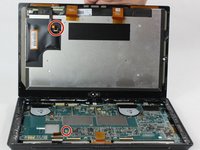
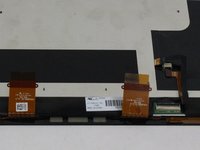
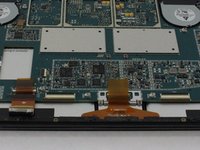
  4. Microsoft Surface Pro 2 Camera Replacement: 4 단계, 이미지 3개 중 1개 Microsoft Surface Pro 2 Camera Replacement: 4 단계, 이미지 3개 중 2개 Microsoft Surface Pro 2 Camera Replacement: 4 단계, 이미지 3개 중 3개
    • Detach the orange cables that connect the screen to the motherboard by pulling on the small tabs. Using the nylon spudger, release these cables.

    • Please note the third small connector in red.

    • Allow the glue to cool before letting it come into contact with any other surface.

  5. Microsoft Surface Pro 2 Camera Replacement, Motherboard: 5 단계, 이미지 3개 중 1개 Microsoft Surface Pro 2 Camera Replacement, Motherboard: 5 단계, 이미지 3개 중 2개 Microsoft Surface Pro 2 Camera Replacement, Motherboard: 5 단계, 이미지 3개 중 3개
    • Make sure that the front-facing camera is completely disconnected, and then remove the plastic bracket.

    • Remove the 22 screws on the bezel.

    • Remove the left and right brackets; the left has 16 screws and the right has 15 screws.

    • The three different torx screws used are T3, T4, and T5.

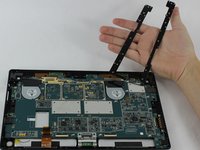
  6. Microsoft Surface Pro 2 Camera Replacement: 6 단계, 이미지 3개 중 1개 Microsoft Surface Pro 2 Camera Replacement: 6 단계, 이미지 3개 중 2개 Microsoft Surface Pro 2 Camera Replacement: 6 단계, 이미지 3개 중 3개
    • Once the brackets are removed, set them aside.

    • The motherboard itself also has screws.

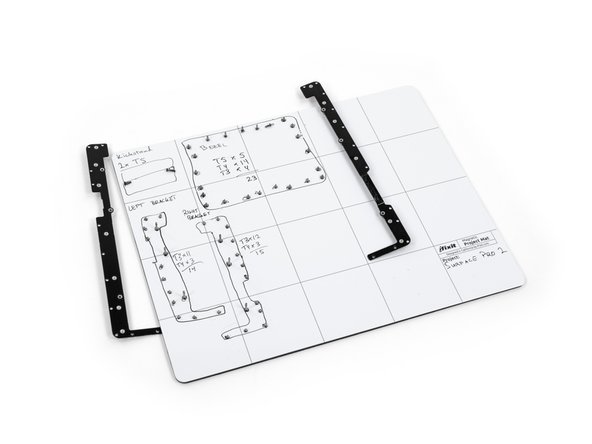
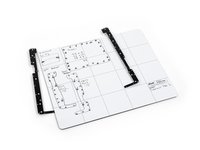
    • Remove the 25 screws of varying sizes that attach the motherboard to the back plate.

    • View the attached photo of a screw diagram to help keep track of your screws.

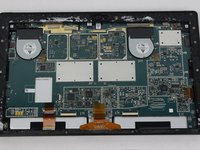
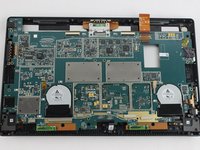
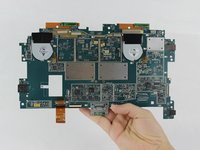
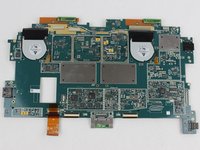
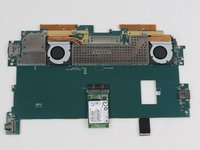
  7. Microsoft Surface Pro 2 Camera Replacement: 7 단계, 이미지 3개 중 1개 Microsoft Surface Pro 2 Camera Replacement: 7 단계, 이미지 3개 중 2개 Microsoft Surface Pro 2 Camera Replacement: 7 단계, 이미지 3개 중 3개
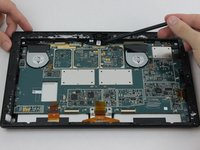
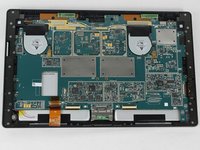
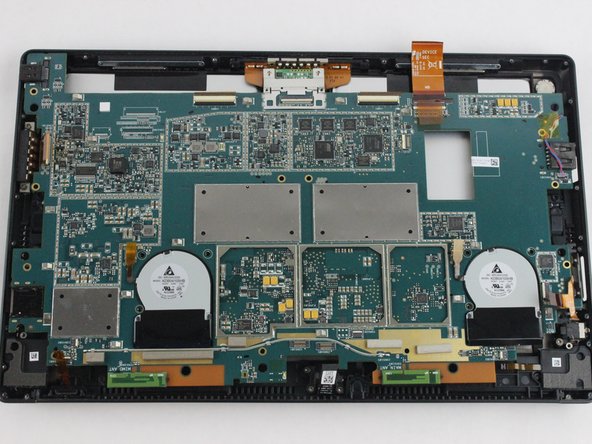
    • You have now completely removed the motherboard, and it should look like the pictures shown.

    • Be sure to be cautious with all the connections with the cables on the motherboard.

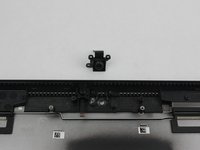
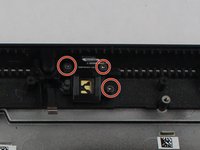
  8. Microsoft Surface Pro 2 Camera Replacement, Camera: 8 단계, 이미지 1개 중 1개
    • Remove the ribbon that the spudger is touching in the picture.

    • Remove the front-facing camera.

  9. Microsoft Surface Pro 2 Camera Replacement: 9 단계, 이미지 1개 중 1개
  10. Microsoft Surface Pro 2 Camera Replacement: 10 단계, 이미지 2개 중 1개 Microsoft Surface Pro 2 Camera Replacement: 10 단계, 이미지 2개 중 2개
결론

To reassemble your device, follow these instructions in reverse order.

작성자

3다른 기여자 명과 함께

abdulhameeda

회원 가입일: 09/07/16

108 평판

안내서 1개를 작성함

USF Tampa, Team 6-2, Remmell Fall 2016 USF Tampa, Team 6-2, Remmell Fall 2016 회원

USFT-REMMELL-F16S6G2

4 회원들

안내서 11개를 작성함

0가이드 댓글

댓글 쓰기

조회 통계:

지난 24시간: 0

지난 7일: 1

지난 30일: 7

전체 시간: 1,111