소개
Use this guide to remove and replace the keyboard on your PowerBook 3400 M3553.
Keyboard mishaps can be frustrating, halt productivity, and decrease the usefulness of your device. Whether the keys stop working, there is external damage, or any other issue, removing the keyboard is the first step to repairing your device. Once removed, the keyboard can be cleaned or replaced depending on the extent of the damage.
Before attempting any repairs to your PowerBook, make sure that the device is turned off, disconnected to any power source, and your data is properly backed up.
필요한 것
-
-
-
Close the screen and turn the PowerBook over, orienting the computer upside down, using the label to guide you.
 FixBot에 문의하기
-
-
-
-
-
-
With a Torx T8 screwdriver, remove the three Torx 24mm screws along the center of the back panel.
-
-
-
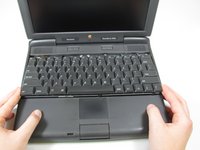
Turn the computer over and open the display. You should see that the keyboard is loose.
-
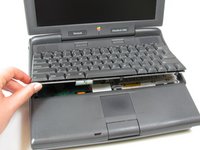
Slightly lift the front of the keyboard up, and slide the keyboard towards yourself.
-
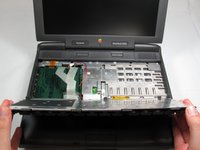
Carefully lift the top half of the keyboard and pull it towards yourself.
-
-
-
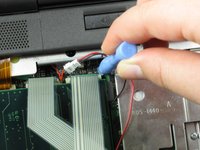
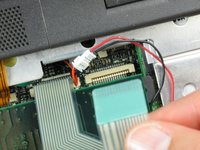
Loosen the ribbon cables connecting the keyboard to the computer by using a plastic opening tool to lift the tabs on either side of the cable port.
-
Gently remove the ribbons from its tabs.
-
-




To reassemble your device, follow these instructions in reverse order.
다른 2명이 해당 안내서를 완성하였습니다.

팀

Cal Poly, Team 24-59, Amido Spring 2011 Cal Poly, Team 24-59, Amido Spring 2011 회원
CPSU-AMIDO-S11S24G59
4 회원들
안내서 63개를 작성함
