주요 콘텐츠로 건너뛰기

iPhone Air Screen Replacement

필요한 것

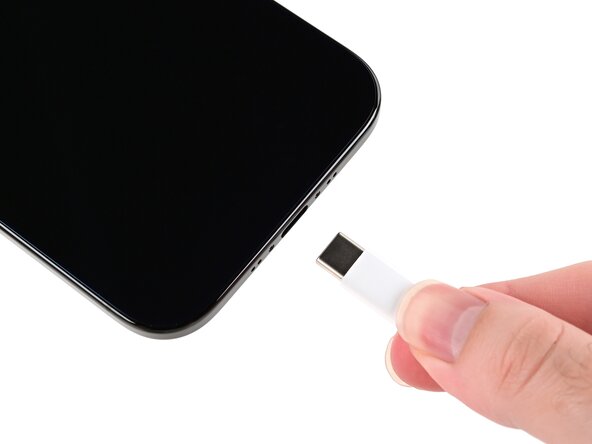
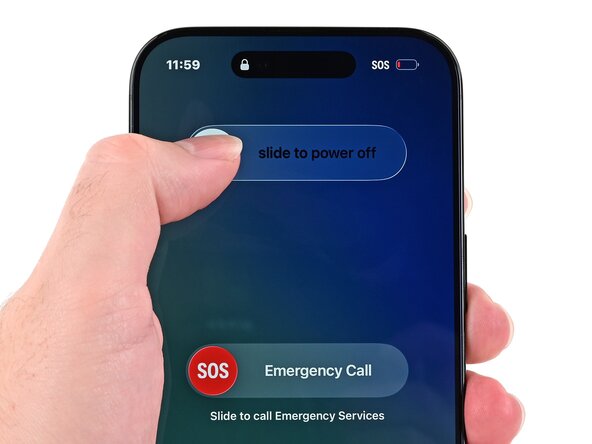
  1. iPhone Air Screen Replacement, Prepare your phone for disassembly: 1 단계, 이미지 2개 중 1개 iPhone Air Screen Replacement, Prepare your phone for disassembly: 1 단계, 이미지 2개 중 2개
    • Let your phone's battery drain below 25% before starting this repair—a charged lithium‑ion battery may catch fire if damaged.

    • Unplug any cables from your phone.

    • Hold the power and either volume button and slide to power off your phone.

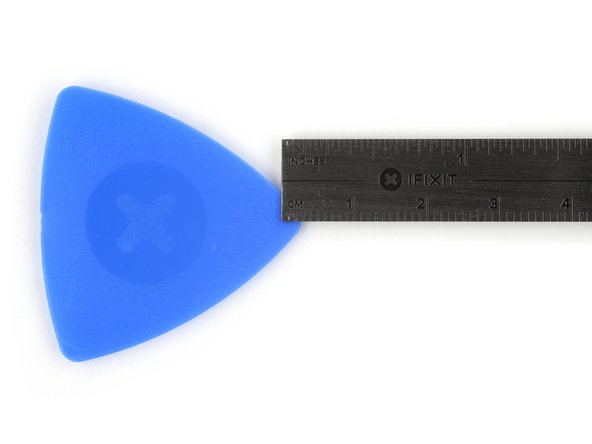
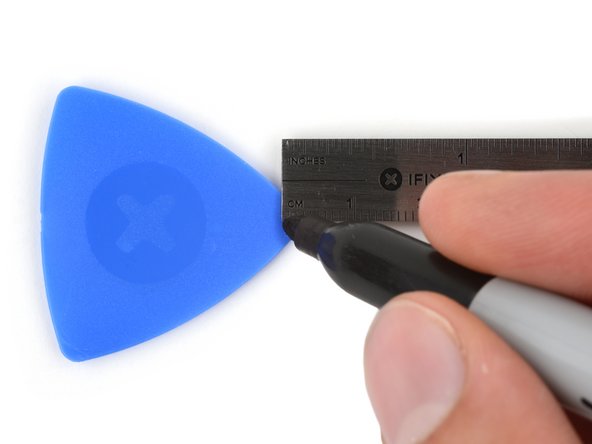
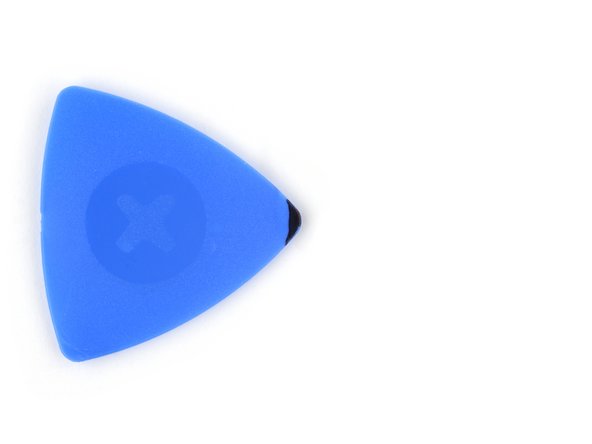
  2. iPhone Air Screen Replacement, Mark your opening picks: 2 단계, 이미지 3개 중 1개 iPhone Air Screen Replacement, Mark your opening picks: 2 단계, 이미지 3개 중 2개 iPhone Air Screen Replacement, Mark your opening picks: 2 단계, 이미지 3개 중 3개
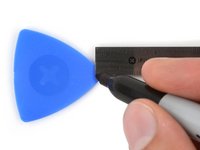
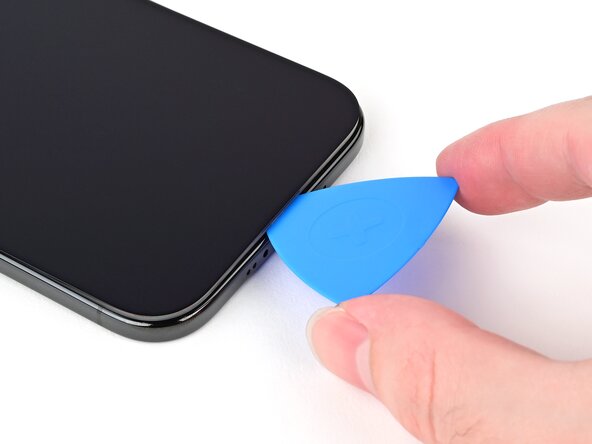
    • If inserted too far, an opening pick can damage your device. Follow this step to mark your pick and prevent damage.

    • Measure 3 mm from the tip and mark the opening pick with a permanent marker.

    • You can also mark the other corners of the pick with different measurements.

    • Alternatively, tape a coin to a pick 3 mm from the tip.

  3. iPhone Air Screen Replacement, Cracked glass preparation: 3 단계, 이미지 1개 중 1개
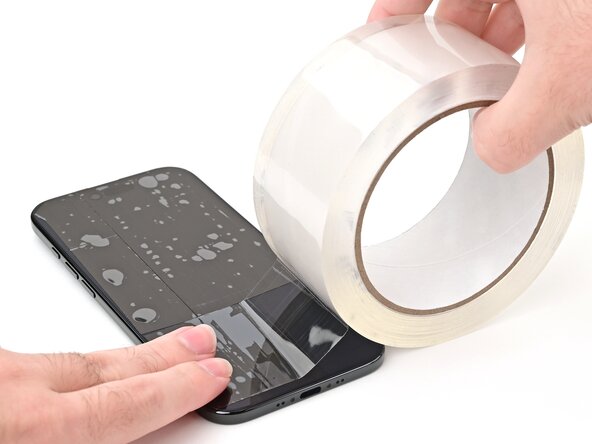
    • Glass shards can complicate disassembly—or worse, cause injury. If your phone has a cracked screen, follow this step.

    • Apply strips of packing tape to the cracked glass until the whole screen is covered—this will help keep the glass contained and allow the suction cup to stick to the screen.

    • Make sure there's a single strip (not overlapping) of tape across the bottom edge, big enough for a suction cup to fit on.

    • Only cover the glass itself—don't stick any tape to the frame.

    • Consider wearing safety glasses to protect your eyes from any glass shaken free during the repair.

  4. iPhone Air Screen Replacement, Remove the pentalobe screws: 4 단계, 이미지 1개 중 1개
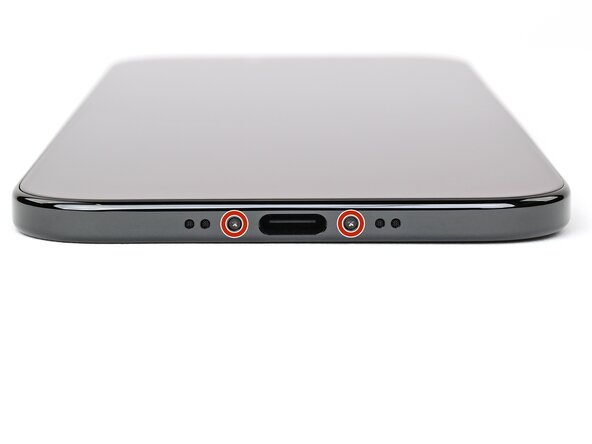
    • Use a P2 pentalobe driver to remove the two 4.9 mm-long screws on either side of the USB-C port.

  5. iPhone Air Screen Replacement, Heat the bottom edge: 5 단계, 이미지 1개 중 1개
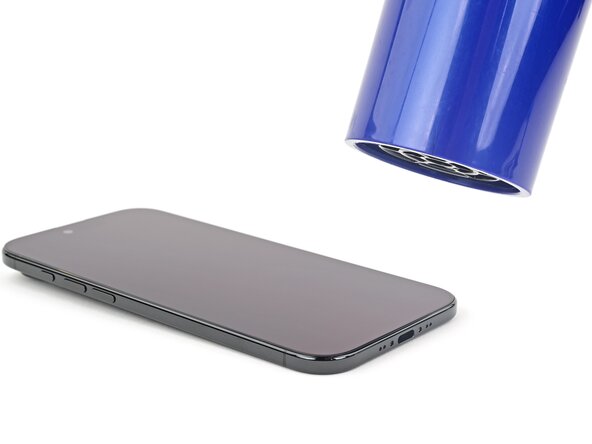
    • Use a hair dryer or heat gun to heat the bottom edge of the screen until it's slightly too hot to touch.

    • Improper use of a heat gun can destroy the display and/or battery—follow the linked instructions carefully.

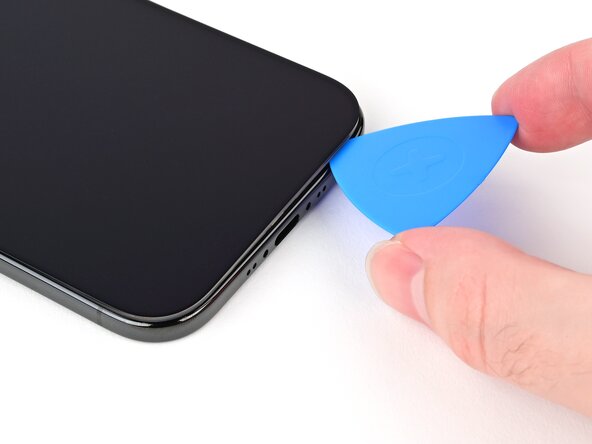
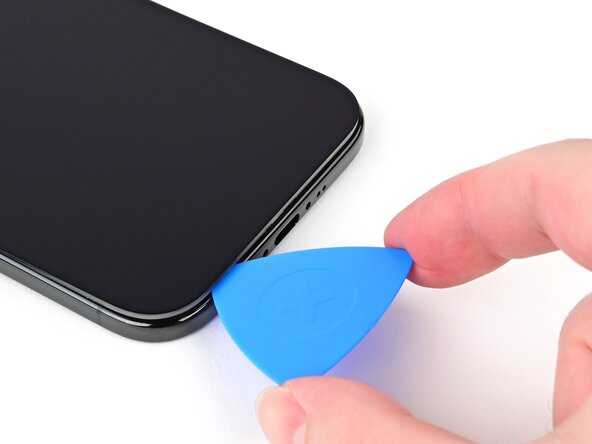
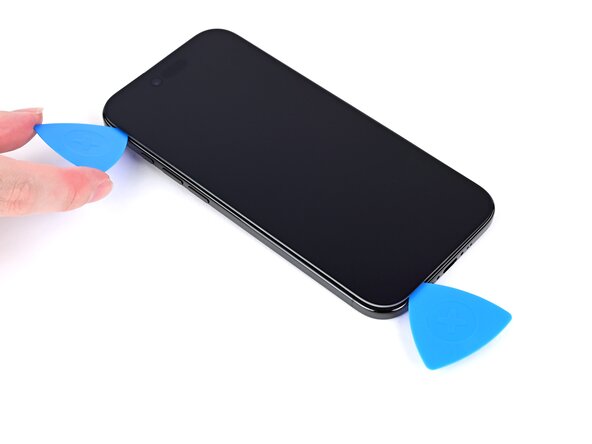
  6. iPhone Air Screen Replacement, Insert an opening pick: 6 단계, 이미지 3개 중 1개 iPhone Air Screen Replacement, Insert an opening pick: 6 단계, 이미지 3개 중 2개 iPhone Air Screen Replacement, Insert an opening pick: 6 단계, 이미지 3개 중 3개
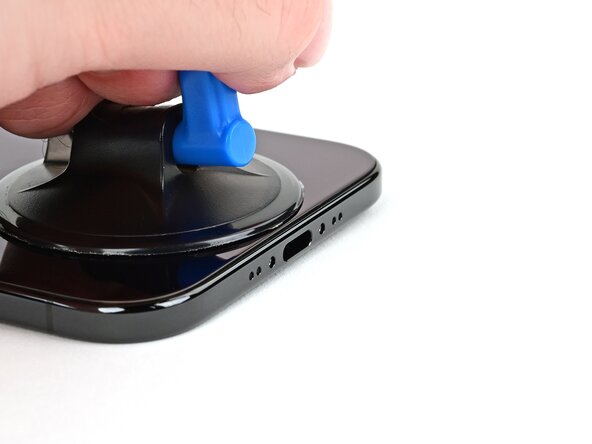
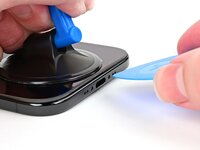
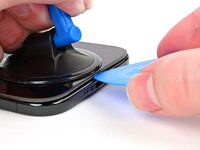
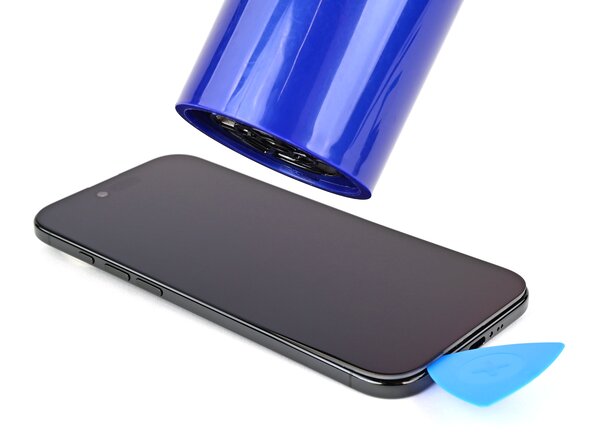
    • Apply a suction handle to the bottom edge of the screen.

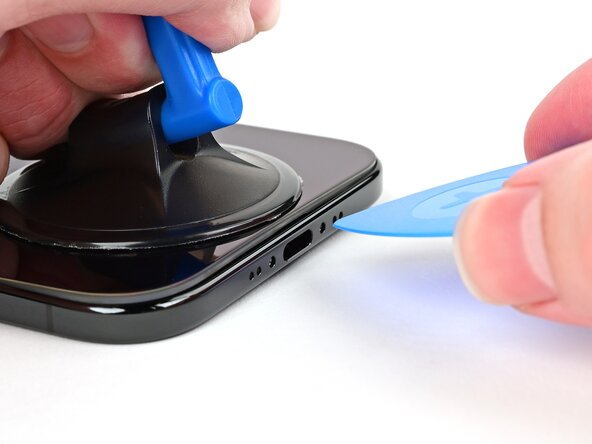
    • Pull up on the suction handle with strong, steady force to create a gap between the screen and the frame.

    • If you can't create a gap, apply more heat to the edge and try again.

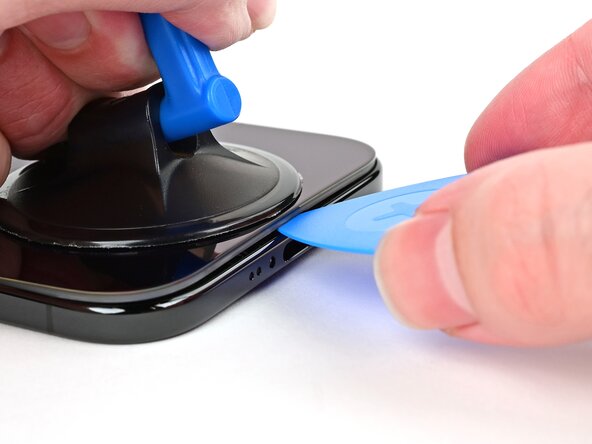
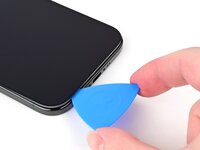
    • Insert the tip of an opening pick into the gap.

  7. iPhone Air Screen Replacement, Screen information: 7 단계, 이미지 1개 중 1개
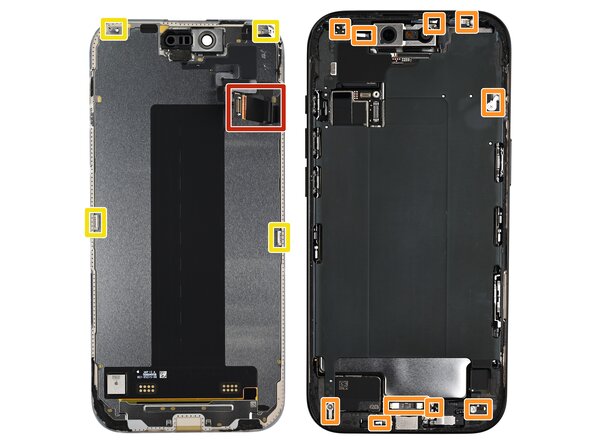
    • As you slice the adhesive securing the screen in the following steps, don't insert your pick deeper than 3 mm to avoid damaging the following areas:

    • Two delicate cables connecting the screen to the iPhone—one just above the Action button and the other about halfway along the left edge of the iPhone

    • Multiple spring contacts around the perimeter of the iPhone

    • There are multiple clips around the iPhone. You'll hear and feel these release as you slide past them.

    • Since you can't disconnect the battery during this repair, make sure your phone stays powered down, don't use metal prying tools, and be careful not to touch exposed contacts.

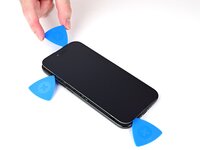
  8. iPhone Air Screen Replacement, Slice the bottom edge adhesive: 8 단계, 이미지 3개 중 1개 iPhone Air Screen Replacement, Slice the bottom edge adhesive: 8 단계, 이미지 3개 중 2개 iPhone Air Screen Replacement, Slice the bottom edge adhesive: 8 단계, 이미지 3개 중 3개
    • Slide the opening pick along the bottom edge to release the adhesive.

    • If the adhesive feels difficult to slice, reheat the edge for a minute.

    • Leave the opening pick in the bottom left corner to prevent the adhesive from resealing.

  9. iPhone Air Screen Replacement, Heat the left edge: 9 단계, 이미지 1개 중 1개
    • Use a hair dryer or heat gun to heat the left edge of the screen until it's hot to the touch.

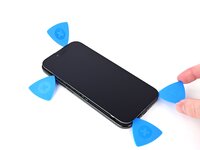
  10. iPhone Air Screen Replacement, Separate the left edge adhesive: 10 단계, 이미지 3개 중 1개 iPhone Air Screen Replacement, Separate the left edge adhesive: 10 단계, 이미지 3개 중 2개 iPhone Air Screen Replacement, Separate the left edge adhesive: 10 단계, 이미지 3개 중 3개
    • Don't insert your pick deeper than 3 mm to avoid damaging the ribbon cables.

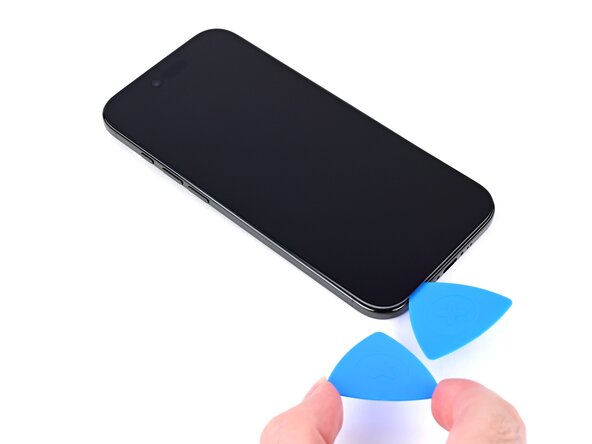
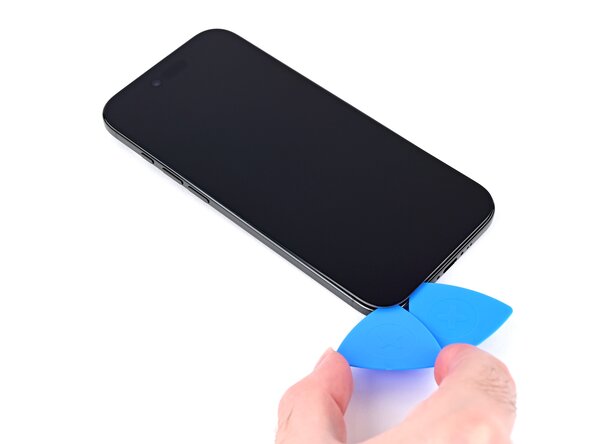
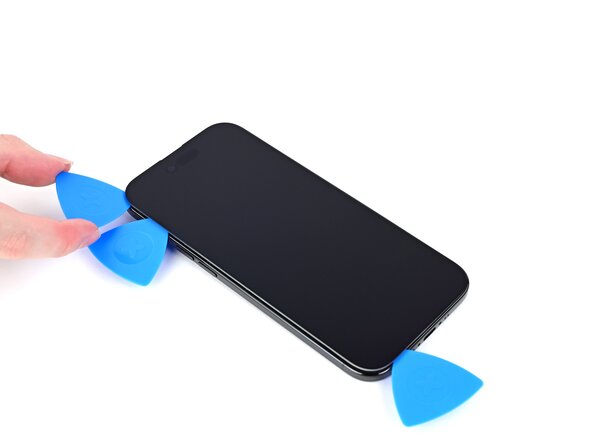
    • Insert a second opening pick in the bottom left corner, close to the existing pick.

    • Slide the opening pick along the left edge of the screen to separate the adhesive and release the metal clip.

    • You'll hear and feel the metal clip release as you pass it.

    • Leave the opening pick in the top left corner to prevent the adhesive from resealing.

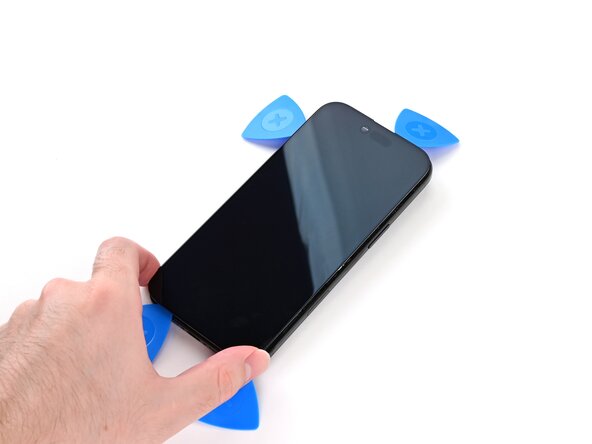
  11. iPhone Air Screen Replacement, Separate the remaining adhesives: 11 단계, 이미지 3개 중 1개 iPhone Air Screen Replacement, Separate the remaining adhesives: 11 단계, 이미지 3개 중 2개 iPhone Air Screen Replacement, Separate the remaining adhesives: 11 단계, 이미지 3개 중 3개
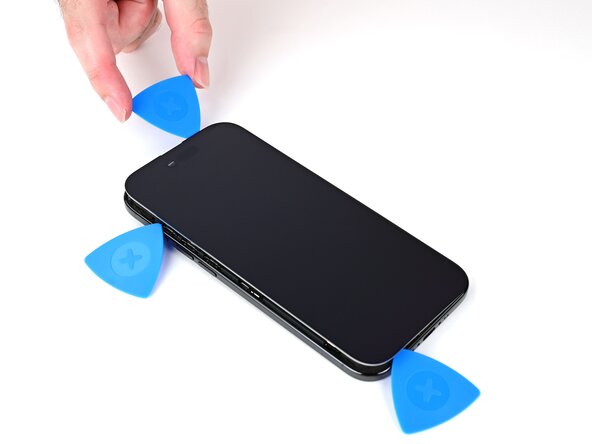
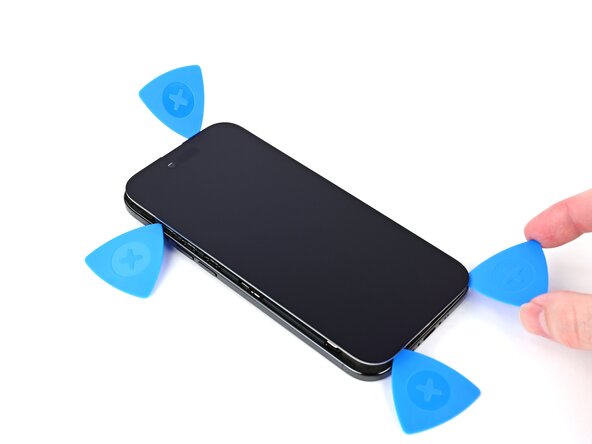
    • Repeat the heating and sliding procedure along the remaining screen edges to separate the adhesive and release the clips.

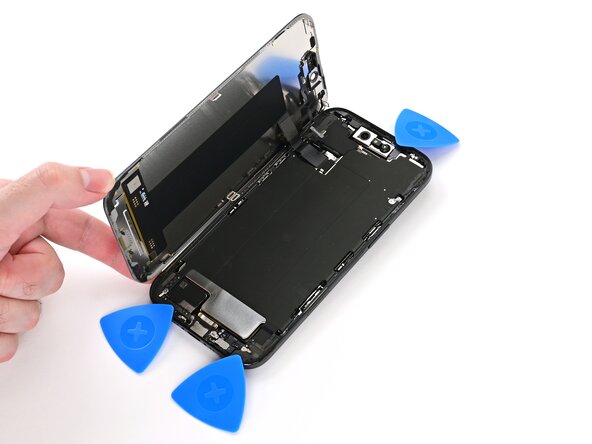
  12. iPhone Air Screen Replacement, Lift open the screen: 12 단계, 이미지 3개 중 1개 iPhone Air Screen Replacement, Lift open the screen: 12 단계, 이미지 3개 중 2개 iPhone Air Screen Replacement, Lift open the screen: 12 단계, 이미지 3개 중 3개
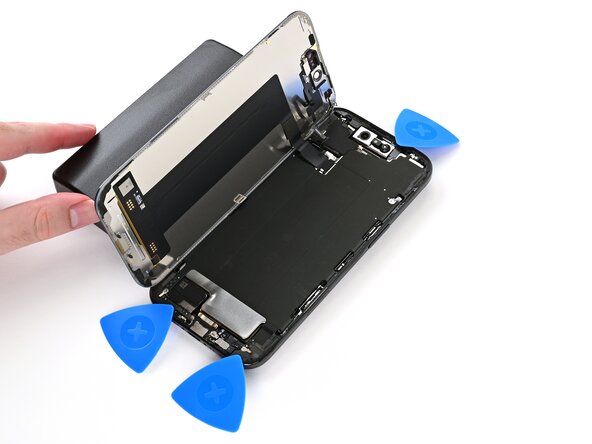
    • At this point, the screen should be free from the frame. If the screen feels stuck, go back around the perimeter with your pick and separate missed sections of adhesive or stuck clips.

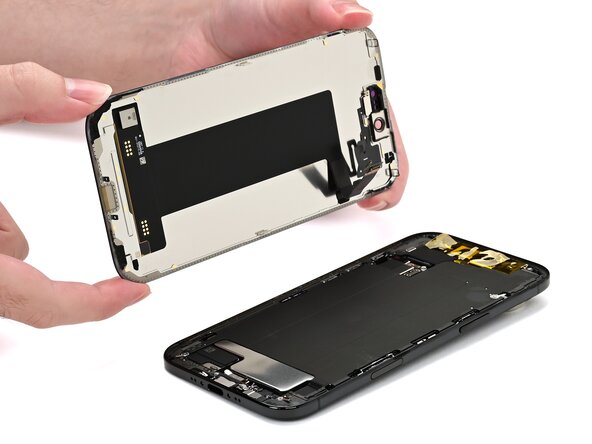
    • Carefully lift the screen and swing it over the left edge of the iPhone.

    • Prop the screen up with a small, sturdy object.

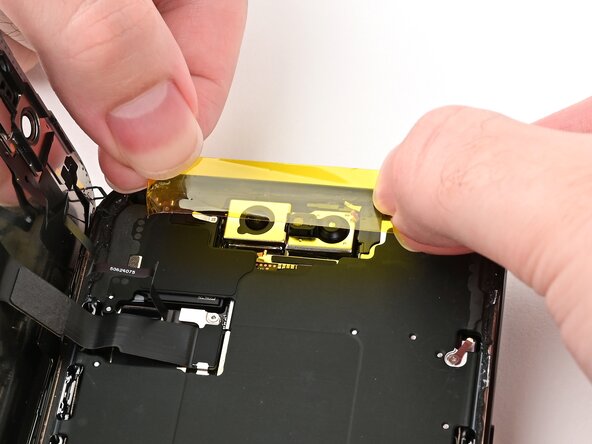
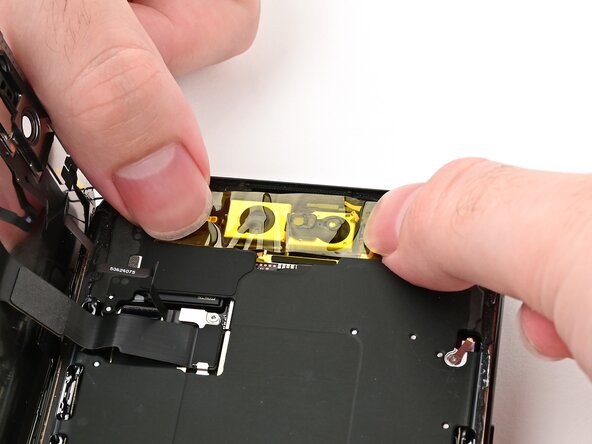
  13. iPhone Air Screen Replacement, Protect the front cameras: 13 단계, 이미지 2개 중 1개 iPhone Air Screen Replacement, Protect the front cameras: 13 단계, 이미지 2개 중 2개
    • We recommend using polyimide (aka kapton) tape to keep the front cameras clean. You may skip this step, but be extra careful not to touch the cameras.

    • Install a strip of polyimide tape over the front camera assembly by pressing the tape down on either side of it. Don't press down on the assembly itself.

  14. iPhone Air Screen Replacement, Remove the connector cover: 14 단계, 이미지 1개 중 1개
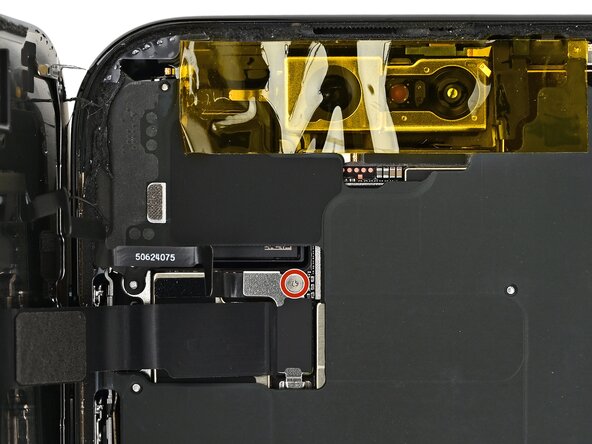
    • Use a tri-point Y000 driver to remove the 1.1 mm‑long screw securing the front sensor and display connector cover.

  15. iPhone Air Screen Replacement: 15 단계, 이미지 3개 중 1개 iPhone Air Screen Replacement: 15 단계, 이미지 3개 중 2개 iPhone Air Screen Replacement: 15 단계, 이미지 3개 중 3개
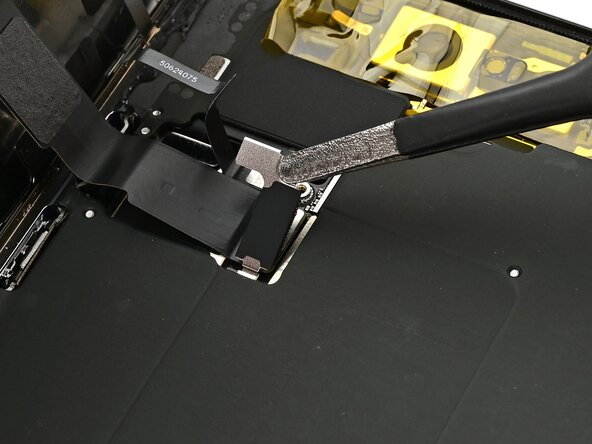
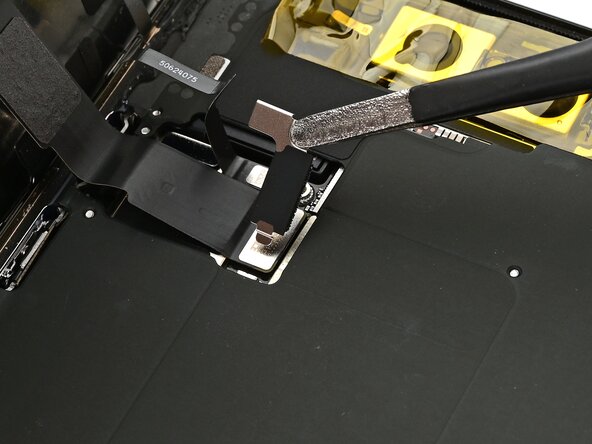
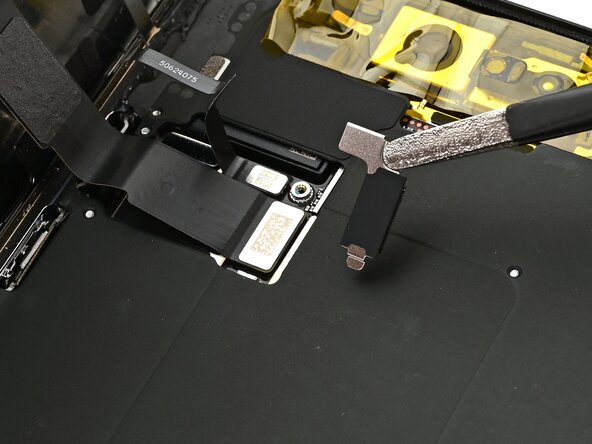
    • Use tweezers or your fingers to lift the front sensor cover to a 45-degree angle and remove it.

    • During reassembly, insert each cover at a 45-degree angle to re-engage the hook before laying it flat against the press connector.

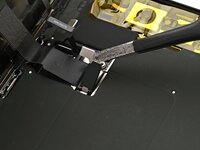
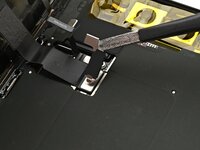
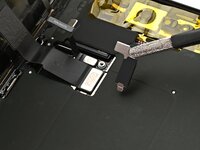
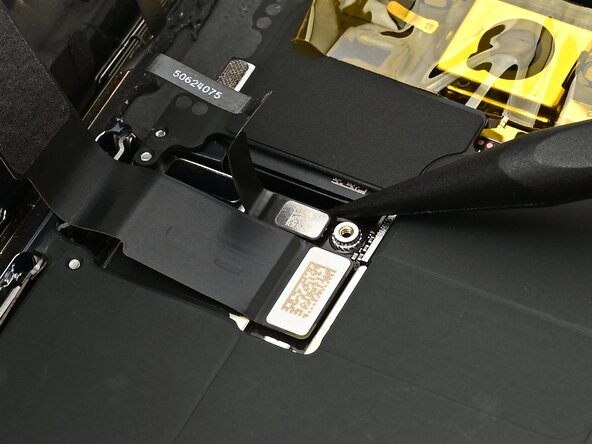
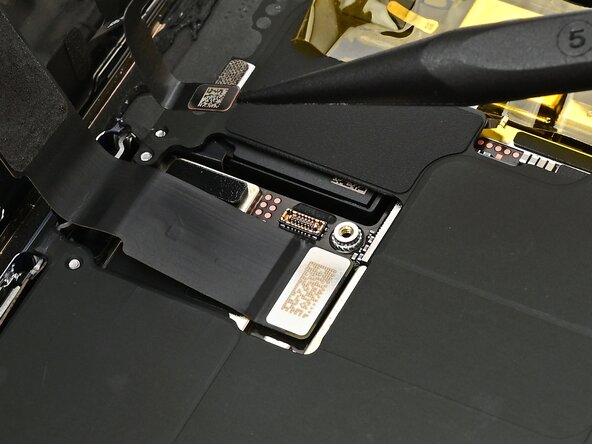
  16. iPhone Air Screen Replacement, Disconnect the screen: 16 단계, 이미지 3개 중 1개 iPhone Air Screen Replacement, Disconnect the screen: 16 단계, 이미지 3개 중 2개 iPhone Air Screen Replacement, Disconnect the screen: 16 단계, 이미지 3개 중 3개
    • Use the tip of a spudger to pry up and disconnect the front sensor and screen press connectors.

    • During reassembly, align each connector carefully over its socket and press down with your fingertip or flat end of a spudger—first on one side, then the other—until it clicks into place. Don't try to force the connector into place. If you're having trouble, reposition it and try again.

  17. iPhone Air Screen Replacement, Remove the screen: 17 단계, 이미지 1개 중 1개
    • Remove the screen.

    • Follow this guide to reapply adhesive and install the new screen.

    • Be careful not to damage any of the spring contacts as you clean the frame.

결론

To reassemble your phone, follow this guide to reapply adhesive and install your screen.

After your repair, calibrate a genuine replacement screen using Apple's Repair Assistant. Navigate to Settings General About Parts & Service History, tap Restart & Finish Repair, and follow the onscreen prompts.

Take your e-waste to an R2 or e-Stewards certified recycler.

Repair didn’t go as planned? Try some basic troubleshooting, or ask our iPhone Air Answers Community for help.

다른 4명이 해당 안내서를 완성하였습니다.

Nick Schultz

회원 가입일: 03/24/24

36,987 평판

안내서 224개를 작성함

0가이드 댓글

댓글 쓰기

조회 통계:

지난 24시간: 43

지난 7일: 254

지난 30일: 1,086

전체 시간: 2,015