학생-기여 위키
자사 교육 프로그램의 멋진 학생들이 이 위키를 만들었습니다.
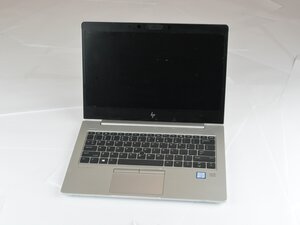
HP EliteBook 830 G6 카메라 화면이 검게 나오거나, 반응하지 않거나, "카메라를 찾을 수 없음" 오류가 표시되면 다음 문제해결 단계를 시도해 보세요. 카메라 기능을 복원하려면 각 해결 방법을 순서대로 따라 하세요.
프라이버시 셔터가 닫힘
문제: 내장된 프라이버시 셔터로 인해 카메라 렌즈가 물리적으로 가려져 있습니다.
해결 방법:
- 디스플레이 상단에 있는 작은 슬라이더를 찾으세요.
- 슬라이더를 움직여 카메라 셔터를 엽니다.
- Windows 카메라 앱 또는 화상 회의 소프트웨어에서 카메라를 테스트하세요.
안내서 자리 표시자: [프라이버시 셔터 확인 안내서 – 곧 제공 예정]
Windows에서 카메라 권한이 비활성화됨
문제: Windows 개인 정보 설정으로 인해 앱이 카메라에 액세스하지 못할 수 있습니다.
해결 방법:
- 설정 → 개인 정보 → 카메라를 엽니다.
- 이 장치의 카메라 액세스를 켭니다.
- 앱이 카메라에 액세스하도록 허용을 활성화합니다.
- 아래로 스크롤하여 특정 앱(Zoom, Teams 등)에 카메라 액세스 권한이 있는지 확인합니다.
- 앱을 다시 시작하고 카메라를 테스트합니다.
안내서 자리 표시자: [Windows 카메라 권한 안내서 – 곧 제공 예정]
장치 관리자에서 카메라가 비활성화됨
문제: Windows에서 카메라가 비활성화되었거나 인식되지 않을 수 있습니다.
해결 방법:
- Windows + X → 장치 관리자를 누릅니다.
- 카메라 또는 이미징 장치 항목을 확장합니다.
- HP HD Camera를 마우스 오른쪽 버튼으로 클릭하고 디바이스 사용을 선택합니다(비활성화된 경우).
- 이미 활성화된 경우 드라이버 업데이트 → 자동으로 검색을 선택합니다.
- 컴퓨터를 다시 시작하고 카메라를 테스트합니다.
안내서 자리 표시자: [장치 관리자 카메라 활성화/업데이트 안내서 – 곧 제공 예정]
카메라 드라이버가 오래되었거나 누락됨
문제: 드라이버가 없거나 오래되어 카메라가 작동하지 않을 수 있습니다.
해결 방법:
- HP 지원 페이지를 방문하여 HP EliteBook 830 G6을 검색하세요.
- 사용 중인 Windows 버전에 맞는 최신 카메라 드라이버를 다운로드하여 설치하세요.
- 노트북을 다시 시작하고 카메라를 테스트합니다.
안내서 자리 표시자: [카메라 드라이버 업데이트 안내서 – 곧 제공 예정]
BIOS에서 카메라가 비활성화됨
문제: BIOS의 보안 설정으로 인해 카메라가 비활성화되었을 수 있습니다.
해결 방법:
- 노트북을 다시 시작하고 시작 시 Esc를 반복해서 누릅니다.
- F10을 눌러 BIOS 설정을 엽니다.
- 보안 → 장치 보안으로 이동합니다.
- 통합 카메라(Integrated Camera)를 찾아 활성화(Enabled)로 설정합니다.
- 변경 사항을 저장하고 BIOS를 종료합니다.
- Windows에서 카메라를 테스트합니다.
안내서 자리 표시자: [BIOS 카메라 활성화 안내서 – 곧 제공 예정]
카메라 모듈이 헐겁거나 연결이 끊김
문제: 리본 케이블이 헐거워지는 등의 하드웨어 문제로 인해 카메라가 작동하지 않을 수 있습니다.
해결 방법:
- 노트북 전원을 끄고 하단 커버를 분리합니다.
- 디스플레이와 마더보드 사이의 카메라 리본 케이블을 확인합니다.
- 케이블이 헐거워졌다면 다시 연결하세요.
- 카메라 모듈이 손상되었다면 교체가 필요할 수 있습니다.
교체 부품: HP HD 카메라 모듈 (부품 번호 # L13868-001)
안내서 자리 표시자: [카메라 모듈 교체 안내서 – 곧 제공 예정]
카메라가 손상됨
문제: 물리적 충격이나 액체 유입으로 인해 카메라가 영구적으로 파손될 수 있습니다.
해결 방법:
- HP 유지보수 및 서비스 안내서를 사용하여 통합 카메라를 교체하세요.
- 보증 기간 내라면 HP 지원 팀에 수리 또는 교체를 문의하세요.
안내서 자리 표시자: [카메라 교체 서비스 안내서 – 곧 제공 예정]



댓글 0개