학생-기여 위키
자사 교육 프로그램의 멋진 학생들이 이 위키를 만들었습니다.
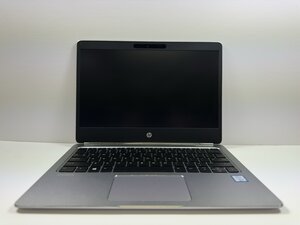
HP EliteBook Folio G1을 열고 전원 버튼을 눌렀는데 예상대로 켜지지 않는다면, 제공된 지침을 따르세요.
운영 체제 또는 드라이브 오류
노트북 전원은 켜지지만 운영 체제 손상이나 저장 드라이브 오류로 인해 Windows가 로드되지 않을 수 있습니다.
- BIOS 열기
- 시작하려면 ESC 키를 반복해서 누르세요.
- 하드웨어 진단 도구 실행
- BIOS를 통해 하드웨어 진단 도구를 실행하여 드라이브 상태를 확인하세요.
- 손상 여부 확인
- 메뉴가 나타나지 않거나 드라이브가 감지되지 않으면 기기의 손상 여부를 확인하세요. 기기 내부에 하드웨어 결함이 있을 수 있습니다.
BIOS 또는 부팅 메뉴가 초기화되지 않음
노트북이 시작 메뉴에 도달하지 못하는 경우, 펌웨어 문제, BIOS 손상 또는 기타 하드웨어 문제일 수 있습니다.
- 하드 리셋 수행
- 기기를 하드 리셋하려면 전원 버튼을 15초 동안 길게 누르세요. AC 어댑터가 분리되어 있는지 확인하세요.
- 추가 조치
- "No Boot Device(부팅 장치 없음)"와 같은 오류 코드가 표시되면 기기에 운영 체제를 설치해야 합니다.
충전 포트 결함
충전 포트가 손상되면 전력이 제대로 공급되지 않습니다.
- 충전 포트 검사
- 충전 포트에 핀이 휘었거나, 이물질이 있는지, 또는 물리적인 손상 흔적이 있는지 확인하세요.
- 손상된 경우 전문 수리 업체를 통해 충전 포트를 수리하거나 교체하세요.

팀

Austin Community College, Team 9-3, Watkins Fall 2025 Austin Community College, Team 9-3, Watkins Fall 2025 회원
AUSTINCC-WATKINS-F25S9G3
4 회원들
안내서 105개를 작성함

댓글 1개
What about the motherboard having an issue. Eg the display board
Dev Moses - 답글 공유