학생-기여 위키
자사 교육 프로그램의 멋진 학생들이 이 위키를 만들었습니다.
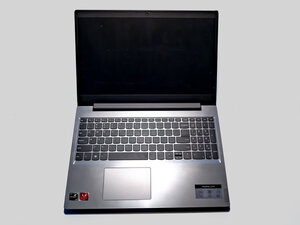
Lenovo IdeaPad L340-15API 노트북의 전원 버튼을 눌렀을 때 기기가 반응하지 않는다면, 이 문제해결 페이지에서 해결 방법을 확인해 보세요.
전원 공급 장치 오작동
기기의 전원 어댑터가 전원을 공급하지 못하는 데에는 몇 가지 이유가 있을 수 있습니다:
- 기기가 연결된 콘센트에서 전원이 제대로 공급되지 않을 수 있습니다. 정상적으로 작동하는 다른 콘센트를 사용해 보세요.
- 충전기에 손상이나 마모가 없는지 확인하세요. 케이블이 찢어지거나 헤지지 않았는지, 핀이 곧게 펴져 있는지, 금속 연결 부위에 녹이나 부식이 없는지 확인하세요.
내부 배터리 케이블 연결 끊김
내부 배터리 케이블이 연결되어 있지 않아 노트북이 켜지지 않을 수 있습니다:
- 기기에 충전 케이블을 연결하세요. 기기가 충전을 시작하지 않으면 충전 포트가 있는 쪽을 확인하세요. 기기가 연결되면 켜지는 작은 LED 표시등이 있어야 합니다.
- 기기를 연결했을 때 표시등이 켜지지 않는다면, 배선이 분리되었을 수 있습니다. 이 경우 아래의 "방전된 배터리" 섹션으로 이동하여 지침을 확인하세요.
방전된 배터리
방전된 배터리란 배터리가 충전 용량을 유지하는 기능을 상실하여 노트북을 항상 전원에 연결해야 함을 의미합니다. 이는 주로 자연스러운 성능 저하 과정 때문입니다.
- 배터리 상태를 먼저 테스트하려면, 배터리 상태 보고서를 실행하여 어떤 상황인지 파악하는 것이 도움이 됩니다.
- 노트북 배터리가 방전되었는지 확인하려면, 노트북을 몇 시간 동안 충전한 뒤 화면의 배터리 잔량을 모니터링하세요.
- 충전 후 충전 케이블을 분리했을 때 노트북이 즉시 꺼진다면, 배터리에 문제가 있을 가능성이 높으므로 교체가 필요합니다.
- 배터리 교체 방법은 이 안내서를 따르세요.
스크린 케이블 연결 끊김
노트북 전원이 켜지지 않는 것처럼 보이지만, 실제로는 내부 케이블 연결이 끊겨 스크린이 작동하지 않는 것일 수 있습니다:
- 노트북 스크린이 켜지지 않는 것은 내부 비디오 케이블이 연결되어 있지 않기 때문일 수 있습니다.
- 노트북 모니터 내부나 마더보드를 확인하여, 디스플레이가 작동하도록 두 부품을 연결해야 하는 비디오 케이블을 찾아보세요.
- 비디오 케이블을 통해 모니터와 마더보드 사이의 연결이 느슨하거나 끊어진 경우, 파손되지 않았다면 다시 연결해 보세요. 파손된 경우 케이블을 새것으로 교체해야 합니다.
마더보드 고장
마더보드 문제로 인해 노트북 전원이 켜지지 않을 수 있습니다. 마더보드가 고장 나면 기기 전원을 켤 수 없습니다. 현재 사이트에 마더보드 교체 안내서는 없지만, 메인 시스템 보드 교체에 관한 정보는 하드웨어 유지보수 매뉴얼를 참고하세요.

팀

UMass Dartmouth, Team 2-5, Bowman Fall 2025 UMass Dartmouth, Team 2-5, Bowman Fall 2025 회원
UMASSD-BOWMAN-F25S2G5
4 회원들
안내서 48개를 작성함

댓글 0개