주요 콘텐츠로 건너뛰기
수리 커뮤니티 가입 - 계정 만들기

Asus ROG G20CB CPU Replacement

필요한 것

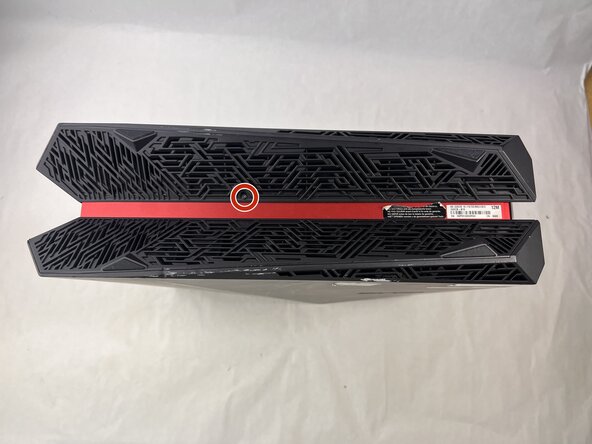
  1. Asus ROG G20CB CPU Replacement, Fan: 1 단계, 이미지 2개 중 1개 Asus ROG G20CB CPU Replacement, Fan: 1 단계, 이미지 2개 중 2개
    • Remove each of the two 4.6 mm Phillips screws on the top and bottom of the tower.

    댓글 쓰기

  2. Asus ROG G20CB CPU Replacement: 2 단계, 이미지 1개 중 1개
    • Slide the front panel to the left and lift gently.

    • There is a cable connecting the panel to the computer. Handle it gently and avoid straining the connected panel.

    댓글 쓰기

  3. Asus ROG G20CB CPU Replacement: 3 단계, 이미지 1개 중 1개
    • Disconnect the cable carefully by pulling gently on both sides of the connector.

    댓글 쓰기

  4. Asus ROG G20CB CPU Replacement: 4 단계, 이미지 1개 중 1개
    • Remove the five 4.6 mm Phillips screws holding down the fan tray and then pull the fan tray out of the system.

    • The fans are connected by a thin cable, be gentle when removing tray.

    댓글 쓰기

  5. Asus ROG G20CB CPU Replacement: 5 단계, 이미지 1개 중 1개
    • Carefully unplug the two fan cables from the motherboard by pulling straight up from the base of the connector.

    댓글 쓰기

  6. Asus ROG G20CB CPU Replacement: 6 단계, 이미지 1개 중 1개
    • Remove the six 4.6 mm Phillips screws connecting the fans to the fan tray.

    댓글 쓰기

  7. Asus ROG G20CB CPU Replacement, CPU Cooler: 7 단계, 이미지 1개 중 1개
    • Remove the 4.6 mm Phillips screw that secures the optical drive.

    댓글 쓰기

  8. Asus ROG G20CB CPU Replacement: 8 단계, 이미지 1개 중 1개
    • Push the optical drive out of the chassis.

    댓글 쓰기

  9. Asus ROG G20CB CPU Replacement: 9 단계, 이미지 1개 중 1개
    • Pull back the tape on the heat sink and use a long-neck Phillips screwdriver to remove the four screws securing the heat sink.

    • There is a number next to each screw, when taking the cooler off, loosen in descending order (4-3-2-1). When installing a cooler, tighten in ascending order.

    댓글 쓰기

  10. Asus ROG G20CB CPU Replacement: 10 단계, 이미지 1개 중 1개
    • Remove the 4.6 mm Phillips screw from the heatsink at the top of the case.

    • Lift the CPU cooler out of the system.

    • Be sure to apply fresh thermal paste before reinstalling a cooler.

    댓글 쓰기

  11. Asus ROG G20CB CPU Replacement, CPU: 11 단계, 이미지 1개 중 1개
    • Locate the CPU socket retention arm next to the processor.

    • Push the arm down and out, then lift it upward to release the CPU cover.

    댓글 쓰기

  12. Asus ROG G20CB CPU Replacement: 12 단계, 이미지 1개 중 1개
    • Gently lift the CPU straight out of the socket.

    • Handle the CPU by its edges. Do not touch the bottom pins or contacts to avoid damage.

    댓글 쓰기

  13. Asus ROG G20CB CPU Replacement: 13 단계, 이미지 1개 중 1개
    • Reassembly tip: When installing a new CPU make sure to align the gold triangle with the white circle on the motherboard.

    댓글 쓰기

결론

To reassemble your device, follow the above steps in reverse order.
Take your e-waste to an R2 or e-Stewards certified recycler.
Repair didn’t go as planned? Try some basic troubleshooting or ask our Answers community for help.

취소: 해당 안내서를 완성하지 않았습니다.

다른 한 분이 해당 안내서를 완성하였습니다.

작성자

2다른 기여자 명과 함께

Kimber-Starr

회원 가입일: 03/21/25

361 평판

안내서 3개를 작성함

UMass Dartmouth, Team 3-3, Botvin Spring 2025 UMass Dartmouth, Team 3-3, Botvin Spring 2025 회원

UMASSD-BOTVIN-S25S3G3

3 회원들

안내서 5개를 작성함

0가이드 댓글

댓글 쓰기

조회 통계:

지난 24시간: 1

지난 7일: 8

지난 30일: 42

전체 시간: 469