소개
The device featured in this replacement guide is the Dell XPS 14 L421X. This guide will assist the user in removing and replacing the laptop's RAM. There are no special skills or requirements for this guide, the user will only need to complete the steps shown. The RAM may often be the cause for random crashes or display issues. For more troubleshooting information, refer to the troubleshooting page. Before fully removing the RAM, make sure you check to ensure that the RAM is connected to the device, as these symptoms may also be due to a loose cable or plug. Before following these steps, it is important that you ground yourself by wearing an anti-static wrist strap. Also, make sure that the battery is fully disconnected before removing the RAM.
필요한 것
-
-
Position the computer back side up so that the “XPS” logo is facing you.
-
Remove six 3 mm screws along the perimeter of the back panel using a T5 Torx screwdriver.
 FixBot에 문의하기
-
-
-
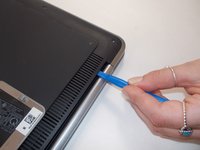
Use an opening tool to pry up the metal plate.
-
Remove the two 6 mm screws under the silver flap using a Phillips #0 screwdriver.
-
-
-
Flip over the back panel so that the interior of the panel is facing up.
-
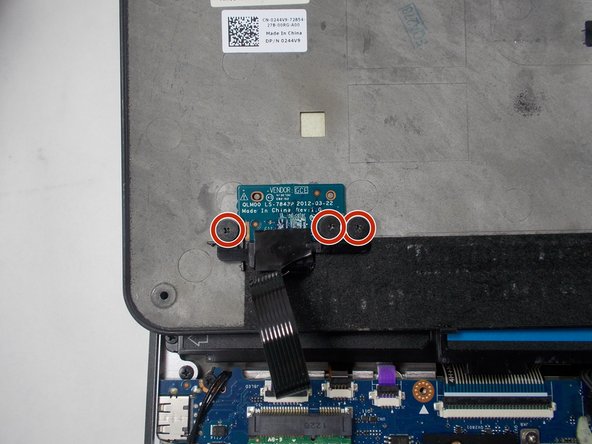
Remove three 2 mm screws that are connected to the vendor GCE disk on the bottom left corner of the back panel using a Phillips #0 screwdriver.
-
Remove the black plastic cover that holds the disk in place.
-
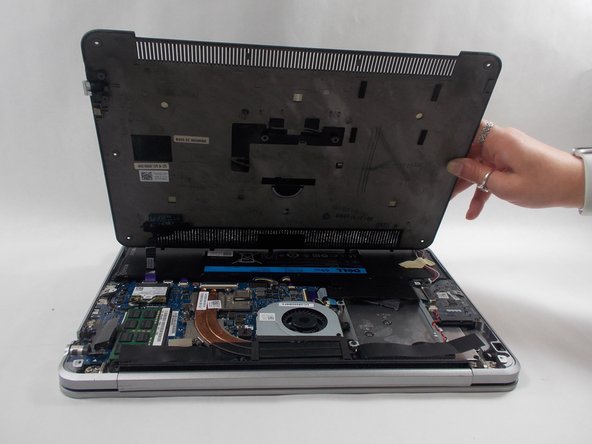
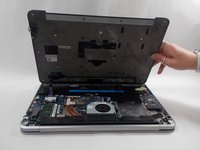
Remove the back panel.
-
-
-
-
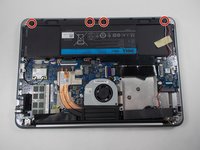
Remove four 2 mm screws that are connected to the speaker using a Phillips #0 screwdriver.
-
-
-
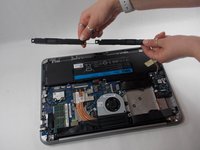
Remove the speaker from its original location so the wire connector is visible.
-
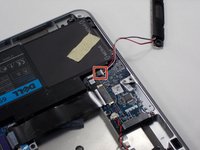
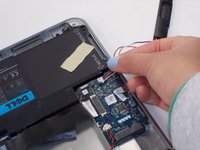
Unplug the red and white cable plug by pulling out the white end tag.
-
The speaker is now fully removed.
-
-
-
Remove the four 6 mm screws from the sides of the battery using a T5 Torx screwdriver.
-
Remove the two 3 mm screws from the top of the battery using a Phillips #0 screwdriver.
-
-
-
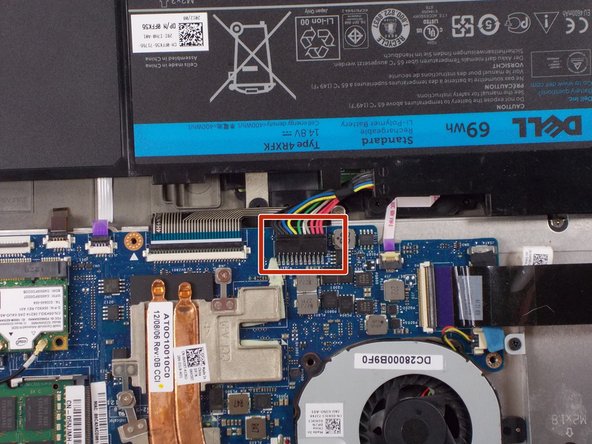
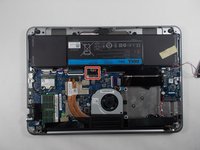
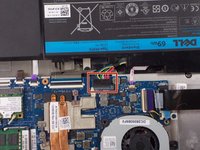
Detach the battery connector from the motherboard using two thumbs to pop it out.
-
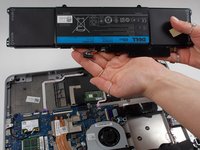
Remove the battery from the laptop.
-



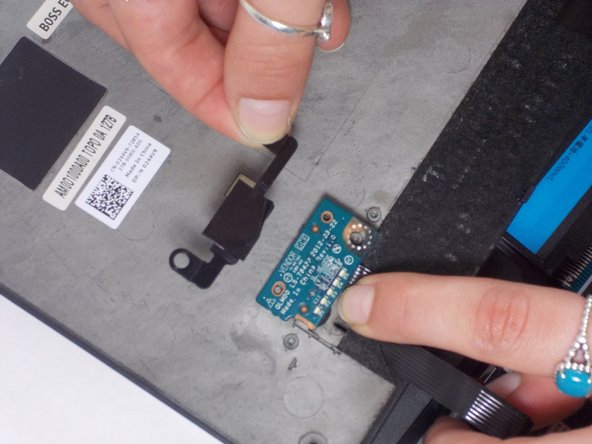
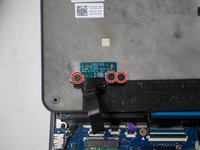








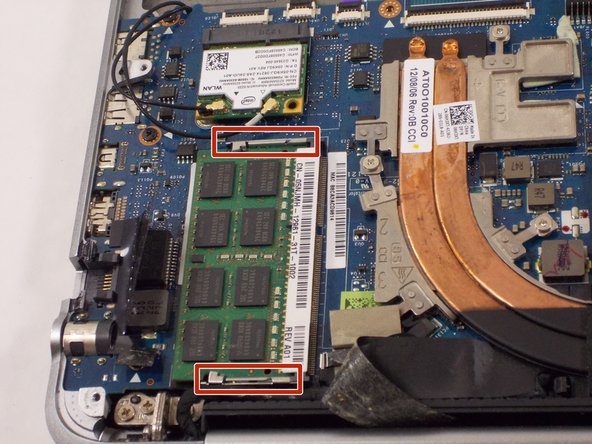
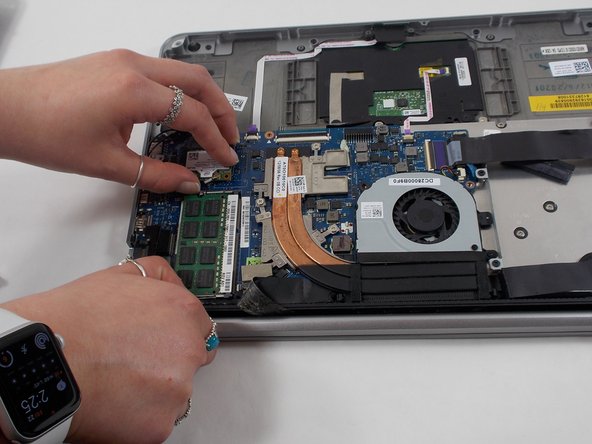
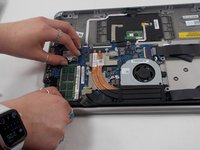

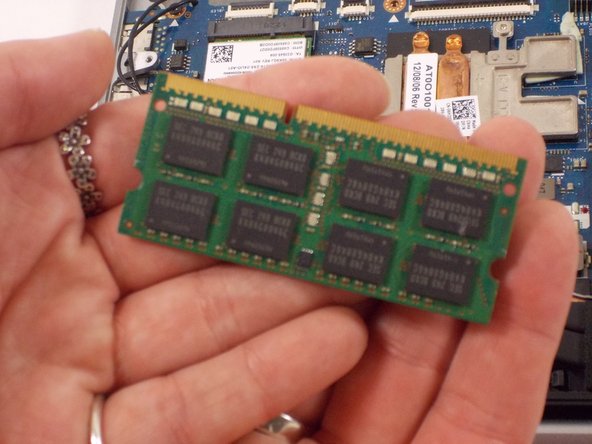
To reassemble your device, follow these instructions in reverse order.

팀

UMass Dartmouth, Team 1-3, Botvin Spring 2022 UMass Dartmouth, Team 1-3, Botvin Spring 2022 회원
UMASSD-BOTVIN-S22S1G3
3 회원들
안내서 5개를 작성함
