주요 콘텐츠로 건너뛰기
수리 커뮤니티 가입 - 계정 만들기

Ematic FunTab 3 Motherboard Replacement

필요한 것

  1. Ematic FunTab 3 Motherboard Replacement, Back Panel: 1 단계, 이미지 3개 중 1개 Ematic FunTab 3 Motherboard Replacement, Back Panel: 1 단계, 이미지 3개 중 2개 Ematic FunTab 3 Motherboard Replacement, Back Panel: 1 단계, 이미지 3개 중 3개
    • Turn off the device before starting

    • To prevent damage, open the device on the side without the buttons.

    • Insert the hooked end of the plastic opening tool in the gap between the screen and the back panel on the edge of the device.

    • Slide the plastic opening tool down the long side of the device.

    • Insert tool again and slide it down the long slide of the case a second time.

    댓글 쓰기

  2. Ematic FunTab 3 Motherboard Replacement: 2 단계, 이미지 1개 중 1개
    • Pull the back panel away from the screen.

    댓글 쓰기

  3. Ematic FunTab 3 Motherboard Replacement, Battery: 3 단계, 이미지 1개 중 1개
    • Remove the black tape to reveal the wire ribbon connector.

    댓글 쓰기

  4. Ematic FunTab 3 Motherboard Replacement: 4 단계, 이미지 3개 중 1개 Ematic FunTab 3 Motherboard Replacement: 4 단계, 이미지 3개 중 2개 Ematic FunTab 3 Motherboard Replacement: 4 단계, 이미지 3개 중 3개
    이 단계에 사용된 도구:
    Tweezers
    $4.99
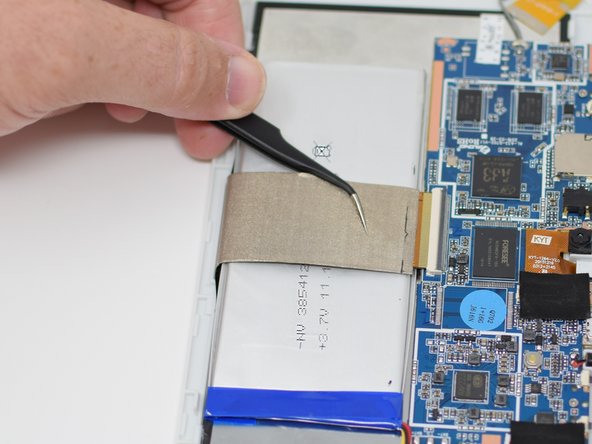
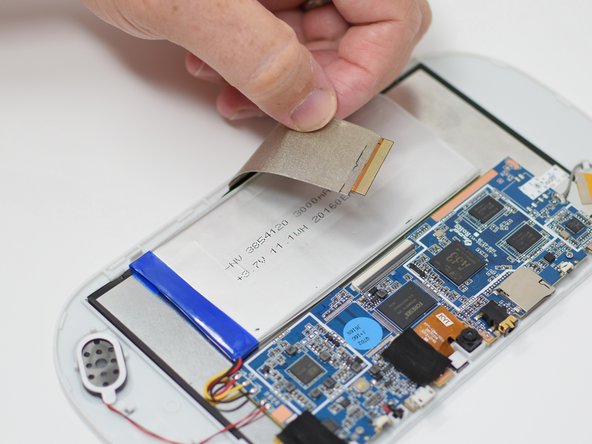
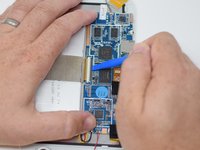
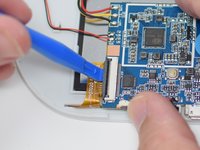
    • Flip up the black retaining tab using the plastic opening tool.

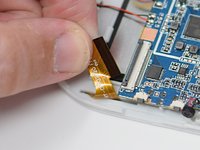
    • Pull out the large wire ribbon that crosses over the battery.

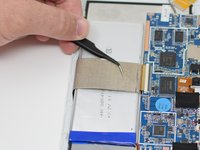
    • You may need tweezers to pull out the wire ribbon.

    댓글 쓰기

  5. Ematic FunTab 3 Motherboard Replacement: 5 단계, 이미지 3개 중 1개 Ematic FunTab 3 Motherboard Replacement: 5 단계, 이미지 3개 중 2개 Ematic FunTab 3 Motherboard Replacement: 5 단계, 이미지 3개 중 3개
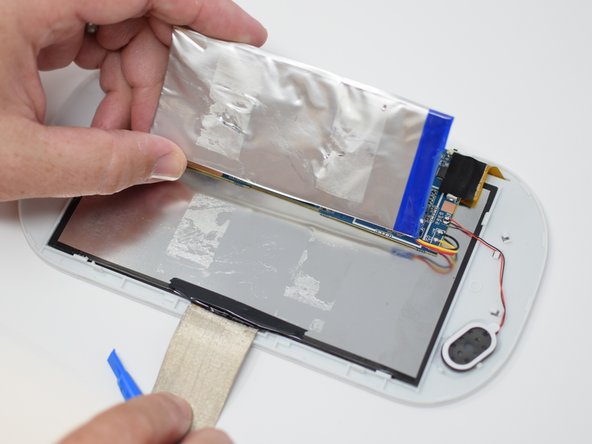
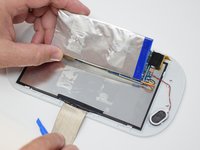
    • Insert the plastic opening tool under the battery.

    • Using the plastic opening tool, pry up the battery.

    • There is tape on the back of the battery. Some more force may be required to separate the battery from the back of the display.

    댓글 쓰기

  6. Ematic FunTab 3 Motherboard Replacement: 6 단계, 이미지 2개 중 1개 Ematic FunTab 3 Motherboard Replacement: 6 단계, 이미지 2개 중 2개
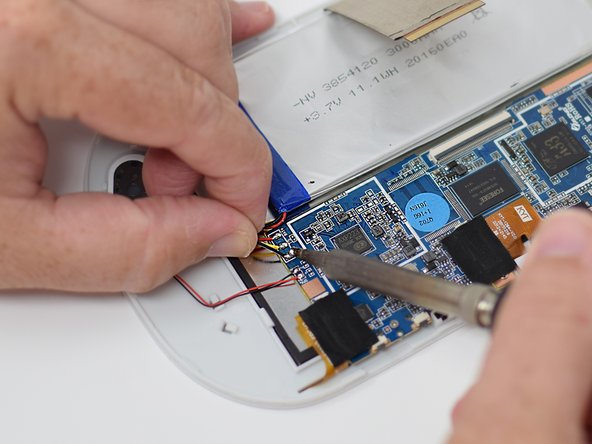
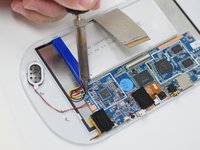
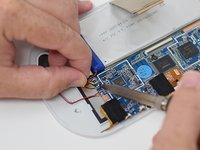
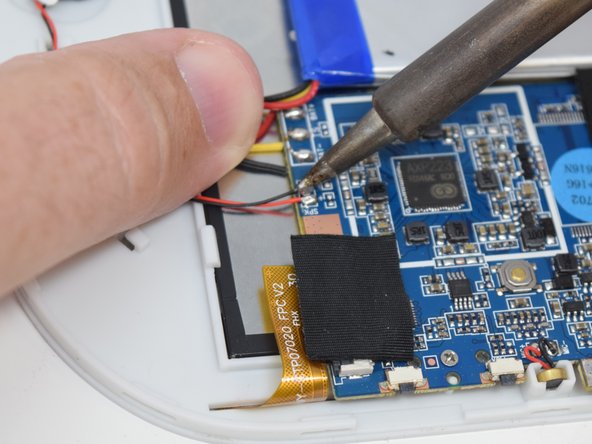
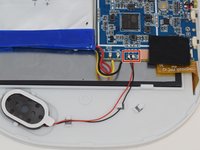
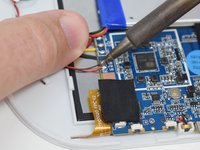
    • Remove the wires from the motherboard using a soldering iron tool. Here is a link on How To Solder and Desolder Connections.

    • After the connections are desoldered, remove the battery.

    • Close the black ribbon retaining tabs once ribbons are inserted during reassembly.

    댓글 쓰기

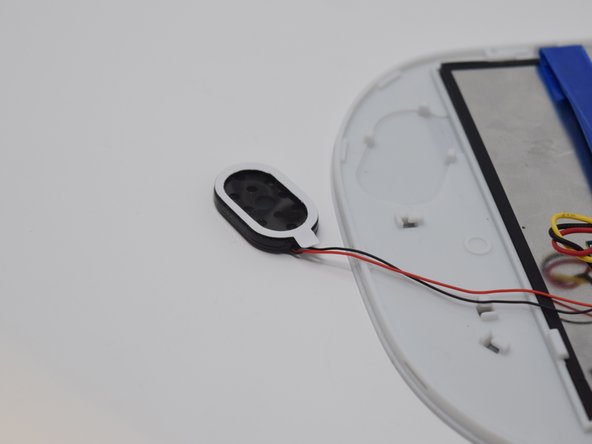
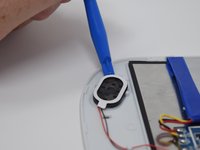
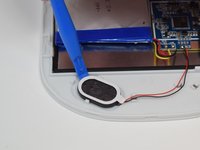
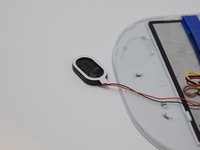
  7. Ematic FunTab 3 Motherboard Replacement, Speaker: 7 단계, 이미지 2개 중 1개 Ematic FunTab 3 Motherboard Replacement, Speaker: 7 단계, 이미지 2개 중 2개

    댓글 쓰기

  8. Ematic FunTab 3 Motherboard Replacement: 8 단계, 이미지 3개 중 1개 Ematic FunTab 3 Motherboard Replacement: 8 단계, 이미지 3개 중 2개 Ematic FunTab 3 Motherboard Replacement: 8 단계, 이미지 3개 중 3개
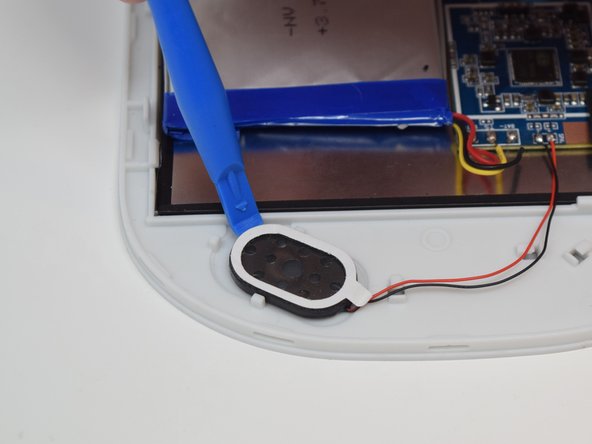
    • After the connections are desoldered, remove the speaker by prying it up using a plastic opening tool.

    • There is glue on the back of the speaker. Some more force may be required.

    댓글 쓰기

  9. Ematic FunTab 3 Motherboard Replacement, Camera: 9 단계, 이미지 2개 중 1개 Ematic FunTab 3 Motherboard Replacement, Camera: 9 단계, 이미지 2개 중 2개
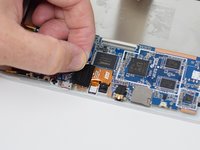
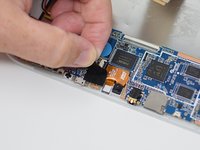
    • Remove the black tape to reveal the wire ribbon connector.

    댓글 쓰기

  10. Ematic FunTab 3 Motherboard Replacement: 10 단계, 이미지 1개 중 1개
    • Use the plastic opening tool to flip up the black retaining tab.

    댓글 쓰기

  11. Ematic FunTab 3 Motherboard Replacement: 11 단계, 이미지 2개 중 1개 Ematic FunTab 3 Motherboard Replacement: 11 단계, 이미지 2개 중 2개
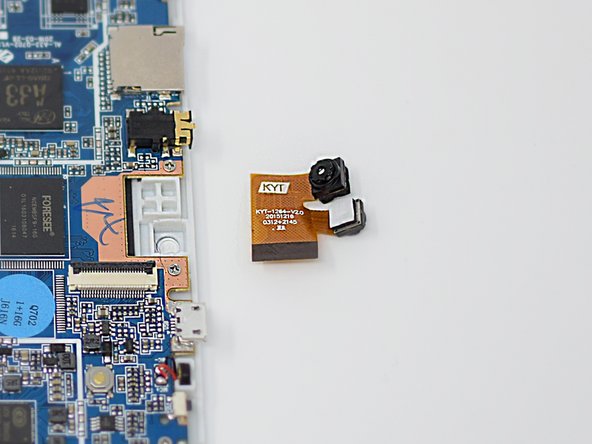
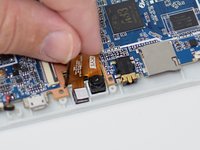
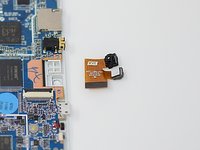
    • Pull out the wire ribbon connected to the camera.

    • The camera is held in place by glue, so extra force may be required.

    • Remove the camera from the device.

    • Close the black ribbon retaining tabs once ribbons are inserted during reassembly.

    댓글 쓰기

  12. Ematic FunTab 3 Motherboard Replacement, Motherboard: 12 단계, 이미지 1개 중 1개
    • Remove the black tape to reveal the screen connector.

    댓글 쓰기

  13. Ematic FunTab 3 Motherboard Replacement: 13 단계, 이미지 2개 중 1개 Ematic FunTab 3 Motherboard Replacement: 13 단계, 이미지 2개 중 2개
    • Flip up the retaining tab using the plastic opening tool.

    • Pull out the screen wire ribbon to disconnect the screen and motherboard.

    댓글 쓰기

  14. Ematic FunTab 3 Motherboard Replacement: 14 단계, 이미지 2개 중 1개 Ematic FunTab 3 Motherboard Replacement: 14 단계, 이미지 2개 중 2개
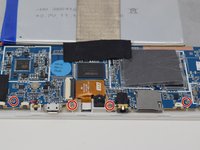
    • Using a PH 00 screwdriver, remove the four 4.5 mm screws that are holding the motherboard in place.

    댓글 쓰기

  15. Ematic FunTab 3 Motherboard Replacement: 15 단계, 이미지 1개 중 1개
    • It is now safe to remove and replace the old motherboard with your new motherboard.

    • Close the black ribbon retaining tabs once ribbons are inserted during reassembly.

    댓글 쓰기

결론

To reassemble your device, follow these instructions in reverse order.

취소: 해당 안내서를 완성하지 않았습니다.

작성자

4다른 기여자 명과 함께

Amanda Davis

회원 가입일: 07/11/18

581 평판

안내서 5개를 작성함

UW Tacoma, Team S1-G5, Cardinal Summer 2018 UW Tacoma, Team S1-G5, Cardinal Summer 2018 회원

UWT-CARDINAL-SU18S1G5

4 회원들

안내서 12개를 작성함

0가이드 댓글

댓글 쓰기

조회 통계:

지난 24시간: 2

지난 7일: 6

지난 30일: 22

전체 시간: 581