주요 콘텐츠로 건너뛰기

Framework Laptop 12 Pre-built Quick Start Guide

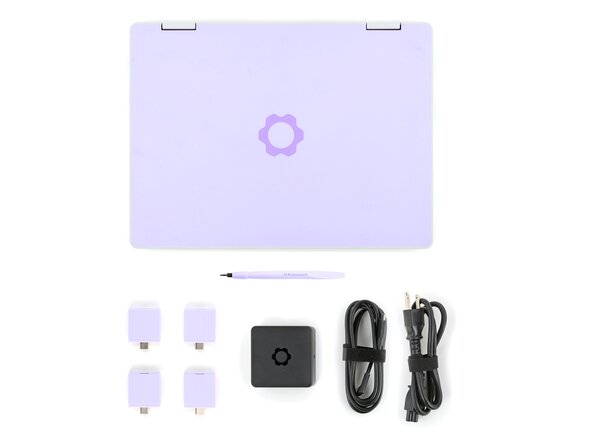
  1. Framework Laptop 12 Pre-built Quick Start Guide, Unbox your Framework Laptop: 1 단계, 이미지 2개 중 1개 Framework Laptop 12 Pre-built Quick Start Guide, Unbox your Framework Laptop: 1 단계, 이미지 2개 중 2개
    • Unbox your Framework Laptop and make sure you've received all the items:

    • Framework Laptop 12

    • Framework Screwdriver

    • Expansion Cards you selected during purchase

    • Framework Power Adapter, USB-C Cable, and AC Cable

  2. Framework Laptop 12 Pre-built Quick Start Guide, Set your laptop on a clean surface: 2 단계, 이미지 1개 중 1개
    • Set your Framework Laptop face-down on a clean work surface.

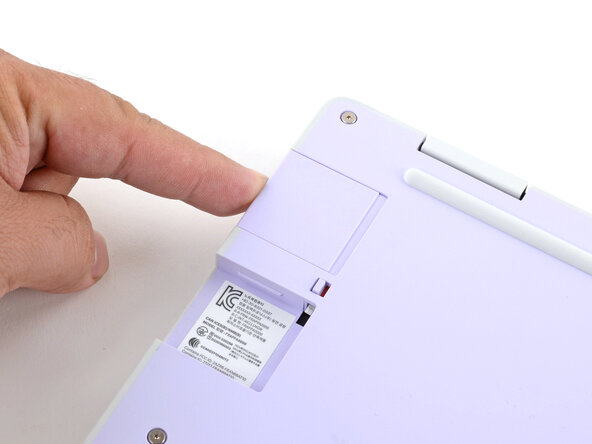
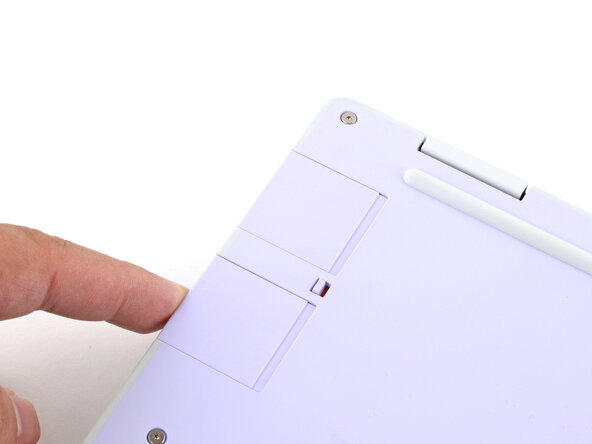
  3. Framework Laptop 12 Pre-built Quick Start Guide, Install the Expansion Cards: 3 단계, 이미지 3개 중 1개 Framework Laptop 12 Pre-built Quick Start Guide, Install the Expansion Cards: 3 단계, 이미지 3개 중 2개 Framework Laptop 12 Pre-built Quick Start Guide, Install the Expansion Cards: 3 단계, 이미지 3개 중 3개
    • Slide an Expansion Card into the Expansion Card slot.

    • All official Expansion Cards work fully in all slots, so you can install them however you wish!

    • You don't need to unlock the latches to install the Expansion Cards—only when you want to remove them.

    • The Expansion Cards should click in place, and the front edge should be flush with the laptop.

    • Repeat the procedure with the remaining expansion cards.

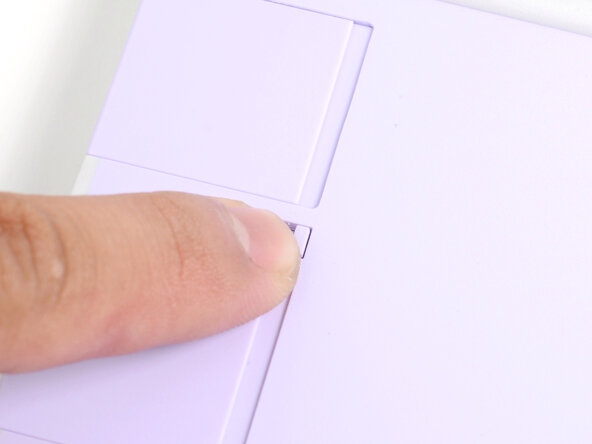
  4. Framework Laptop 12 Pre-built Quick Start Guide, Lock the Expansion Card slots: 4 단계, 이미지 2개 중 1개 Framework Laptop 12 Pre-built Quick Start Guide, Lock the Expansion Card slots: 4 단계, 이미지 2개 중 2개
    • If there's a red bar showing under each Expansion Card latch, use your finger to flip the latch and lock the Expansion Card into its slot.

    • Locking the Expansion Card slots help keep the cards in place when you unplug cables from them.

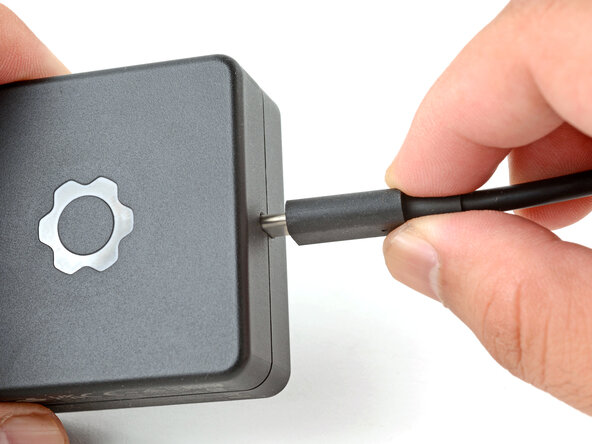
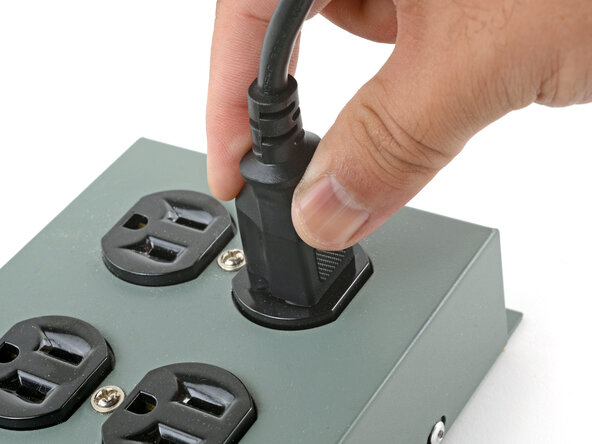
  5. Framework Laptop 12 Pre-built Quick Start Guide, Assemble the Framework Power Adapter: 5 단계, 이미지 3개 중 1개 Framework Laptop 12 Pre-built Quick Start Guide, Assemble the Framework Power Adapter: 5 단계, 이미지 3개 중 2개 Framework Laptop 12 Pre-built Quick Start Guide, Assemble the Framework Power Adapter: 5 단계, 이미지 3개 중 3개
    • Plug the AC Cable into the Power Adapter.

    • Plug the USB-C Cable into the Power Adapter.

    • You can plug either end of the USB-C cable into the adapter.

    • Plug the AC Cable into a power outlet.

  6. Framework Laptop 12 Pre-built Quick Start Guide, Plug in the laptop: 6 단계, 이미지 1개 중 1개
    • Your Framework Laptop ships in shipping mode, where the battery is disabled until you plug the laptop in for the first time.

    • Plug the USB-C cable into any USB-C port on your laptop.

  7. Framework Laptop 12 Pre-built Quick Start Guide, Turn on the laptop: 7 단계, 이미지 1개 중 1개
    • Your Framework Laptop is ready for use! Open the lid and press the power button along the right edge of the laptop.

결론

For drivers, firmware, and software updates, check out this page.

If you need help, contact Framework support.

Arthur Shi

회원 가입일: 01/03/18

309,604 평판

안내서 701개를 작성함

iFixit iFixit 회원

Staff

123 회원들

안내서 23,608개를 작성함

0가이드 댓글

댓글 쓰기

조회 통계:

지난 24시간: 1

지난 7일: 4

지난 30일: 10

전체 시간: 310