주요 콘텐츠로 건너뛰기
수리 커뮤니티 가입 - 계정 만들기
Google Pixel 9a Screen Replacement

필요한 것

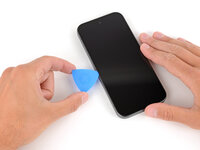
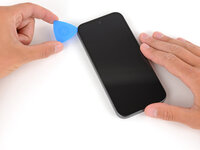
  1. Google Pixel 9a Screen Replacement, Safety precautions: 1 단계, 이미지 2개 중 1개 Google Pixel 9a Screen Replacement, Safety precautions: 1 단계, 이미지 2개 중 2개
    • Let your Pixel's battery drain below 25% before starting this repair. A charged lithium‑ion battery may catch fire if damaged.

    • Unplug all cables and completely power down your phone.

  2. Google Pixel 9a Screen Replacement, Safety precautions: 2 단계, 이미지 2개 중 1개 Google Pixel 9a Screen Replacement, Safety precautions: 2 단계, 이미지 2개 중 2개
    • Glass shards can complicate disassembly—or worse, cause injury. If your phone has a cracked screen, follow these steps:

    • Apply overlapping strips of packing tape to the cracked glass until the whole screen is covered—this will allow the suction cup to stick to the screen.

    • Only cover the glass itself—don't stick any tape to the frame.

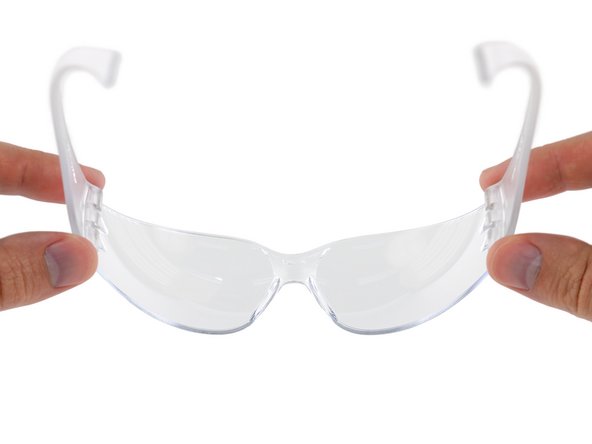
    • Consider wearing safety glasses to protect your eyes from any glass shaken free during the repair.

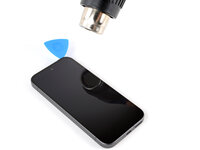
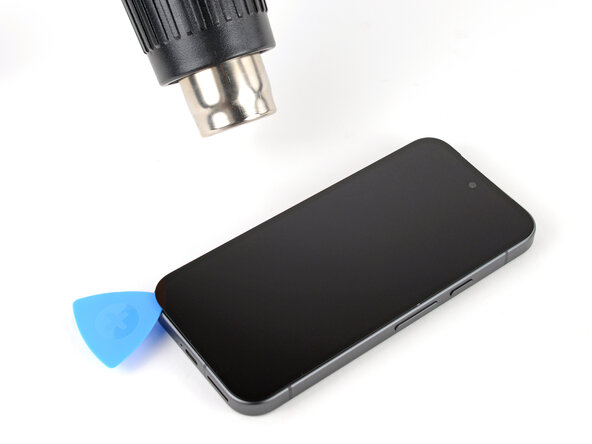
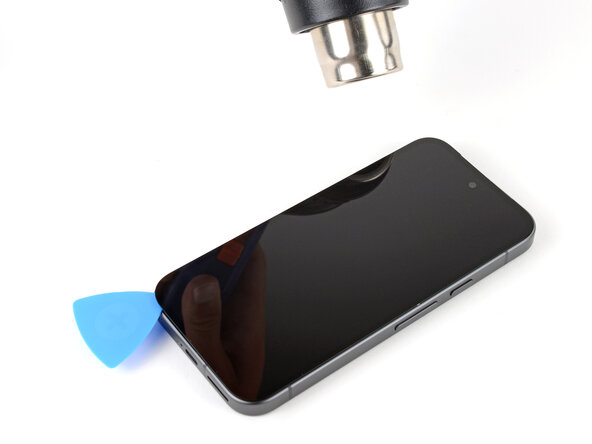
  3. Google Pixel 9a Screen Replacement, Heat the top edge: 3 단계, 이미지 1개 중 1개
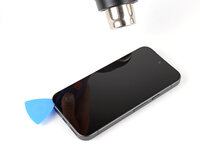
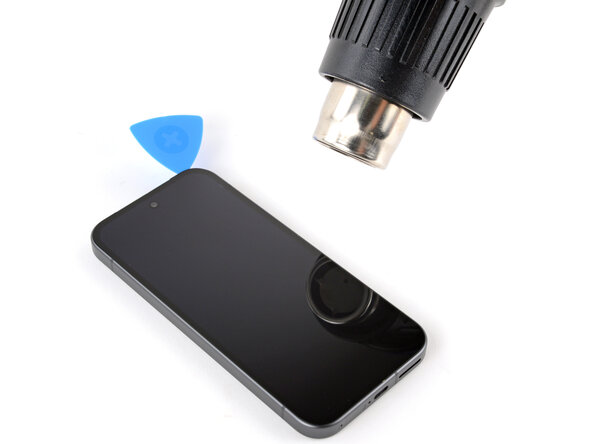
    • The screen adhesive is very strong, requiring significant heat to soften it. If you have difficulty separating the adhesive, reheat the screen and try again.

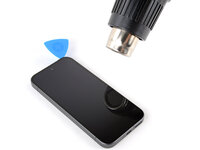
    • Use a hair dryer, heat gun, or hot mat to heat the top edge of the screen until it's almost too hot to touch.

    • Be careful not to overheat the phone—the battery and plastic components are susceptible to heat damage. Stop heating if the frame becomes too hot to touch.

    • If you're using a hot mat, set it to 80° C (176° F) and place your phone screen side down for 10 minutes.

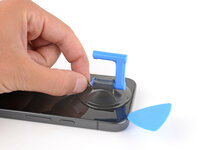
  4. Google Pixel 9a Screen Replacement, Apply a suction handle: 4 단계, 이미지 2개 중 1개 Google Pixel 9a Screen Replacement, Apply a suction handle: 4 단계, 이미지 2개 중 2개
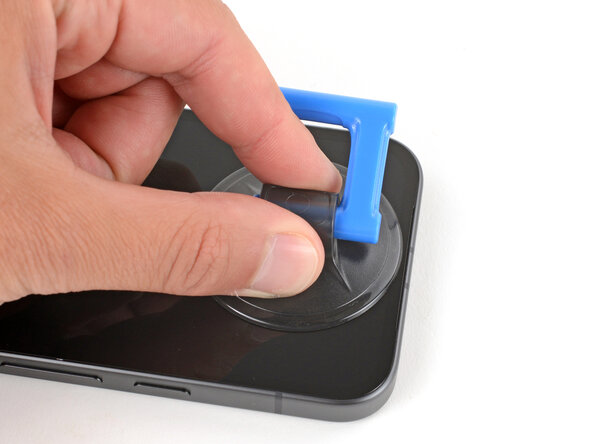
    • Apply a suction handle to the center of the screen's top edge.

  5. Google Pixel 9a Screen Replacement, Insert your tool under the screen: 5 단계, 이미지 3개 중 1개 Google Pixel 9a Screen Replacement, Insert your tool under the screen: 5 단계, 이미지 3개 중 2개 Google Pixel 9a Screen Replacement, Insert your tool under the screen: 5 단계, 이미지 3개 중 3개
    이 단계에 사용된 도구:
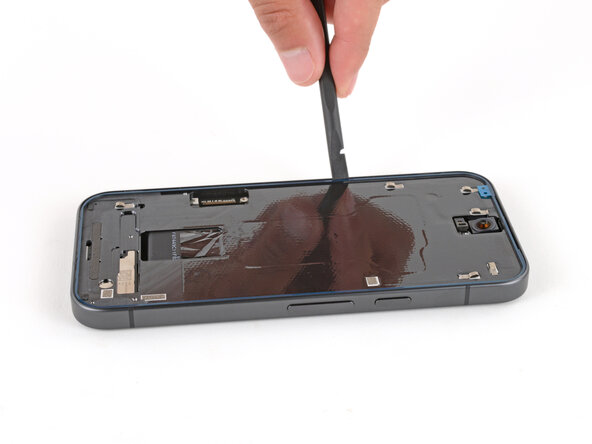
    Jimmy
    $7.95
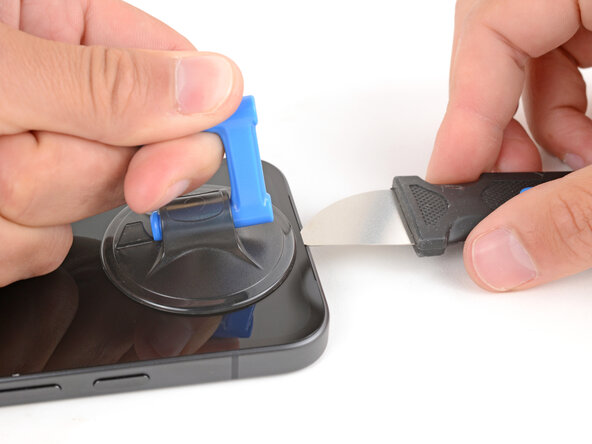
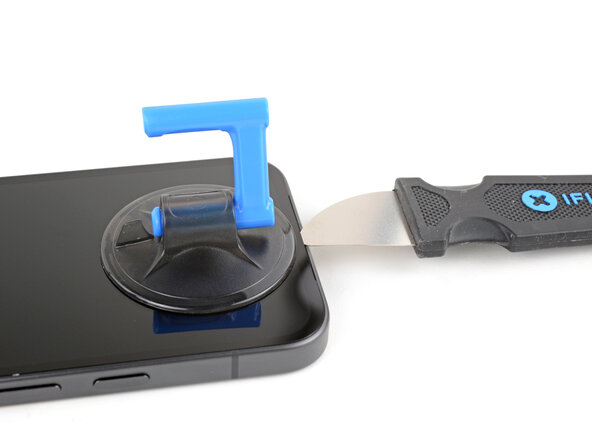
    • Don't insert any tools deeper than 2 mm, or you may damage the front camera.

    • Insert the tip of a Jimmy downward into the speaker cutout on the top edge of your phone.

    • If you don't have a Jimmy, you can use another small metal tool. Make sure it's thin and rigid.

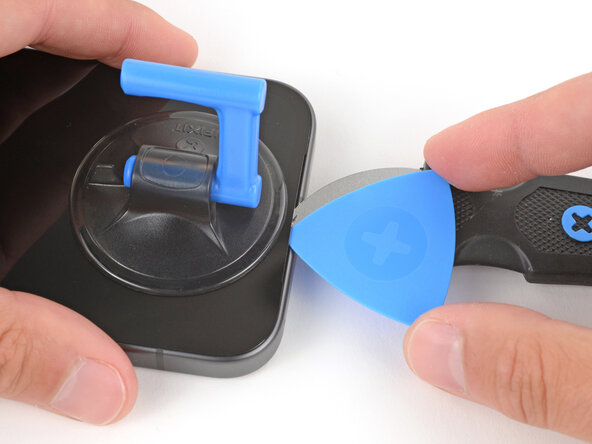
    • Pull up on the suction handle with strong, steady force while lowering the Jimmy until it slides under the screen.

    • Inserting your tool is very difficult. Reheat the screen at any point and try again if it feels stuck.

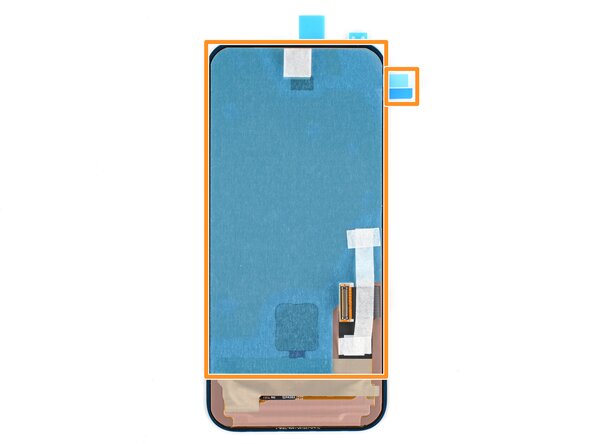
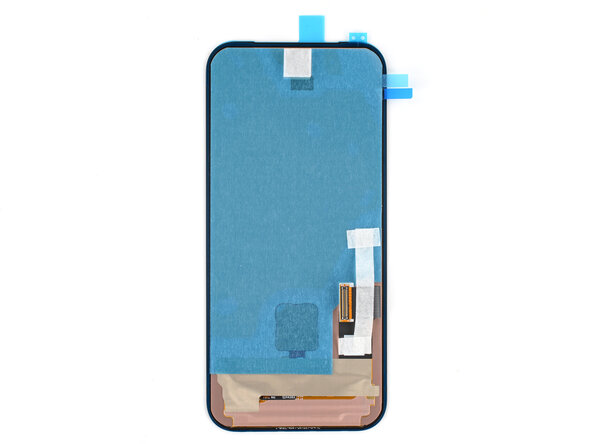
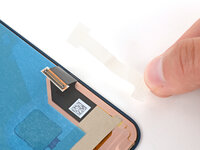
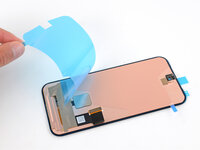
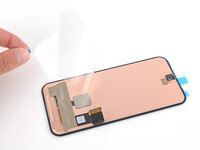
  6. Google Pixel 9a Screen Replacement, Insert an opening pick: 6 단계, 이미지 3개 중 1개 Google Pixel 9a Screen Replacement, Insert an opening pick: 6 단계, 이미지 3개 중 2개 Google Pixel 9a Screen Replacement, Insert an opening pick: 6 단계, 이미지 3개 중 3개
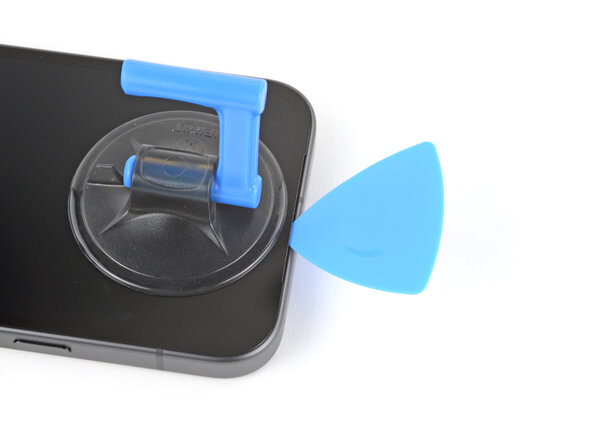
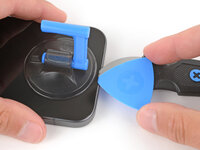
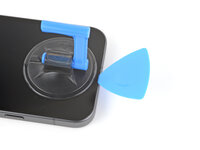
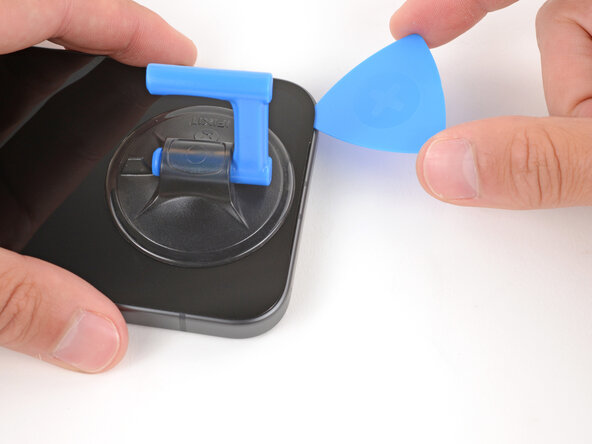
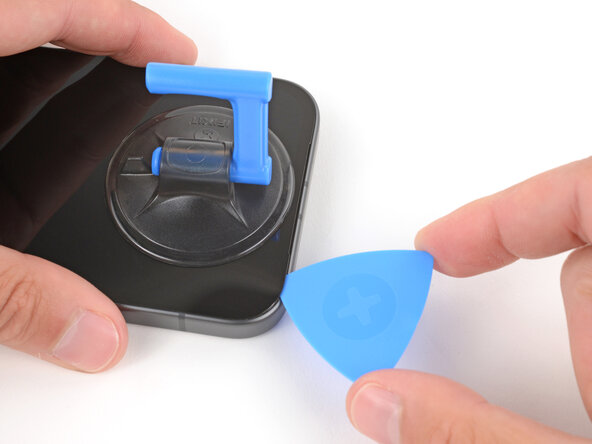
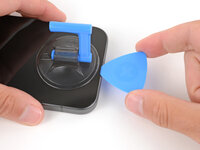
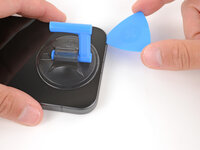
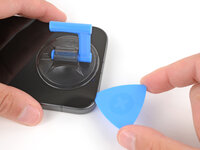
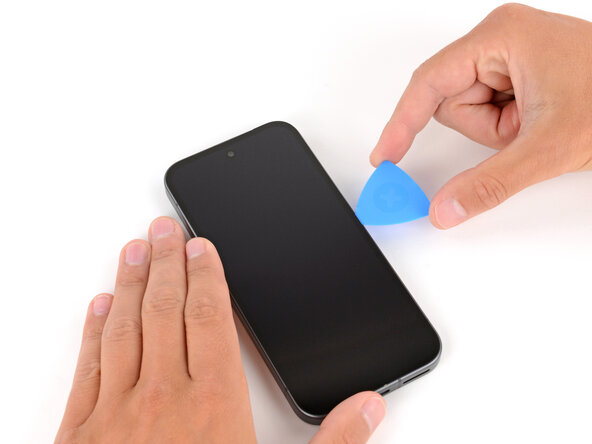
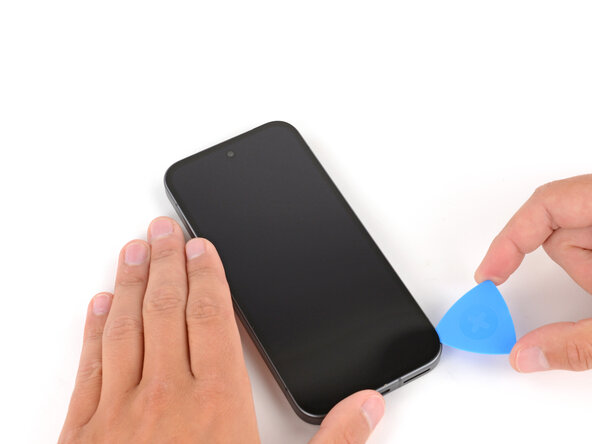
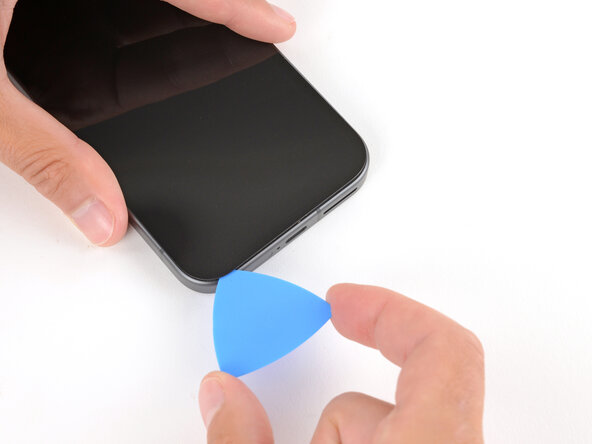
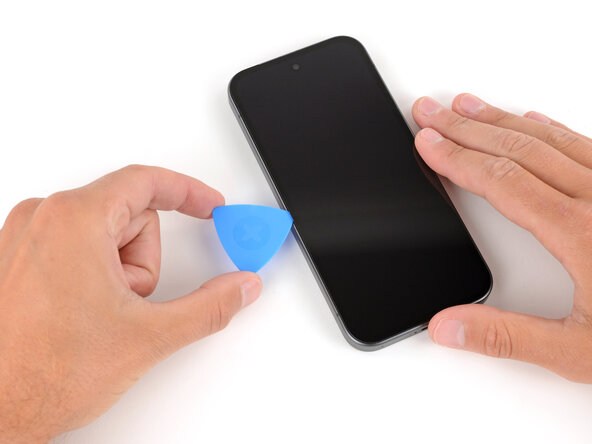
    • Slide the tip of an opening pick under the screen into the gap created by the Jimmy.

    • Remove the Jimmy.

  7. Google Pixel 9a Screen Replacement, Separate the top edge adhesive: 7 단계, 이미지 3개 중 1개 Google Pixel 9a Screen Replacement, Separate the top edge adhesive: 7 단계, 이미지 3개 중 2개 Google Pixel 9a Screen Replacement, Separate the top edge adhesive: 7 단계, 이미지 3개 중 3개
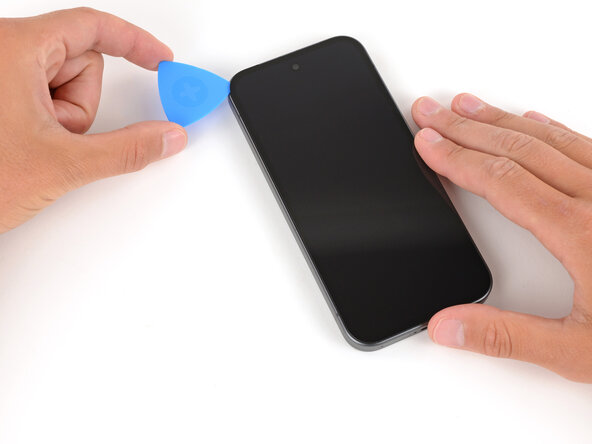
    • Remember: Don't insert your pick deeper than 2 mm, or you may damage the front camera.

    • Slide your opening pick along the top edge of the screen to separate the adhesive securing it.

    • Leave the pick inserted under the top right corner of the screen to prevent the adhesive from re‑sealing.

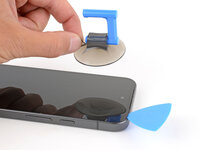
  8. Google Pixel 9a Screen Replacement, Remove the suction handle: 8 단계, 이미지 2개 중 1개 Google Pixel 9a Screen Replacement, Remove the suction handle: 8 단계, 이미지 2개 중 2개
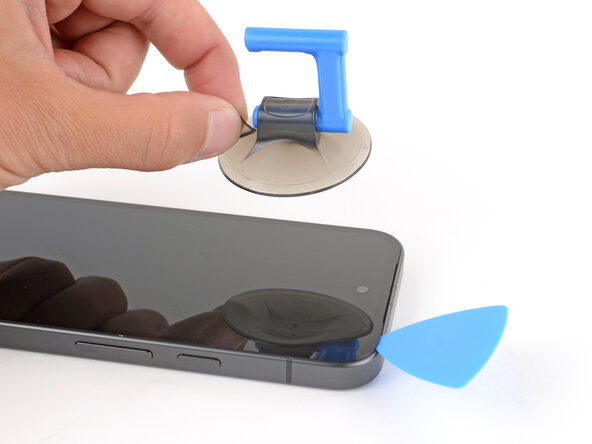
    • Use the small tab to remove the suction handle from the screen.

  9. Google Pixel 9a Screen Replacement, Heat the right edge of the screen: 9 단계, 이미지 3개 중 1개 Google Pixel 9a Screen Replacement, Heat the right edge of the screen: 9 단계, 이미지 3개 중 2개 Google Pixel 9a Screen Replacement, Heat the right edge of the screen: 9 단계, 이미지 3개 중 3개
  10. Google Pixel 9a Screen Replacement, Separate the right edge adhesive: 10 단계, 이미지 3개 중 1개 Google Pixel 9a Screen Replacement, Separate the right edge adhesive: 10 단계, 이미지 3개 중 2개 Google Pixel 9a Screen Replacement, Separate the right edge adhesive: 10 단계, 이미지 3개 중 3개
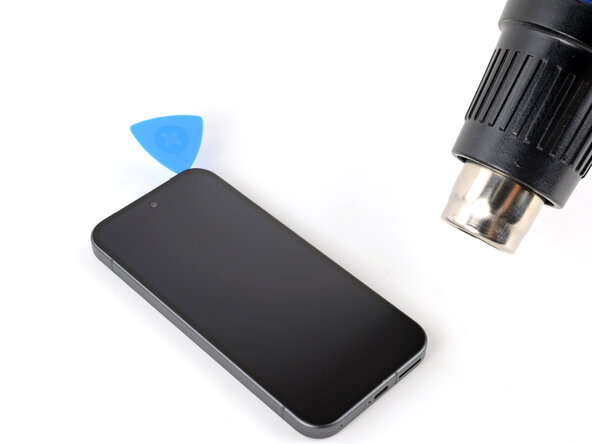
    • Slide your opening pick down the right edge to separate the adhesive securing it.

    • Leave the pick inserted under the bottom right corner of the screen to prevent the adhesive from re‑sealing.

  11. Google Pixel 9a Screen Replacement, Heat the bottom edge: 11 단계, 이미지 1개 중 1개
  12. Google Pixel 9a Screen Replacement, Separate the bottom edge adhesive: 12 단계, 이미지 2개 중 1개 Google Pixel 9a Screen Replacement, Separate the bottom edge adhesive: 12 단계, 이미지 2개 중 2개
    • Slide your opening pick along the bottom edge of the screen to separate the adhesive securing it.

    • Leave the pick inserted under the bottom left corner of the screen to prevent the adhesive from re‑sealing.

  13. Google Pixel 9a Screen Replacement, Heat the left edge: 13 단계, 이미지 3개 중 1개 Google Pixel 9a Screen Replacement, Heat the left edge: 13 단계, 이미지 3개 중 2개 Google Pixel 9a Screen Replacement, Heat the left edge: 13 단계, 이미지 3개 중 3개
  14. Google Pixel 9a Screen Replacement, Separate the left edge adhesive: 14 단계, 이미지 3개 중 1개 Google Pixel 9a Screen Replacement, Separate the left edge adhesive: 14 단계, 이미지 3개 중 2개 Google Pixel 9a Screen Replacement, Separate the left edge adhesive: 14 단계, 이미지 3개 중 3개
    • Be careful not to insert your pick too far near the center of the left edge, or you may damage the screen cable.

    • Slide your opening pick up the left edge to separate the adhesive securing it.

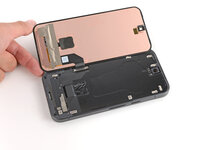
  15. Google Pixel 9a Screen Replacement, Lay the screen flat: 15 단계, 이미지 2개 중 1개 Google Pixel 9a Screen Replacement, Lay the screen flat: 15 단계, 이미지 2개 중 2개
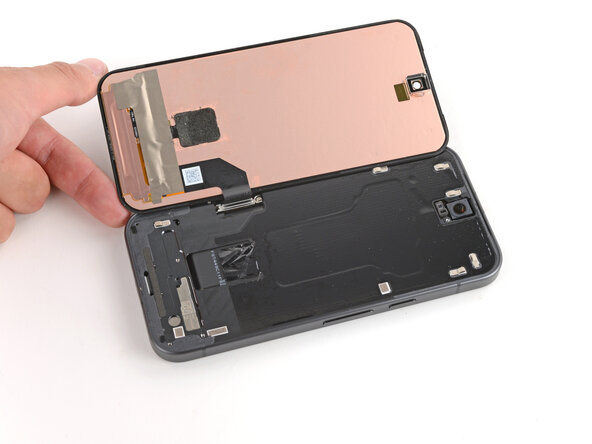
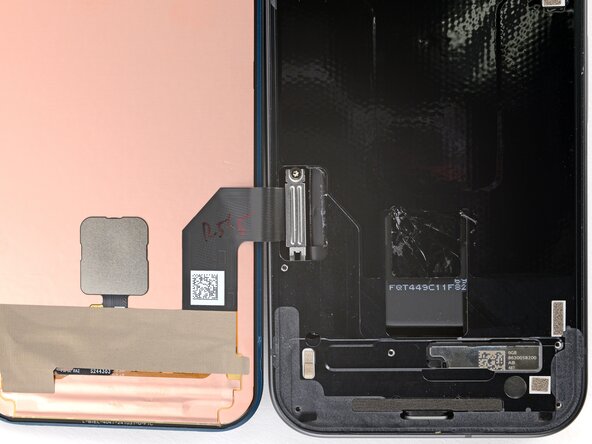
    • Swing the screen over the left edge of your phone (like opening the cover of a book) and lay it down flat.

    • If you feel resistance when lifting the screen, use an opening pick to separate any leftover adhesive.

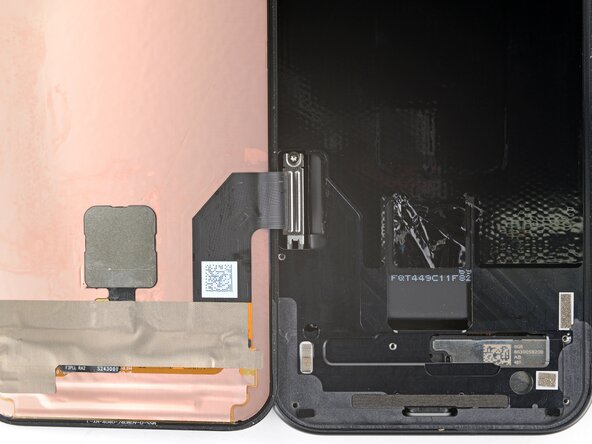
  16. Google Pixel 9a Screen Replacement, Remove the cable cover screw: 16 단계, 이미지 2개 중 1개 Google Pixel 9a Screen Replacement, Remove the cable cover screw: 16 단계, 이미지 2개 중 2개
    • The battery is exposed through a small cutout near the screen cable. Be very careful not to damage it with your tools.

    • Use a Torx Plus 3IP screwdriver to remove the 1.7 mm‑long screw securing the cable cover.

  17. Google Pixel 9a Screen Replacement, Remove the cable cover: 17 단계, 이미지 3개 중 1개 Google Pixel 9a Screen Replacement, Remove the cable cover: 17 단계, 이미지 3개 중 2개 Google Pixel 9a Screen Replacement, Remove the cable cover: 17 단계, 이미지 3개 중 3개
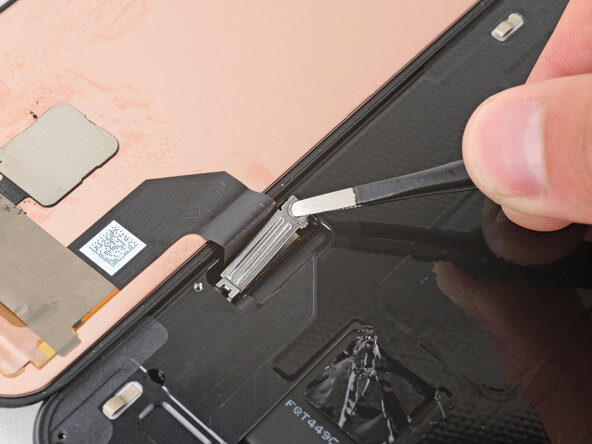
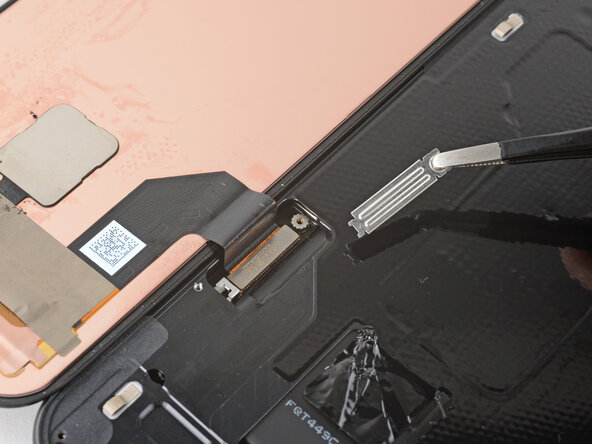
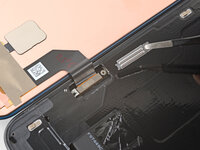
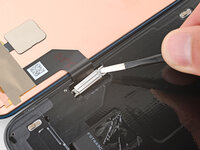
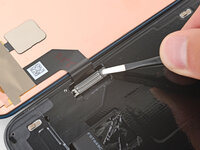
    • Use tweezers or your fingers to lift and remove the cable cover.

  18. Google Pixel 9a Screen Replacement: 18 단계, 이미지 2개 중 1개 Google Pixel 9a Screen Replacement: 18 단계, 이미지 2개 중 2개
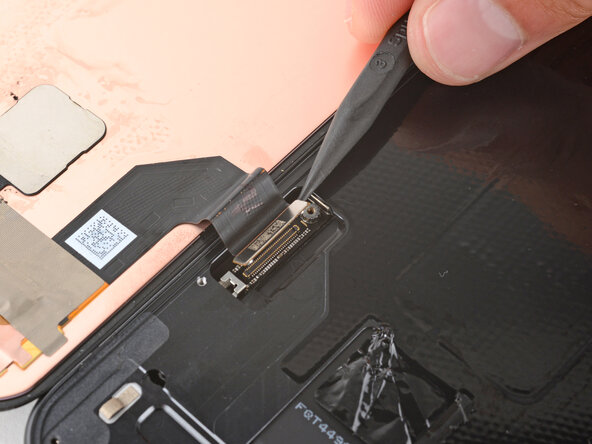
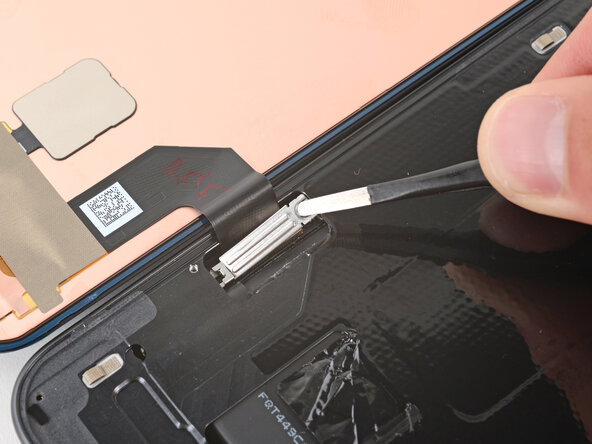
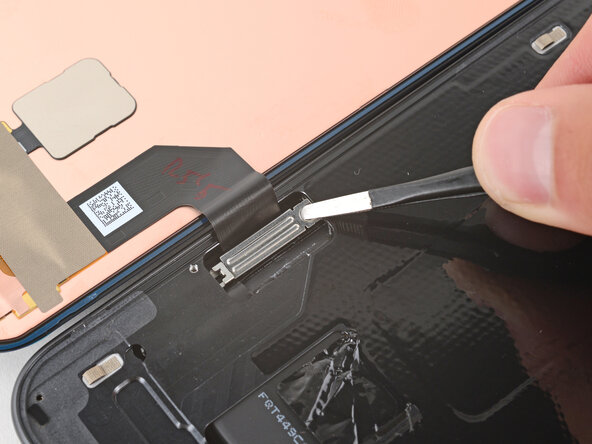
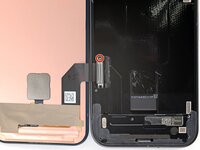
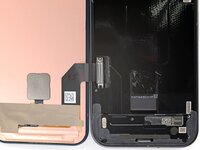
    • Remember: The battery is exposed through a small cutout near the screen cable. Be very careful not to damage it with your tool.

    • Use the point of a spudger to pry up and disconnect the screen press connector from its top left corner.

  19. Google Pixel 9a Screen Replacement, Remove the screen: 19 단계, 이미지 1개 중 1개
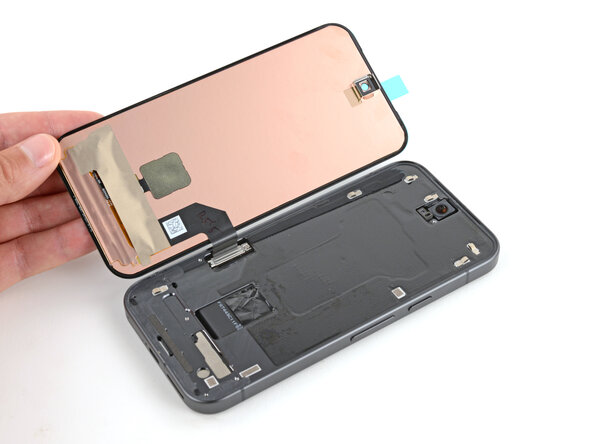
    • Remove the screen.

  20. Google Pixel 9a Screen Replacement, Disassembly complete: 20 단계, 이미지 1개 중 1개
    • Congratulations on completing disassembly! The remaining steps will show how to reassemble your phone.

  21. Google Pixel 9a Screen Replacement, Clean the frame: 21 단계, 이미지 2개 중 1개 Google Pixel 9a Screen Replacement, Clean the frame: 21 단계, 이미지 2개 중 2개
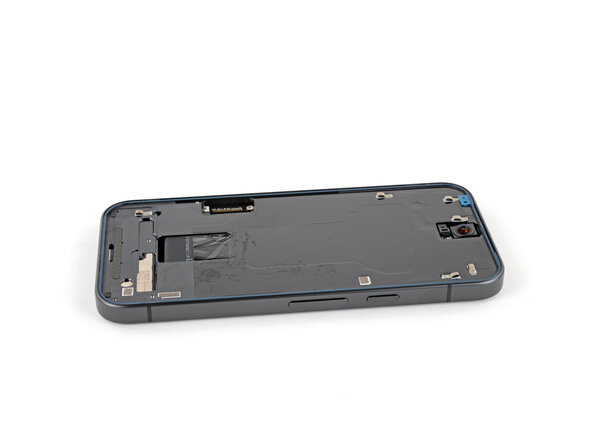
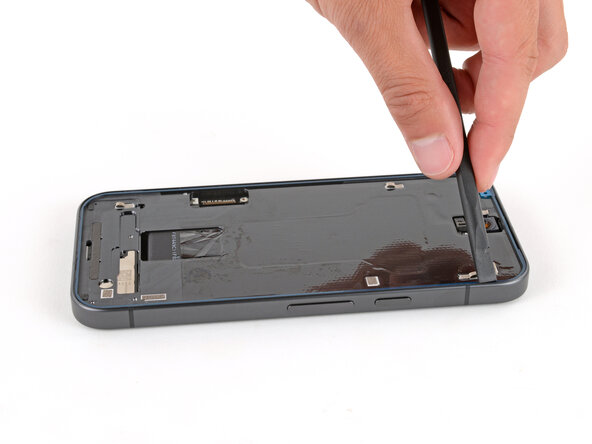
    • Take your time during this step. A clean frame allows replacement adhesive to lay totally flat, ensuring a better bond.

    • Use a spudger and tweezers to scrape up and remove any screen adhesive from the perimeter of the frame.

    • Most of the adhesive should have stayed on the screen during removal, so there may not be any adhesive to remove.

    • Using some high‑concentration (>90%) isopropyl alcohol and a lint‑free cloth (or coffee filter), clean the areas of the frame where the adhesive was.

    • Be careful not to damage the silver foam pads around the perimeter of the phone.

    • Wait for any alcohol to dry completely before continuing.

  22. Google Pixel 9a Screen Replacement, Find the adhesive orientation: 22 단계, 이미지 2개 중 1개 Google Pixel 9a Screen Replacement, Find the adhesive orientation: 22 단계, 이미지 2개 중 2개
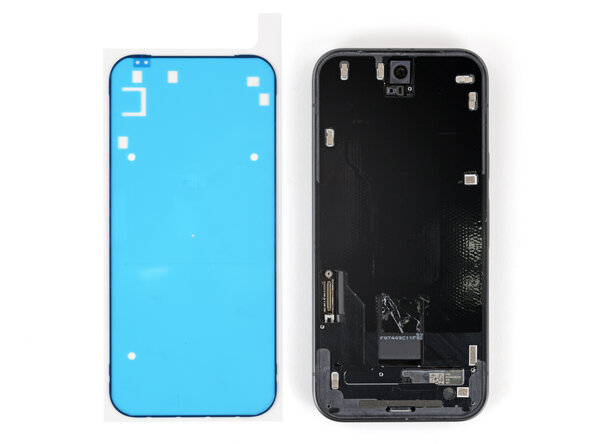
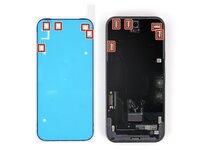
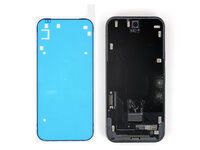
    • Check if your replacement screen comes with adhesive pre‑installed around its perimeter. If it does, skip down six steps. If it doesn't, follow the next six steps to install new screen adhesive on the frame.

    • Before applying the screen adhesive, make sure you know how it will sit on the frame. If you apply the adhesive incorrectly, you'll need to restart with new adhesive.

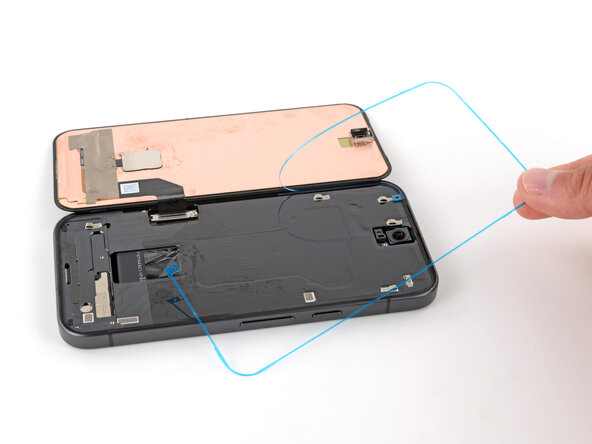
    • Hold the adhesive above the frame to find its orientation. Use cutouts in the liner to help visualize how it will lay in the frame.

  23. Google Pixel 9a Screen Replacement, Peel the liner halfway down: 23 단계, 이미지 1개 중 1개
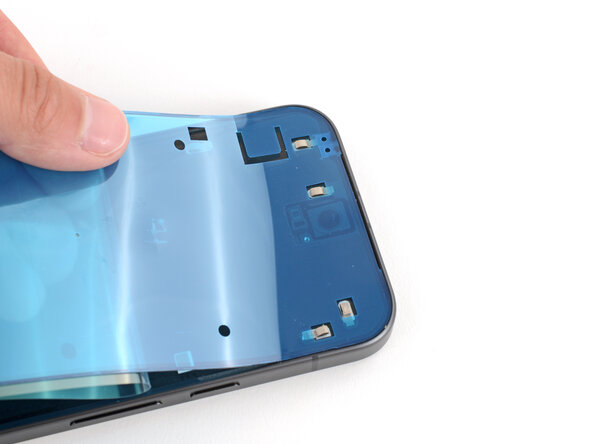
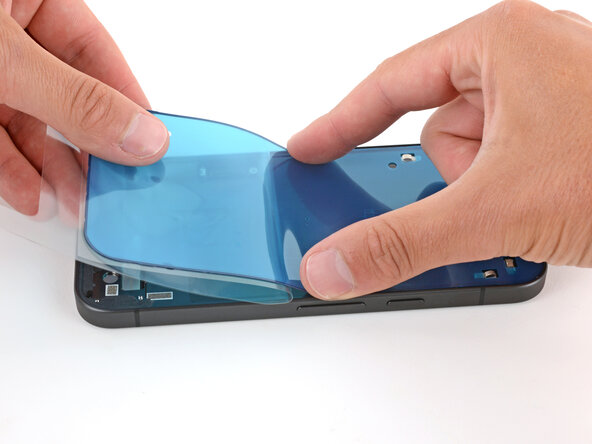
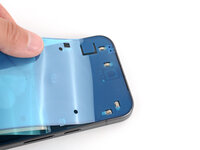
    • Peel down the top half of the large, clear liner to expose the adhesive—don't fully remove the liner yet.

  24. Google Pixel 9a Screen Replacement, Apply the adhesive: 24 단계, 이미지 3개 중 1개 Google Pixel 9a Screen Replacement, Apply the adhesive: 24 단계, 이미지 3개 중 2개 Google Pixel 9a Screen Replacement, Apply the adhesive: 24 단계, 이미지 3개 중 3개
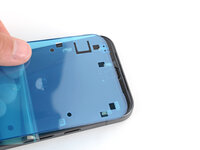
    • Take your time aligning the adhesive with the frame—it's very sticky and can't be moved after you apply it.

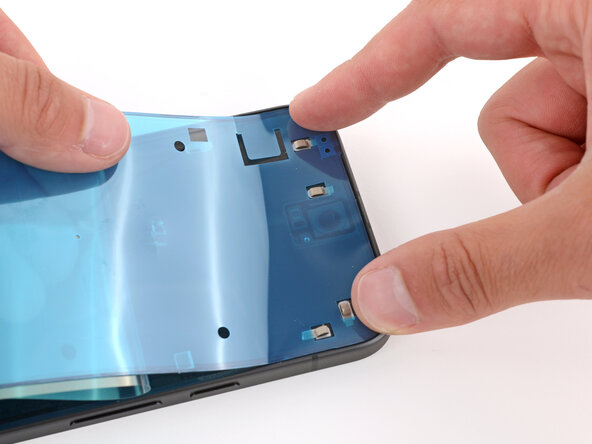
    • With the larger, clear liner folded towards the bottom of the phone, lay the exposed top edge of the adhesive onto the frame.

    • Use the lip of the frame to help align the adhesive.

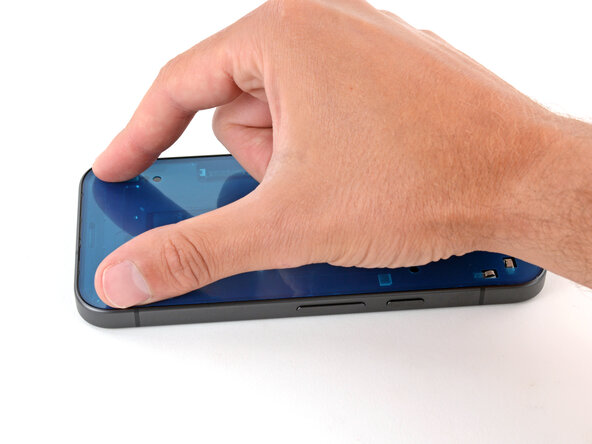
    • Once the top edge is properly aligned, gently press down on the top corners with your fingers to secure the adhesive.

  25. Google Pixel 9a Screen Replacement: 25 단계, 이미지 3개 중 1개 Google Pixel 9a Screen Replacement: 25 단계, 이미지 3개 중 2개 Google Pixel 9a Screen Replacement: 25 단계, 이미지 3개 중 3개
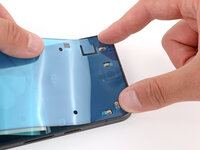
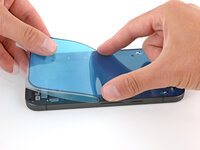
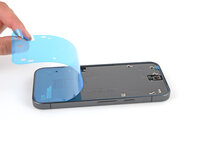
    • Slowly lay the rest of the adhesive onto the frame, pressing it into place and peeling away the larger liner as you go.

  26. Google Pixel 9a Screen Replacement, Remove the top liner: 26 단계, 이미지 3개 중 1개 Google Pixel 9a Screen Replacement, Remove the top liner: 26 단계, 이미지 3개 중 2개 Google Pixel 9a Screen Replacement, Remove the top liner: 26 단계, 이미지 3개 중 3개
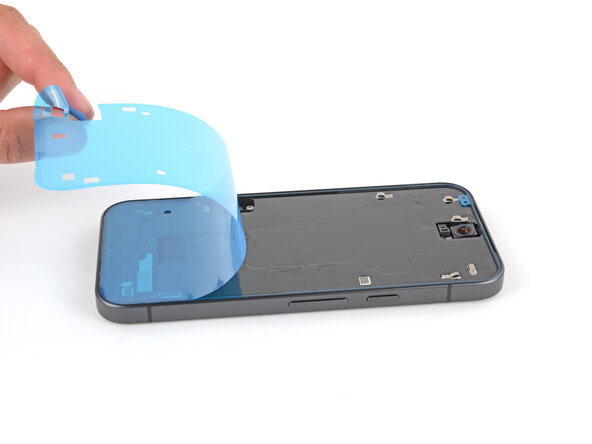
    • Use the pull tab to remove the large, colored liner.

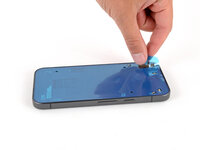
  27. Google Pixel 9a Screen Replacement, Secure the adhesive: 27 단계, 이미지 3개 중 1개 Google Pixel 9a Screen Replacement, Secure the adhesive: 27 단계, 이미지 3개 중 2개 Google Pixel 9a Screen Replacement, Secure the adhesive: 27 단계, 이미지 3개 중 3개
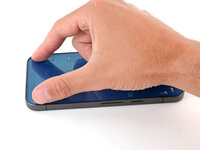
    • Use a spudger to press down firmly on the screen adhesive around the perimeter of your phone to secure it to the frame.

  28. Google Pixel 9a Screen Replacement, Remove the screen liners: 28 단계, 이미지 3개 중 1개 Google Pixel 9a Screen Replacement, Remove the screen liners: 28 단계, 이미지 3개 중 2개 Google Pixel 9a Screen Replacement, Remove the screen liners: 28 단계, 이미지 3개 중 3개
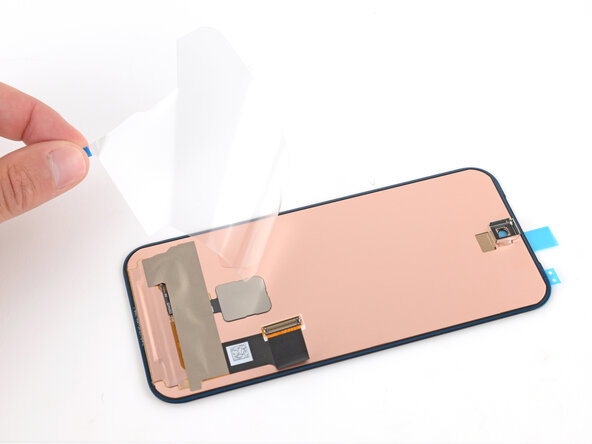
    • Your replacement screen has various protective liners and pieces of tape on the underside that must be removed before installing the screen. Your screen may have different pieces in different locations, so make sure to check carefully!

    • Tape may be covering the front camera and holding the screen cable in place.

    • There may be multiple protective liners covering the bottom of the screen.

    • Do not remove any of the liners from the screen adhesive around the perimeter yet.

  29. Google Pixel 9a Screen Replacement: 29 단계, 이미지 3개 중 1개 Google Pixel 9a Screen Replacement: 29 단계, 이미지 3개 중 2개 Google Pixel 9a Screen Replacement: 29 단계, 이미지 3개 중 3개
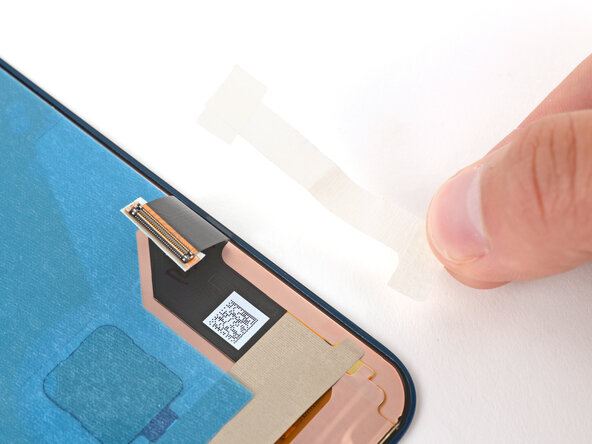
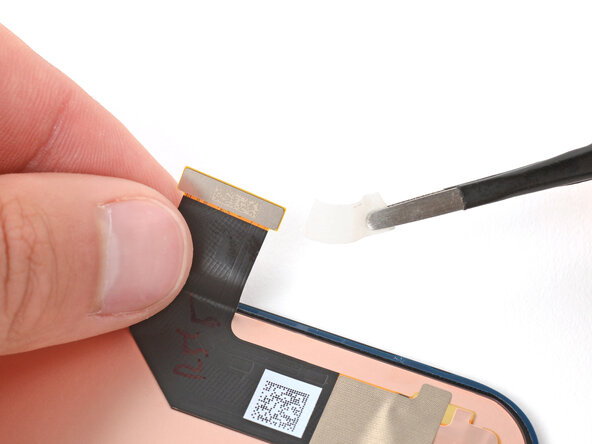
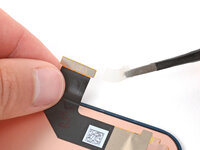
    • Use your fingers to carefully remove any tape from the front camera cutout and screen cable.

    • If there's tape covering the top of the connector, use tweezers to remove it. Be careful not to pull on or tear the screen cable.

  30. Google Pixel 9a Screen Replacement: 30 단계, 이미지 3개 중 1개 Google Pixel 9a Screen Replacement: 30 단계, 이미지 3개 중 2개 Google Pixel 9a Screen Replacement: 30 단계, 이미지 3개 중 3개
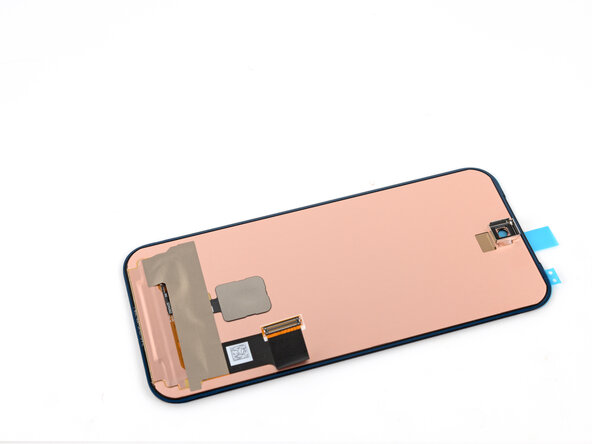
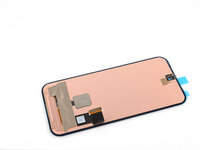
    • Carefully remove any liners covering the bottom of the screen.

    • The exposed copper underside of your Pixel's screen is very fragile. Even a small scratch or dent can damage the screen underneath. Be very careful not to touch it with your tools during the remainder of your repair.

  31. Google Pixel 9a Screen Replacement, Lay the screen down: 31 단계, 이미지 1개 중 1개
    • Carefully lay your replacement screen display‑side‑down just to the left of your phone so you can reconnect the cable.

  32. Google Pixel 9a Screen Replacement, Reconnect the screen: 32 단계, 이미지 2개 중 1개 Google Pixel 9a Screen Replacement, Reconnect the screen: 32 단계, 이미지 2개 중 2개
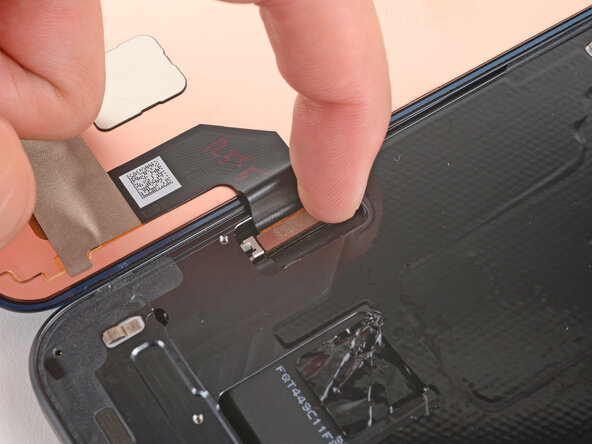
    • Align the screen press connector over its socket and gently press down with your finger—first on one of the short sides, then on the other—until the connector clicks into place.

  33. Google Pixel 9a Screen Replacement, Install the cable cover: 33 단계, 이미지 3개 중 1개 Google Pixel 9a Screen Replacement, Install the cable cover: 33 단계, 이미지 3개 중 2개 Google Pixel 9a Screen Replacement, Install the cable cover: 33 단계, 이미지 3개 중 3개
    • Hook the bottom edge of the screen cable cover into its cutout and lay the cover into place.

  34. Google Pixel 9a Screen Replacement: 34 단계, 이미지 2개 중 1개 Google Pixel 9a Screen Replacement: 34 단계, 이미지 2개 중 2개
    • Remember: The battery is exposed through a small cutout near the screen cable. Be very careful not to damage it with your tools.

    • Use a Torx Plus 3IP screwdriver to install the 1.7 mm‑long screw securing the cover.

  35. Google Pixel 9a Screen Replacement, Remove the remaining liner: 35 단계, 이미지 3개 중 1개 Google Pixel 9a Screen Replacement, Remove the remaining liner: 35 단계, 이미지 3개 중 2개 Google Pixel 9a Screen Replacement, Remove the remaining liner: 35 단계, 이미지 3개 중 3개
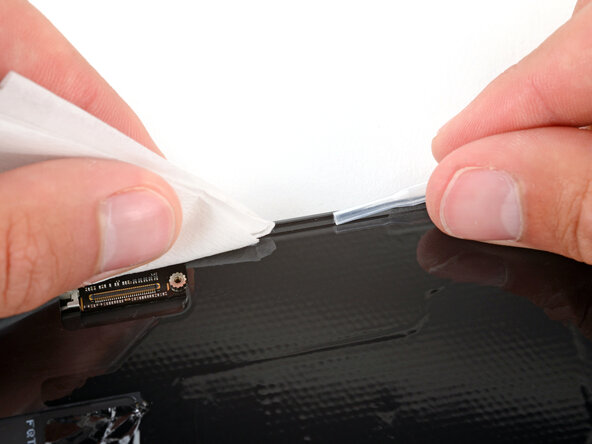
    • Use tweezers or your fingers to remove the final adhesive liner from the perimeter of the screen.

    • If you applied adhesive directly to the frame, remove that remaining liner, holding the screen up out of the way as necessary, without straining the cable.

    • If the adhesive starts to peel up with the liner, check that you’ve pushed all of it into place with your spudger. If it continues to peel up, hold it down with the point of your spudger as you go.

  36. Google Pixel 9a Screen Replacement, Put the screen onto the frame: 36 단계, 이미지 3개 중 1개 Google Pixel 9a Screen Replacement, Put the screen onto the frame: 36 단계, 이미지 3개 중 2개 Google Pixel 9a Screen Replacement, Put the screen onto the frame: 36 단계, 이미지 3개 중 3개
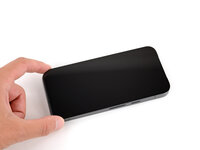
    • Carefully flip the screen over and align it over the frame.

    • Double check that the screen is aligned properly before pressing it into place, otherwise you may damage the screen through the copper backing.

    • Once aligned, press the screen into the frame.

  37. Google Pixel 9a Screen Replacement: 37 단계, 이미지 3개 중 1개 Google Pixel 9a Screen Replacement: 37 단계, 이미지 3개 중 2개 Google Pixel 9a Screen Replacement: 37 단계, 이미지 3개 중 3개
    • Firmly press around the perimeter of the screen to secure the adhesive.

    • You can also hold your phone up and squeeze firmly around the perimeter to strengthen the adhesive bond. For an even more secure bond, lay your phone screen-down on a clean and flat surface underneath a few books overnight.

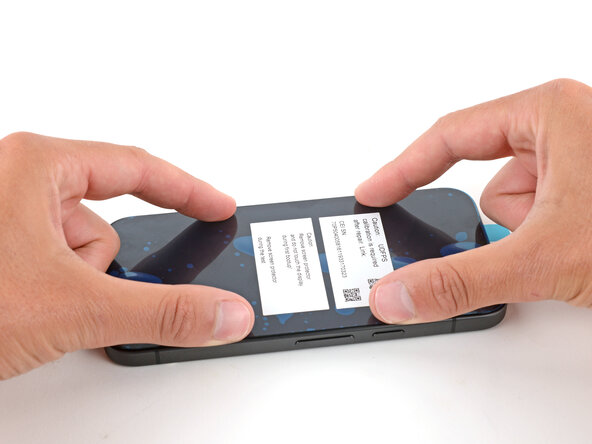
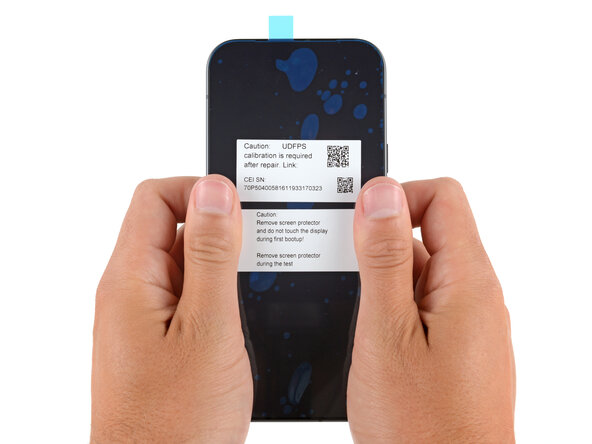
    • When powering on your phone for the first time:

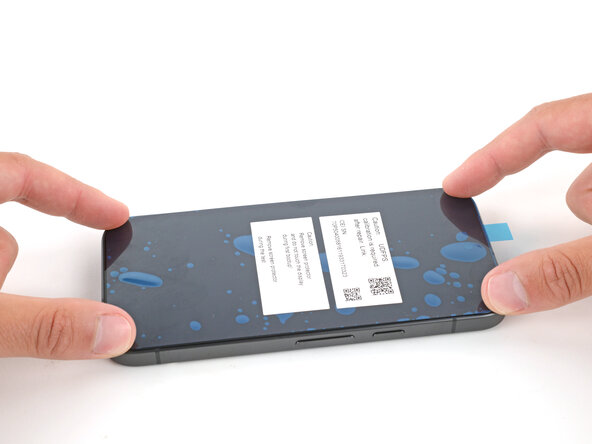
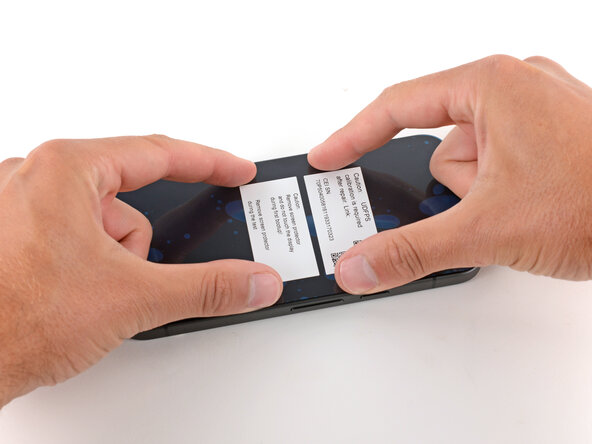
    • Lay the phone screen-side up on a clean, flat surface. Remove the plastic liner from the screen, making sure nothing touches the phone while you do so (fingers, screen protectors, or cases).

    • To calibrate the display’s fingerprint reader, use Google’s Pixel Update and Software Repair tool.

결론

Congratulations on completing your repair!

To calibrate your display’s fingerprint reader, use Google’s Pixel Update and Software Repair tool.

Take your e-waste to an R2 or e-Stewards certified recycler.

To run a diagnostics test with the built-in Pixel Diagnostic tool, click here.

Repair didn’t go as planned? Try some basic troubleshooting, or ask our Answers community for help.

다른 28명이 해당 안내서를 완성하였습니다.

작성자

3다른 기여자 명과 함께

Spencer Day

회원 가입일: 09/14/22

183,937 평판

안내서 1,166개를 작성함

iFixit iFixit 회원

Staff

123 회원들

안내서 25,579개를 작성함

4가이드 댓글

Sehr gelungene Anleitung.

Mir ist zwischendurch das Handy gestartet und ich konnte dann die PIN nicht eingeben. Mit einem Hard Reset (Powertaste > 20 sec drücken) und Neustart ging es dann. Der Fingerabdrucksensor musste ebenfalls kalibiert werden.

Und dank dieser tollen Anleitung habe ich ich mein Telefon wieder in Ordnung gebracht!

Florian - 답글 공유
Existen reemplazos originales de la pantalla!?? O todos son modelos genéricos!??

Fercho Noriega - 답글 공유
This guide saved me buying a new phone and at least 150! This was my first ever replacement and if anything knowing that it's ok if the old screen cracks and breaks as it comes off is the advice of give. Once the old one popped off installation of the ifixit new one took maybe 5 minutes. What a great guide!

Steve S - 답글 공유
I replaced my screen on my pixel 9A I folded directions and I used the kit that I bought from I fix it now my phone screen will not turn on when I press the power button on my phone is the vibrates twice and nothing happens what did I do wrong please help

Sean M - 답글 공유

댓글 쓰기

조회 통계:

지난 24시간: 68

지난 7일: 552

지난 30일: 2,433

전체 시간: 23,689