주요 콘텐츠로 건너뛰기
수리 커뮤니티 가입 - 계정 만들기

Kindle Paperwhite (12th Gen) Screen Replacement

필요한 것

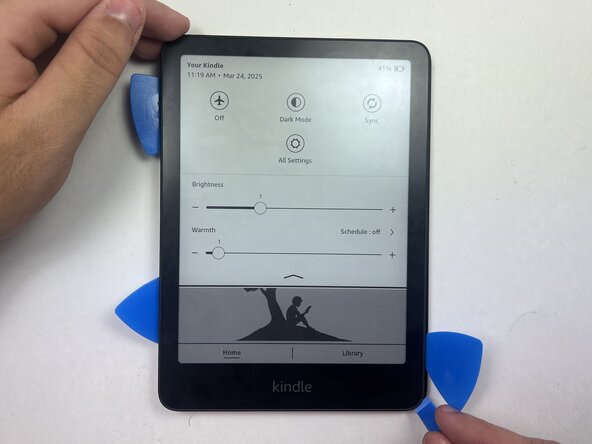
  1. Kindle Paperwhite (12th Gen) Screen Replacement, Bottom Case: 1 단계, 이미지 2개 중 1개 Kindle Paperwhite (12th Gen) Screen Replacement, Bottom Case: 1 단계, 이미지 2개 중 2개
    • Use an opening tool or opening picks and insert the tip between the back case and screen.

    • Slide the opening tool around the edge of the tablet to release the clips holding them together and avoid damaging the connectors.

    • You can also place additional opening picks in the space between the top and bottom case to prevent the front and back cases from snapping back together.

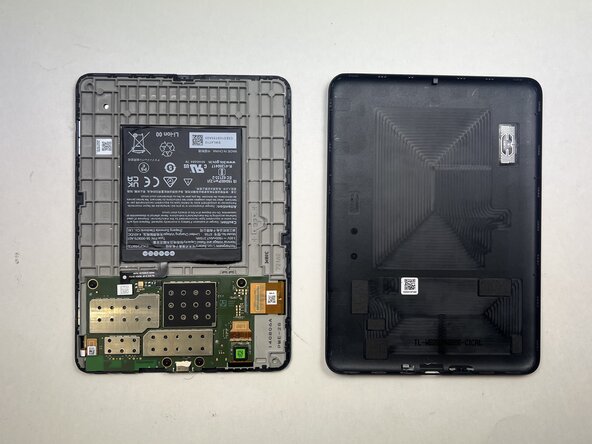
  2. Kindle Paperwhite (12th Gen) Screen Replacement: 2 단계, 이미지 2개 중 1개 Kindle Paperwhite (12th Gen) Screen Replacement: 2 단계, 이미지 2개 중 2개
    • Flip the Kindle over and remove back casing from screen and device.

    • When reassembling, align the top and bottom case and press until they click into place.

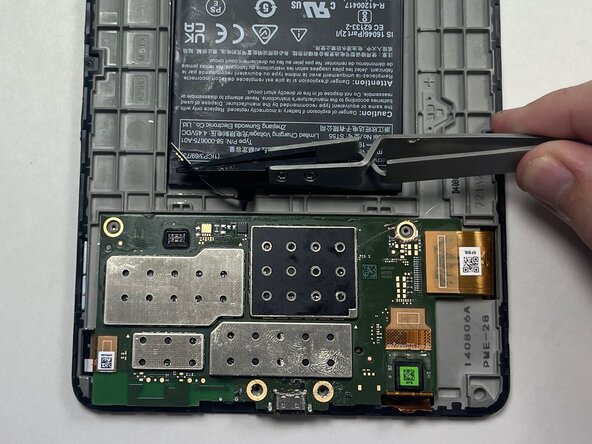
  3. Kindle Paperwhite (12th Gen) Screen Replacement, Battery: 3 단계, 이미지 2개 중 1개 Kindle Paperwhite (12th Gen) Screen Replacement, Battery: 3 단계, 이미지 2개 중 2개
    • Place a spudger or an opening tool under the connector's edge and pry straight up to disconnect it.

    • Make sure to pry under the edge of the connector itself, and not under the socket on the board. Otherwise, you risk permanently damaging the socket.

    • Work carefully: don't pry on or accidentally scrape any small, surface-mounted components on the board.

    • To reconnect, align the connector carefully over its socket and press down with your fingertip—first on one of the short sides, then the other—until it clicks into place. Don't try to force the connector into place. If you're having trouble, reposition it and try again.

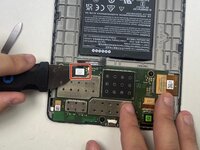
  4. Kindle Paperwhite (12th Gen) Screen Replacement: 4 단계, 이미지 2개 중 1개 Kindle Paperwhite (12th Gen) Screen Replacement: 4 단계, 이미지 2개 중 2개
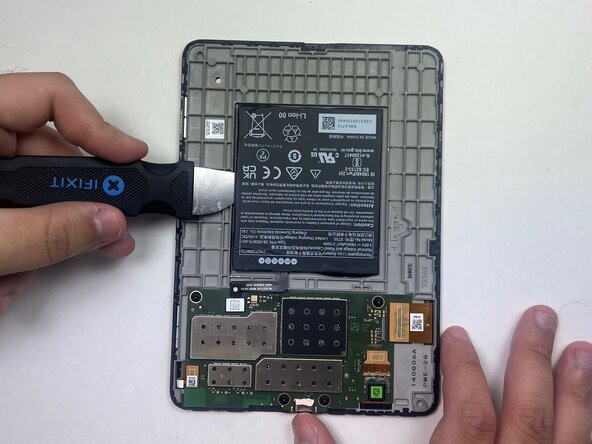
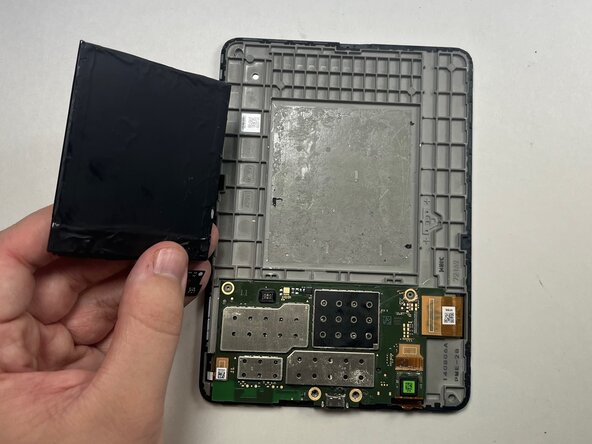
    • The battery is attached to the case with an adhesive.

    • Use a black nylon spudger and slide it under the sides of the battery to create a gap between the battery and the housing.

    • Use a black nylon or plastic spudger when possible. Using a metal spudger can result in damage to the device.

    • Avoid prying along the top of the battery, as the base model lacks support on those sides. Take care not to bend or warp the battery during removal, as this could cause long-term damage.

    • Once the battery has loosened from the adhesive, use the black nylon spudger to gently lift and fully detach it while applying light upward pressure.

  5. Kindle Paperwhite (12th Gen) Screen Replacement: 5 단계, 이미지 3개 중 1개 Kindle Paperwhite (12th Gen) Screen Replacement: 5 단계, 이미지 3개 중 2개 Kindle Paperwhite (12th Gen) Screen Replacement: 5 단계, 이미지 3개 중 3개
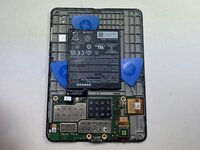
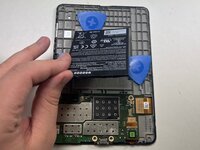
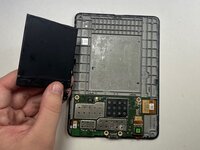
    • Loosen the battery from the backing, then insert an opening pick on each side of the battery to help pry it off. Once the picks are in place, carefully peel the battery away and remove it from the device.

  6. Kindle Paperwhite (12th Gen) Screen Replacement, Motherboard: 6 단계, 이미지 1개 중 1개
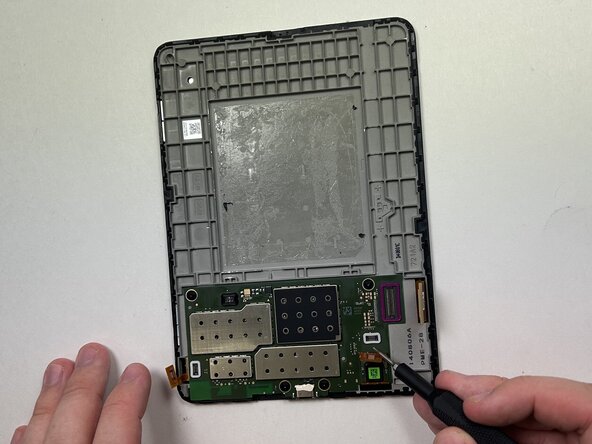
    • Place a spudger or an opening tool under the press connector edge and pry straight up to disconnect it.

    • Make sure to pry under the edge of the connector itself, and not under the socket on the board. Otherwise, you risk permanently damaging the socket.

    • The ribbon cable in the bottom left is lightly glued in place so take care to remove the adhesive before disconnecting the cable.

    • To reconnect, align the connector carefully over its socket and press down with your fingertip—first on one of the short sides, then the other—until it clicks into place. Don't try to force the connector into place and don't push in the center of the connector. If you're having trouble, reposition it and try again.

  7. Kindle Paperwhite (12th Gen) Screen Replacement: 7 단계, 이미지 2개 중 1개 Kindle Paperwhite (12th Gen) Screen Replacement: 7 단계, 이미지 2개 중 2개
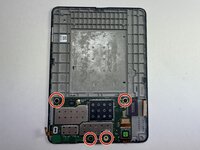
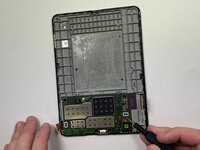
    • Use a 5IP Torx Plus screwdriver to remove the four 3.2 mm screws securing the motherboard in place.

  8. Kindle Paperwhite (12th Gen) Screen Replacement: 8 단계, 이미지 3개 중 1개 Kindle Paperwhite (12th Gen) Screen Replacement: 8 단계, 이미지 3개 중 2개 Kindle Paperwhite (12th Gen) Screen Replacement: 8 단계, 이미지 3개 중 3개
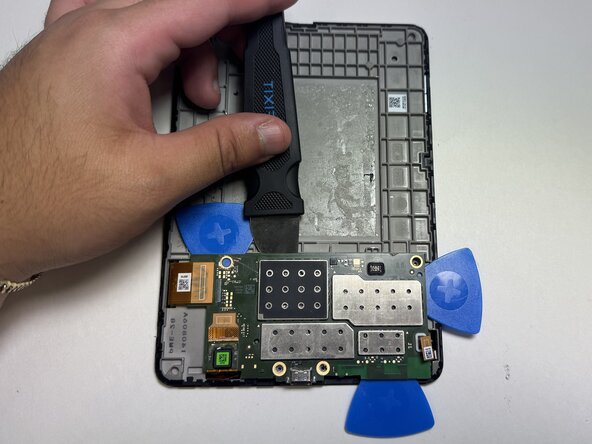
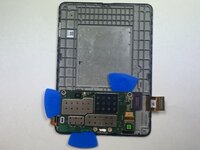
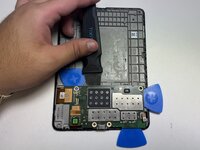
    • Slide opening picks under the edges of the motherboard to loosen the glue holding it in place.

    • Using a metal spudger or tool for prying can damage the internal components. Use a black nylon spudger or picks if possible.

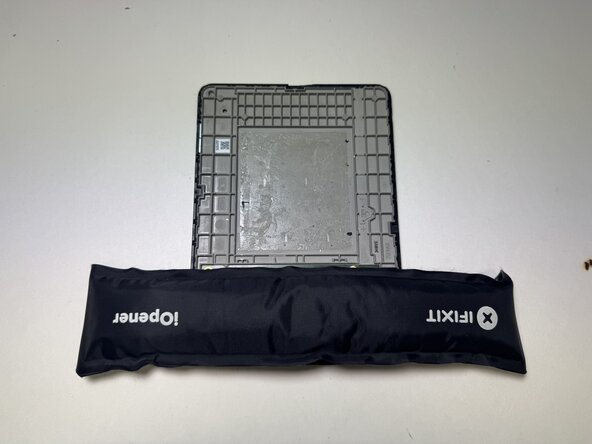
    • Use an iOpener on the back of the case to help loosen the adhesive.

  9. Kindle Paperwhite (12th Gen) Screen Replacement: 9 단계, 이미지 3개 중 1개 Kindle Paperwhite (12th Gen) Screen Replacement: 9 단계, 이미지 3개 중 2개 Kindle Paperwhite (12th Gen) Screen Replacement: 9 단계, 이미지 3개 중 3개
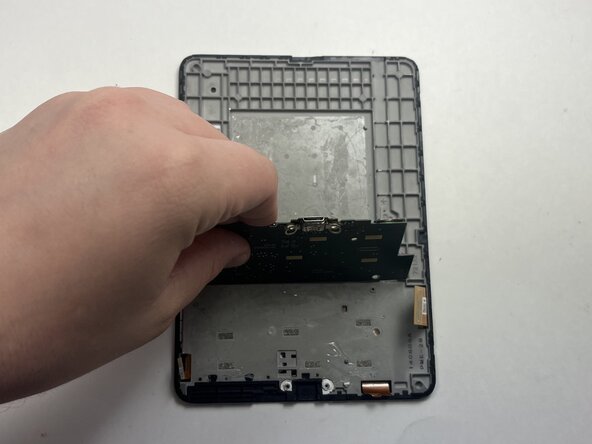
    • Gently lift the motherboard piece from the frame, insuring to not damage the motherboard in the process.

  10. Kindle Paperwhite (12th Gen) Screen Replacement, Screen: 10 단계, 이미지 2개 중 1개 Kindle Paperwhite (12th Gen) Screen Replacement, Screen: 10 단계, 이미지 2개 중 2개
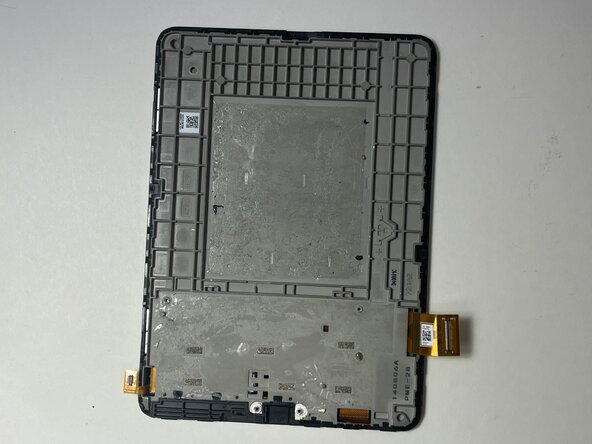
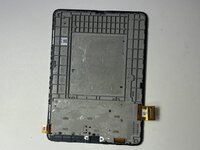
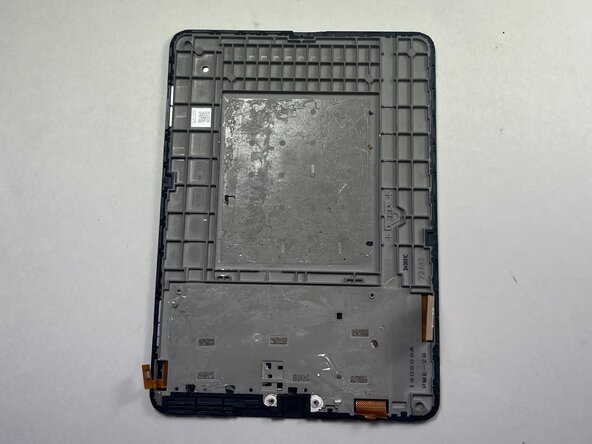
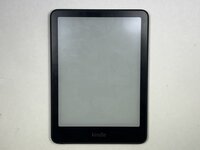
    • Once you've removed the motherboard, this is what the screen looks like.

    • Install the motherboard and battery into the new screen casing, then reassemble the device in reverse order.

결론

To reassemble your device, follow these instructions in reverse order.

작성자

2다른 기여자 명과 함께

Claudio Cruz-Lopez

회원 가입일: 02/24/25

273 평판

안내서 1개를 작성함

0가이드 댓글

댓글 쓰기

조회 통계:

지난 24시간: 8

지난 7일: 38

지난 30일: 166

전체 시간: 855