주요 콘텐츠로 건너뛰기

Logitech G715 Battery Replacement

필요한 것

  1. Logitech G715 Battery Replacement, Prepare your keyboard for disassembly: 1 단계, 이미지 3개 중 1개 Logitech G715 Battery Replacement, Prepare your keyboard for disassembly: 1 단계, 이미지 3개 중 2개 Logitech G715 Battery Replacement, Prepare your keyboard for disassembly: 1 단계, 이미지 3개 중 3개
    • Slide the power switch on the top edge of the keyboard to the OFF position.

    • Unplug all cables from your keyboard.

    • Lay your keyboard down with the feet facing up on a clean work surface.

    • If your work surface might scratch the keyboard, place a soft towel under it.

  2. Logitech G715 Battery Replacement, Remove the USB receiver: 2 단계, 이미지 3개 중 1개 Logitech G715 Battery Replacement, Remove the USB receiver: 2 단계, 이미지 3개 중 2개 Logitech G715 Battery Replacement, Remove the USB receiver: 2 단계, 이미지 3개 중 3개
    • If you have a USB receiver stored in the battery cover compartment, use your finger to slide it out and remove it.

  3. Logitech G715 Battery Replacement, Remove the sticker: 3 단계, 이미지 2개 중 1개 Logitech G715 Battery Replacement, Remove the sticker: 3 단계, 이미지 2개 중 2개
    • The Logitech sticker hides two battery cover screws.

    • Heat an iOpener and lay it on the Logitech sticker for one minute.

    • Alternatively, you can use a hair dryer to heat the sticker. Make sure it's on the Low setting to avoid warping the plastic.

  4. Logitech G715 Battery Replacement: 4 단계, 이미지 3개 중 1개 Logitech G715 Battery Replacement: 4 단계, 이미지 3개 중 2개 Logitech G715 Battery Replacement: 4 단계, 이미지 3개 중 3개
    • Use an opening tool, spudger, or your fingernail to peel up a corner of the sticker until you can grip it with your fingers.

    • Peel up the sticker with your fingers and remove it.

  5. Logitech G715 Battery Replacement, Remove the battery cover screws: 5 단계, 이미지 2개 중 1개 Logitech G715 Battery Replacement, Remove the battery cover screws: 5 단계, 이미지 2개 중 2개
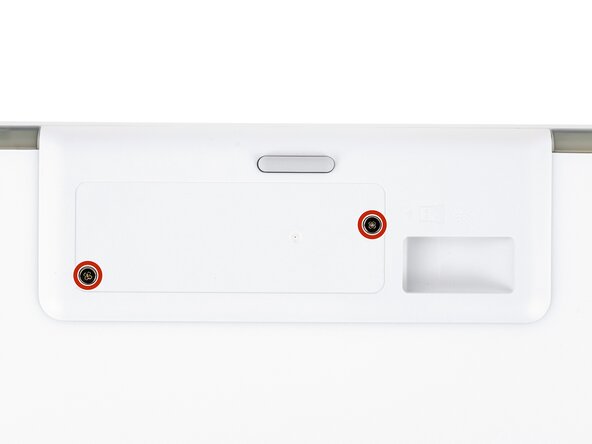
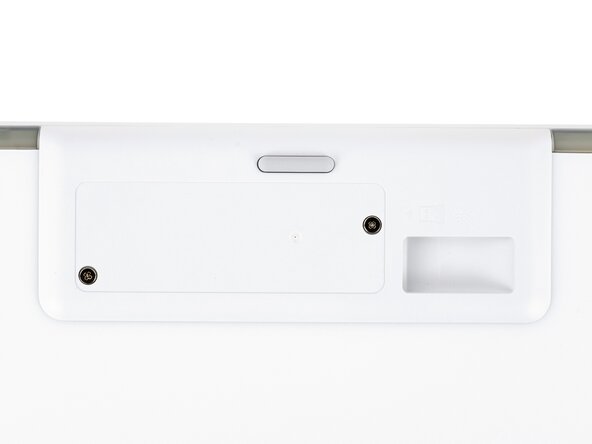
    • Use a Phillips screwdriver to remove the two 8.4 mm‑long screws securing the battery cover.

  6. Logitech G715 Battery Replacement, Reposition the battery cover: 6 단계, 이미지 3개 중 1개 Logitech G715 Battery Replacement, Reposition the battery cover: 6 단계, 이미지 3개 중 2개 Logitech G715 Battery Replacement, Reposition the battery cover: 6 단계, 이미지 3개 중 3개
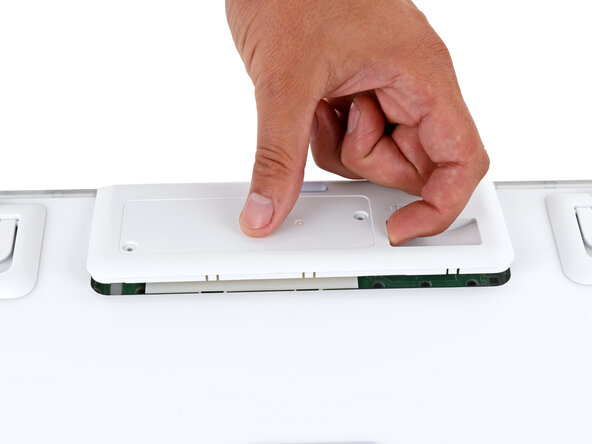
    • Plastic clips secure the edges of the battery cover.

    • Insert your finger in the USB receiver compartment on the battery cover.

    • Pull up the bottom edge of the cover to release the clips.

    • Don't try to fully remove the cover yet, as it's still connected by the battery cable.

    • Gently pull the cover to the right so you can access the battery connector on the left side of the recess.

  7. Logitech G715 Battery Replacement, Disconnect the battery: 7 단계, 이미지 3개 중 1개 Logitech G715 Battery Replacement, Disconnect the battery: 7 단계, 이미지 3개 중 2개 Logitech G715 Battery Replacement, Disconnect the battery: 7 단계, 이미지 3개 중 3개
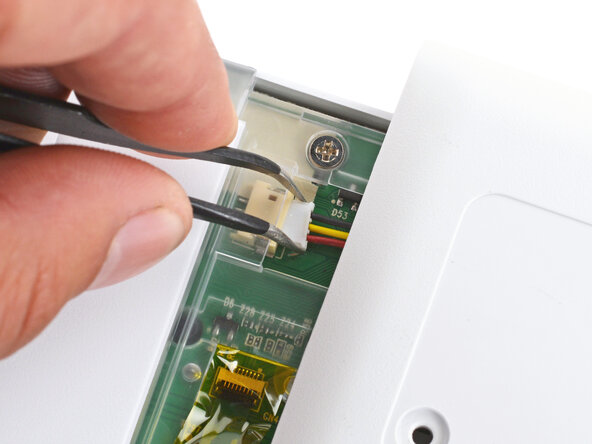
    • Use a pair of angled tweezers to firmly grip the battery connector.

    • Hold the tweezers with your fingers as close to the connector as possible to get a firm grip.

    • Gently rock the connector side‑to‑side and slide it straight out of the socket.

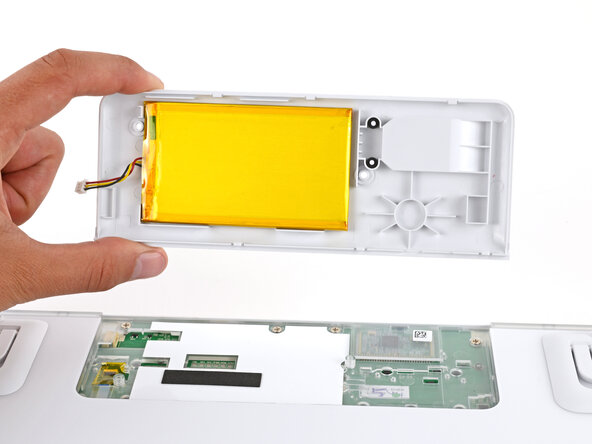
  8. Logitech G715 Battery Replacement, Remove the battery cover: 8 단계, 이미지 1개 중 1개
    • Remove the battery cover.

  9. Logitech G715 Battery Replacement, Remove the battery: 9 단계, 이미지 3개 중 1개 Logitech G715 Battery Replacement, Remove the battery: 9 단계, 이미지 3개 중 2개 Logitech G715 Battery Replacement, Remove the battery: 9 단계, 이미지 3개 중 3개
    이 단계에 사용된 도구:
    Tesa 61395 Tape
    $2.99
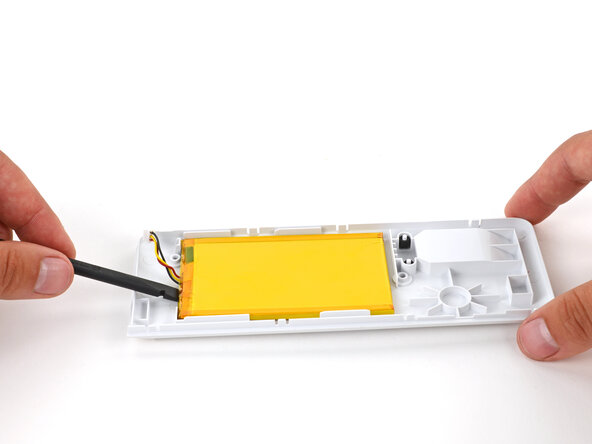
    • Light adhesive secures the battery to its cover.

    • Gently slide the flat end of a spudger under one of the short edges of the battery and lift to separate the adhesive.

    • Be very careful not to puncture the battery, as it can leak dangerous chemicals or catch fire.

    • Remove the battery from its cover.

    • During reassembly:

    • Remove any old adhesive from the battery cover.

    • Use thin, double‑sided tape to secure the battery to the cover.

    • Make sure the battery is properly positioned on the cover. The cable should be on the side opposite the USB receiver, and the battery should be within the guide rails.

결론

Compare your new replacement part to the original part—you may need to transfer remaining components or remove adhesive backings from the new part before you install it.

To reassemble your device, follow these instructions in reverse order.

Repair didn’t go as planned? Try some basic troubleshooting, or ask our Answers community for help.

Reuse or Recycle—Never put discarded electronic parts in household waste. Visit Logitech Recycling to find your nearest recycling points, including the option to mail back old devices to Logitech for free if there’s no convenient solution in your area. You can also take your e-waste to any R2 or e-Stewards certified recycler. And don’t let good working parts or repaired devices die a slow death in your sock drawer—pass them along to someone who can use them.

Share your experience—Leave a comment here or send your feedback directly to Logitech at repair@logitech.com to help shape future repair guides and product design.

작성자

2다른 기여자 명과 함께

Spencer Day

회원 가입일: 09/14/22

153,532 평판

안내서 1,024개를 작성함

0가이드 댓글

댓글 쓰기

조회 통계:

지난 24시간: 2

지난 7일: 7

지난 30일: 9

전체 시간: 50