주요 콘텐츠로 건너뛰기

Logitech MX Master 3 pairing problem solving

필요한 것

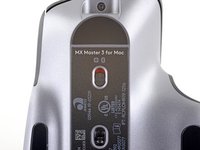
  1. Logitech MX Master 3 pairing problem solving, Soften the mouse feet adhesive: 1 단계, 이미지 3개 중 1개 Logitech MX Master 3 pairing problem solving, Soften the mouse feet adhesive: 1 단계, 이미지 3개 중 2개 Logitech MX Master 3 pairing problem solving, Soften the mouse feet adhesive: 1 단계, 이미지 3개 중 3개
    • Flip the mouse's power switch into the OFF position, unplug any cables, and flip it over so the feet are facing up.

    • The unique shape of some mice can prevent them from laying flat. If you need to, lay your mouse on a soft towel to prevent wobble.

    • If you're planning to reuse your existing mouse feet, note that the adhesive needs to be thoroughly heated for them to be cleanly removed.

    • Heat an iOpener and apply it to each of the mouse feet for about one minute each.

    • Alternatively, you can use a hair dryer to soften the mouse feet adhesive.

    • When using a hair dryer, don't heat the feet for more than a couple seconds at a time—anything hotter than just warm to the touch risks melting or warping the plastic lower case.

    • The information sticker adhesive may soften during this step, but you don't need to remove it.

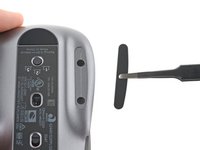
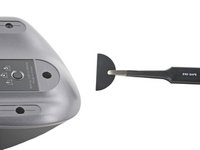
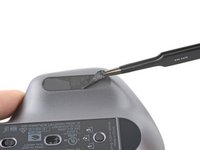
  2. Logitech MX Master 3 pairing problem solving, Separate the mouse foot adhesive: 2 단계, 이미지 3개 중 1개 Logitech MX Master 3 pairing problem solving, Separate the mouse foot adhesive: 2 단계, 이미지 3개 중 2개 Logitech MX Master 3 pairing problem solving, Separate the mouse foot adhesive: 2 단계, 이미지 3개 중 3개
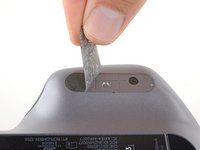
    • Slide an opening pick under an edge of the left mouse foot.

    • Go slowly, and make sure the pick slides underneath both the foot and its adhesive pad. These layers separate easily.

    • If you plan on reusing your mouse feet, be careful not to crease them or separate them from their adhesive pads.

    • If the foot feels stuck, apply more heat before continuing.

    • Slide your pick under the foot to separate its adhesive until you can grab it with your fingers.

    • Peel up and remove the left mouse foot.

  3. Logitech MX Master 3 pairing problem solving, Remove the right and rear mouse feet: 3 단계, 이미지 2개 중 1개 Logitech MX Master 3 pairing problem solving, Remove the right and rear mouse feet: 3 단계, 이미지 2개 중 2개
    • Repeat the previous two steps to remove the right and the rear mouse feet.

  4. Logitech MX Master 3 pairing problem solving, Reassembly information: 4 단계, 이미지 3개 중 1개 Logitech MX Master 3 pairing problem solving, Reassembly information: 4 단계, 이미지 3개 중 2개 Logitech MX Master 3 pairing problem solving, Reassembly information: 4 단계, 이미지 3개 중 3개
    이 단계에 사용된 도구:
    Tweezers
    $4.99
    • If the adhesive separated from the foot:

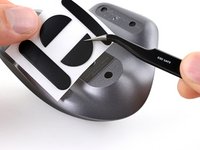
    • Slide the flat end of a spudger under an edge of the adhesive. If the adhesive seems stuck, you may need to heat the adhesive further.

    • Use a pair of tweezers or a spudger to remove any large chunks of leftover adhesive.

    • For installing new mouse feet or reusing your old ones:

    • Thoroughly clean the bottom of the mouse with isopropyl alcohol and a lint-free of microfiber cloth. Allow the surface to dry completely.

    • Peel your new mouse feet away from their adhesive liners and press them firmly into place.

  5. Logitech MX Master 3 pairing problem solving, Remove the case screws: 5 단계, 이미지 1개 중 1개
    • Use a Phillips screwdriver to remove the five 4.3 mm-long screws securing the lower half of the lower case.

    • Use a T5 Torx driver to remove the one 4.2 mm‑long screw securing the upper half of the lower case.

  6. Logitech MX Master 3 pairing problem solving, Release the left clips: 6 단계, 이미지 3개 중 1개 Logitech MX Master 3 pairing problem solving, Release the left clips: 6 단계, 이미지 3개 중 2개 Logitech MX Master 3 pairing problem solving, Release the left clips: 6 단계, 이미지 3개 중 3개
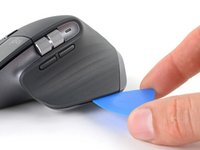
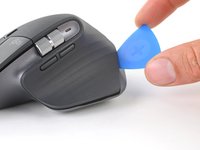
    • Insert your opening pick into the seam between the thumb rest and the lower case.

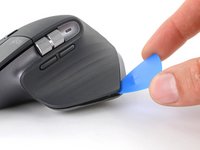
    • Slide your pick right, towards the rear of the upper shell and pry upward to release the left clips.

  7. Logitech MX Master 3 pairing problem solving, Release the right clips: 7 단계, 이미지 2개 중 1개 Logitech MX Master 3 pairing problem solving, Release the right clips: 7 단계, 이미지 2개 중 2개
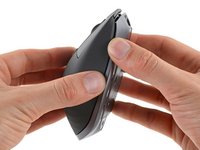
    • Gently pry the upper shell and lower case apart to release the clips on the right side of the mouse.

    • Don't try to fully remove the top shell just yet—another clip and a delicate cable connect the upper shell to the lower case.

  8. Logitech MX Master 3 pairing problem solving, Release the final clip: 8 단계, 이미지 3개 중 1개 Logitech MX Master 3 pairing problem solving, Release the final clip: 8 단계, 이미지 3개 중 2개 Logitech MX Master 3 pairing problem solving, Release the final clip: 8 단계, 이미지 3개 중 3개
    • Lay your mouse down onto your work surface, making sure none of the clips re-engage.

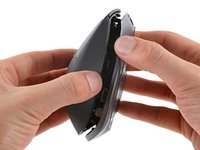
    • Grasp the upper shell and partially lift up the right edge.

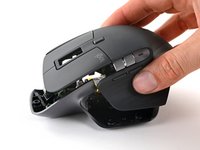
    • Pull the upper shell up and back to release the final clip and separate the upper shell from the lower case.

    • Still keep the two halves close together—a cable is still tethered to the upper shell.

    • To reinstall the upper shell, slide the front edge into place first, then press down around the perimeter of the upper shell to engage the remaining clips.

  9. Logitech MX Master 3 pairing problem solving, Disconnect the interconnect cable: 9 단계, 이미지 3개 중 1개 Logitech MX Master 3 pairing problem solving, Disconnect the interconnect cable: 9 단계, 이미지 3개 중 2개 Logitech MX Master 3 pairing problem solving, Disconnect the interconnect cable: 9 단계, 이미지 3개 중 3개
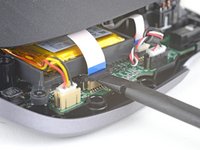
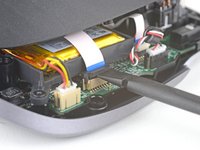
    • Be careful not to strain the cable connecting the upper shell to the lower case.

    • Use the flat end of a spudger to gently lift up the black sliding lock on the interconnect cable socket.

    • Slide the cable straight out of its socket on the motherboard.

    • During reassembly, insert the cable into the socket with its blue tab facing out, then push down the sliding lock to secure the cable.

  10. Logitech MX Master 3 pairing problem solving, Remove the top half of the mouse: 10 단계, 이미지 1개 중 1개
    • Remove the upper shell from the lower case.

  11. Logitech MX Master 3 pairing problem solving, Test the lower part of your mouse: 11 단계, 이미지 1개 중 1개
    • Put only the lower part of the mouse on and test its pairing reliability. If it works fine, the lower part is functioning correctly.

  12. Logitech MX Master 3 pairing problem solving, Connect the upper part: 12 단계, 이미지 1개 중 1개
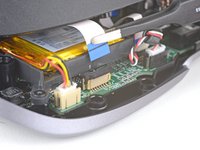
    • Connect the upper part of the mouse using the flat flexible cable only, then retest to see if the pairing issue reappears.

  13. Logitech MX Master 3 pairing problem solving, If the problem reappears: 13 단계, 이미지 3개 중 1개 Logitech MX Master 3 pairing problem solving, If the problem reappears: 13 단계, 이미지 3개 중 2개 Logitech MX Master 3 pairing problem solving, If the problem reappears: 13 단계, 이미지 3개 중 3개
    • Clean the first end of the flat flexible cable and test if the pairing problem disappears. If the issue is resolved, reassemble your mouse and enjoy a reliable connection. If not, proceed to clean the next end of the cable in sequence until the problem is fixed.

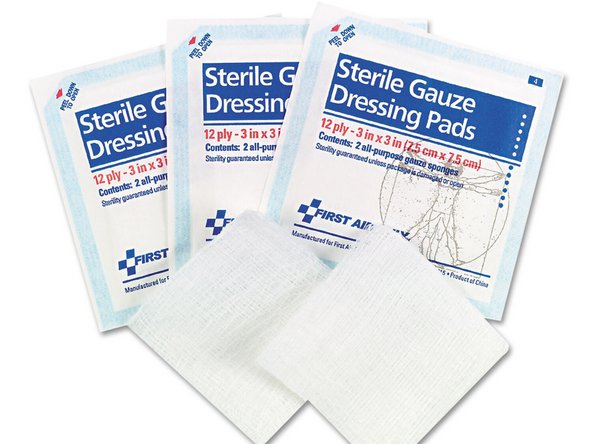
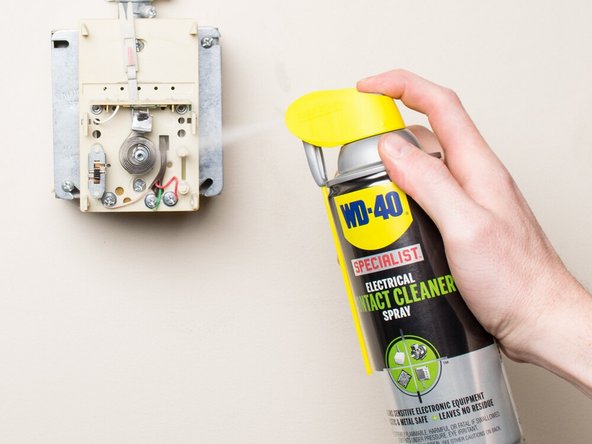
    • Use a gauze pad dipped in an electrical cleaning solution to clean the ends of the flat flexible cable (FFC).

결론

This method resolved the issue for me, but pairing problems can also stem from other causes such as interference, USB issues, software problems, and more.

작성자

1다른 기여자 명과 함께

Bacem Jarraya

회원 가입일: 07/22/24

97 평판

안내서 1개를 작성함

0가이드 댓글

댓글 쓰기

조회 통계:

지난 24시간: 9

지난 7일: 70

지난 30일: 245

전체 시간: 3,251