주요 콘텐츠로 건너뛰기
수리 커뮤니티 가입 - 계정 만들기

MSI MS-1782 GPU Replacement

필요한 것

  1. MSI MS-1782 GPU Replacement, Back Cover: 1 단계, 이미지 1개 중 1개
    • Remove five 6.6 mm screws from the edges of the bottom cover using a JIS #1 screwdriver.

    • Remove one 5.6 mm screw from the center of the bottom cover using a JIS #1 screwdriver.

    댓글 쓰기

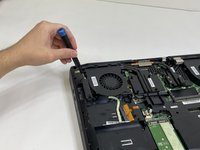
  2. MSI MS-1782 GPU Replacement: 2 단계, 이미지 3개 중 1개 MSI MS-1782 GPU Replacement: 2 단계, 이미지 3개 중 2개 MSI MS-1782 GPU Replacement: 2 단계, 이미지 3개 중 3개
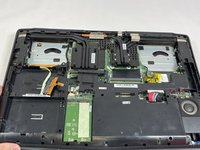
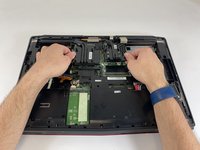
    • Use an iFixit opening pick to unclip the bottom cover.

    • It is ok to run the picks along the edges since there is nothing connected to the bottom cover. It is easier to start from the sides and then work your way forward.

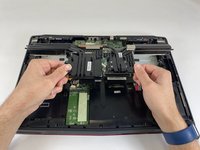
    • After unclipping the bottom case, pull from the back of the laptop upwards using the lip of the bottom case as a handle.

    댓글 쓰기

  3. MSI MS-1782 GPU Replacement, Cooling Assembly: 3 단계, 이미지 3개 중 1개 MSI MS-1782 GPU Replacement, Cooling Assembly: 3 단계, 이미지 3개 중 2개 MSI MS-1782 GPU Replacement, Cooling Assembly: 3 단계, 이미지 3개 중 3개
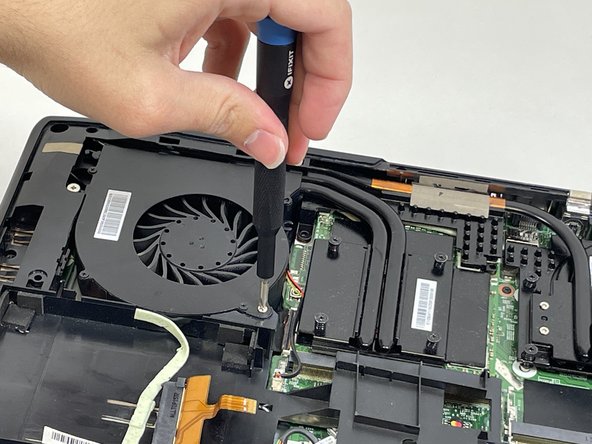
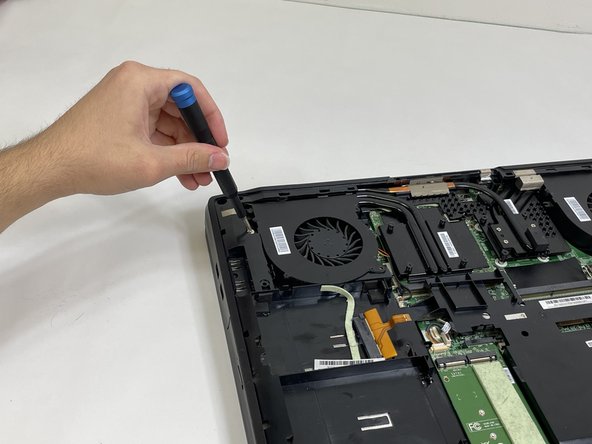
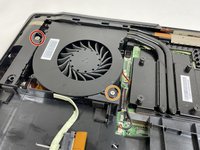
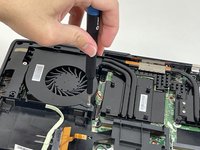
    • Loosen the captive screw on the left side of the left fan using a JIS #2 screwdriver.

    • Remove the 5.1 mm screw on the right side of the left fan using a JIS #2 screwdriver.

    댓글 쓰기

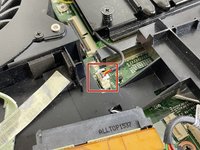
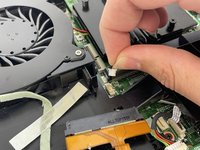
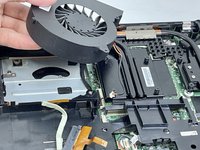
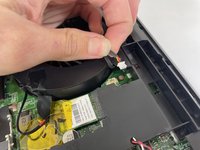
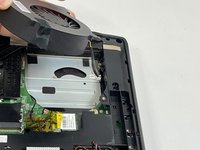
  4. MSI MS-1782 GPU Replacement: 4 단계, 이미지 3개 중 1개 MSI MS-1782 GPU Replacement: 4 단계, 이미지 3개 중 2개 MSI MS-1782 GPU Replacement: 4 단계, 이미지 3개 중 3개
    • Gently detach the fan connector.

    • Remove the fan by lifting it out of its housing.

    • Be sure to handle the wire delicately; if not it will break.

    댓글 쓰기

  5. MSI MS-1782 GPU Replacement: 5 단계, 이미지 3개 중 1개 MSI MS-1782 GPU Replacement: 5 단계, 이미지 3개 중 2개 MSI MS-1782 GPU Replacement: 5 단계, 이미지 3개 중 3개
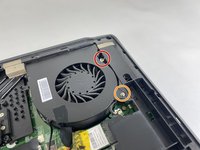
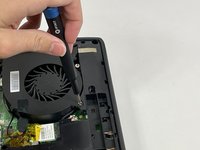
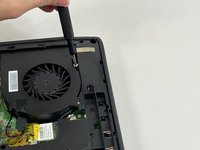
    • Loosen the captive screw on the top of the right fan using a JIS #2 screwdriver.

    • Remove the 3.6 mm screw on the bottom of the right fan using a JIS #2 screwdriver.

    댓글 쓰기

  6. MSI MS-1782 GPU Replacement: 6 단계, 이미지 3개 중 1개 MSI MS-1782 GPU Replacement: 6 단계, 이미지 3개 중 2개 MSI MS-1782 GPU Replacement: 6 단계, 이미지 3개 중 3개
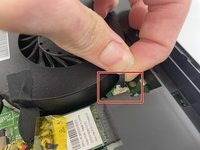
    • Gently detach the fan connector.

    • Remove the fan by lifting it out of its housing.

    • Be sure to handle the wire delicately; if not it will break.

    댓글 쓰기

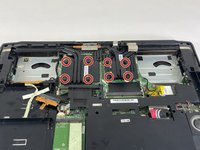
  7. MSI MS-1782 GPU Replacement: 7 단계, 이미지 3개 중 1개 MSI MS-1782 GPU Replacement: 7 단계, 이미지 3개 중 2개 MSI MS-1782 GPU Replacement: 7 단계, 이미지 3개 중 3개
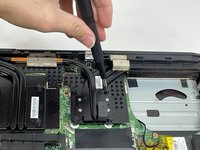
    • Loosen the eight captive screws holding the heat sink in place using a JIS #2 screwdriver.

    • Be sure to follow the numbers that are next to the screws on the heatsink. This evenly removes pressure on the components when removing the heatsink.

    댓글 쓰기

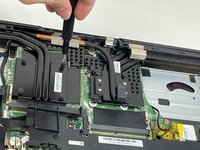
  8. MSI MS-1782 GPU Replacement: 8 단계, 이미지 3개 중 1개 MSI MS-1782 GPU Replacement: 8 단계, 이미지 3개 중 2개 MSI MS-1782 GPU Replacement: 8 단계, 이미지 3개 중 3개
    • Gently lift the heat sink and then pull forwards towards you.

    댓글 쓰기

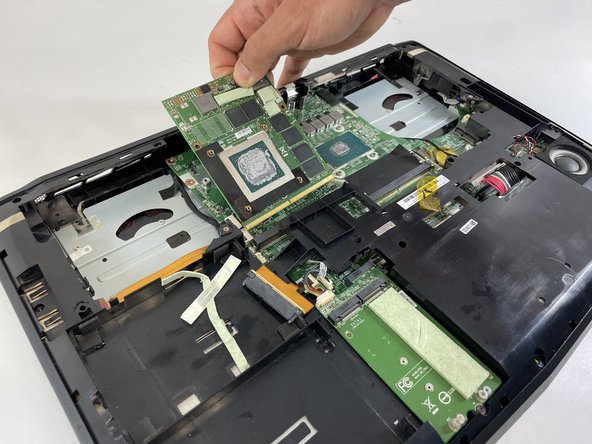
  9. MSI MS-1782 GPU Replacement, GPU: 9 단계, 이미지 3개 중 1개 MSI MS-1782 GPU Replacement, GPU: 9 단계, 이미지 3개 중 2개 MSI MS-1782 GPU Replacement, GPU: 9 단계, 이미지 3개 중 3개
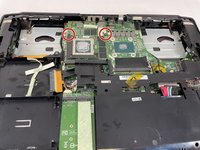
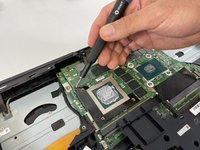
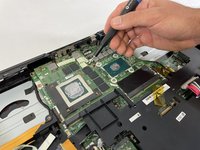
    • Remove the two 5.0 mm screws holding the GPU by using a JIS #1 screwdriver.

    댓글 쓰기

  10. MSI MS-1782 GPU Replacement: 10 단계, 이미지 3개 중 1개 MSI MS-1782 GPU Replacement: 10 단계, 이미지 3개 중 2개 MSI MS-1782 GPU Replacement: 10 단계, 이미지 3개 중 3개
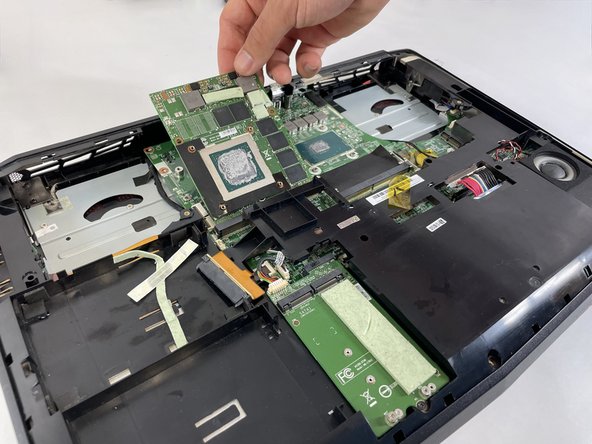
    • Gently lift the GPU and pull to remove it from the laptop.

    댓글 쓰기

결론

To reassemble your device, follow these instructions in reverse order.

취소: 해당 안내서를 완성하지 않았습니다.

작성자

2다른 기여자 명과 함께

Enmanuel Mota

회원 가입일: 03/08/23

229 평판

안내서 2개를 작성함

0가이드 댓글

댓글 쓰기

조회 통계:

지난 24시간: 2

지난 7일: 6

지난 30일: 23

전체 시간: 825