주요 콘텐츠로 건너뛰기
수리 커뮤니티 가입 - 계정 만들기

Microsoft Surface Pro Battery Replacement

필요한 것

  1. Microsoft Surface Pro Battery Replacement, Heat edges of display: 1 단계, 이미지 1개 중 1개
    • Use a heated iOpener or a heat gun to heat the edges of the display and soften its adhesive.

    • If you're using an iOpener it may take several cycles of reheating and applying it to soften the adhesive enough. Every time, let the iOpener sit on the display for at least a minute before reheating to allow the adhesive to soften.

  2. Microsoft Surface Pro Battery Replacement, Lift display and cut adhesive: 2 단계, 이미지 3개 중 1개 Microsoft Surface Pro Battery Replacement, Lift display and cut adhesive: 2 단계, 이미지 3개 중 2개 Microsoft Surface Pro Battery Replacement, Lift display and cut adhesive: 2 단계, 이미지 3개 중 3개
    • Apply a suction cup as close as possible to the edge of the display.

    • Use the suction cup to lift the edge of the display enough to insert an opening pick under the edge.

    • Slide the opening pick all the way around the edges of the display to cut through the adhesive on the bezel.

    • Do not insert the opening pick past the bezel of the display—you may permanently damage the display.

    • The bezel is much thinner on the bottom of the display, which is the side with the Windows logo. To avoid damage, don't poke too deep with the opening pick on the bottom edge.

    • Ribbon cables and a circuit board are approx. 0.6 cm from the edge of the glass.

    • Be very careful and move slowly during this step. The display is fragile and will crack if too much force is applied against it. If your tools seem stuck, apply more heat to further soften the adhesive.

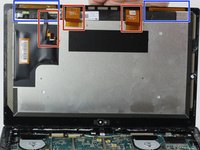
  3. Microsoft Surface Pro Battery Replacement, Disconnect/peel off ribbon cables: 3 단계, 이미지 3개 중 1개 Microsoft Surface Pro Battery Replacement, Disconnect/peel off ribbon cables: 3 단계, 이미지 3개 중 2개 Microsoft Surface Pro Battery Replacement, Disconnect/peel off ribbon cables: 3 단계, 이미지 3개 중 3개
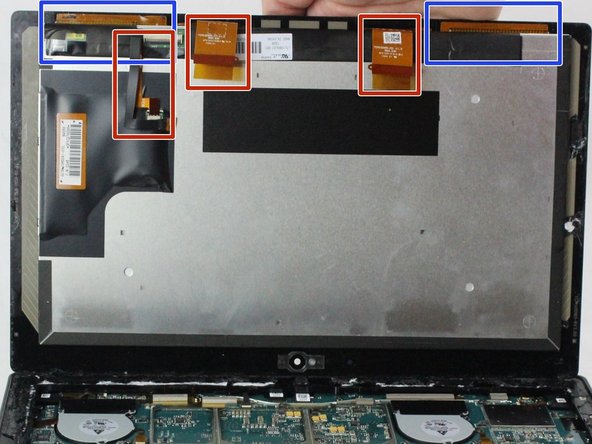
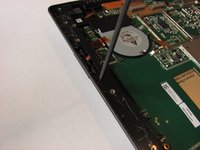
    • Starting from the top edge, lift the display slightly.

    • If you feel any resistance, use heat and an opening pick to slice through any remaining adhesive.

    • Before completely removing the display:

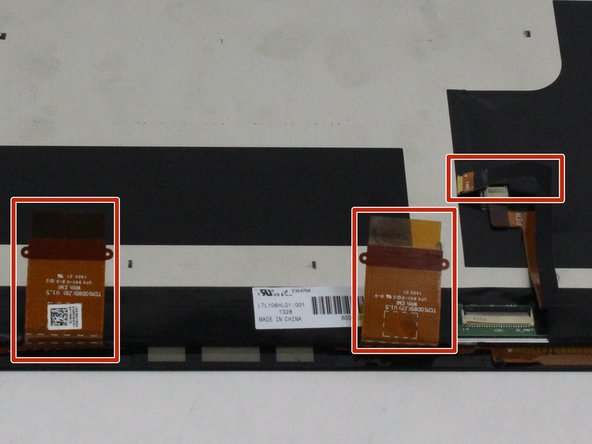
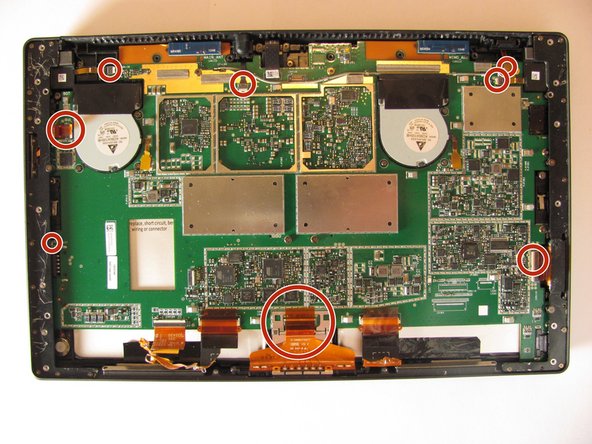
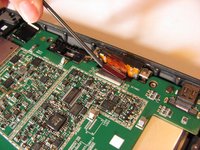
    • Disconnect the three display cables.

    • Gently peel from the frame 2 orange ribbon cables that are glued to it, as those should stay with the display. (e.g. use a thin plastic card to separate them)

  4. Microsoft Surface Pro Battery Replacement, Removal: 4 단계, 이미지 1개 중 1개
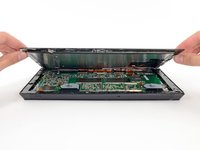
    • Remove the display.

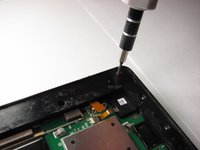
  5. Microsoft Surface Pro Battery Replacement, Battery: 5 단계, 이미지 2개 중 1개 Microsoft Surface Pro Battery Replacement, Battery: 5 단계, 이미지 2개 중 2개
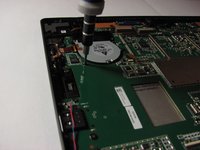
    • Using a T3 Torx screwdriver, remove a total of 23 screws from the screen bezel of the Surface Pro.

  6. Microsoft Surface Pro Battery Replacement: 6 단계, 이미지 1개 중 1개
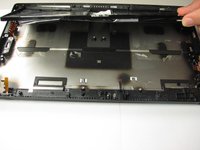
    • Lift the screen bezel from the Surface Pro.

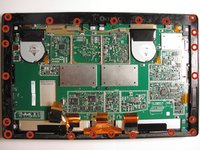
  7. Microsoft Surface Pro Battery Replacement: 7 단계, 이미지 2개 중 1개 Microsoft Surface Pro Battery Replacement: 7 단계, 이미지 2개 중 2개
    • Remove the 6 T5 screws from the panels on each side of the frame.

    • Remove 23 T2 screws from the panels.

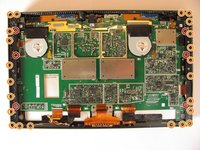
  8. Microsoft Surface Pro Battery Replacement: 8 단계, 이미지 1개 중 1개
    • Lift both metal panels from the frame.

  9. Microsoft Surface Pro Battery Replacement: 9 단계, 이미지 2개 중 1개 Microsoft Surface Pro Battery Replacement: 9 단계, 이미지 2개 중 2개
    이 단계에 사용된 도구:
    Tweezers
    $4.99
    • Using tweezers, gently pull the eight orange ribbon cables from their sockets.

  10. Microsoft Surface Pro Battery Replacement: 10 단계, 이미지 2개 중 1개 Microsoft Surface Pro Battery Replacement: 10 단계, 이미지 2개 중 2개
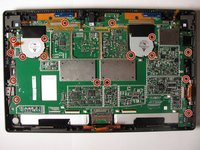
    • Unscrew the 17 T5 torx screws on the mother board with the T5 torx screw driver

  11. Microsoft Surface Pro Battery Replacement: 11 단계, 이미지 1개 중 1개
    • Once all screws are removed, gently lift up the logic board with your hands to pull it out.

  12. Microsoft Surface Pro Battery Replacement: 12 단계, 이미지 2개 중 1개 Microsoft Surface Pro Battery Replacement: 12 단계, 이미지 2개 중 2개
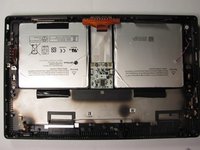
    • Use your hands to pry off the entire battery pack with enough force to overcome the glue keeping the batteries in place.

결론

To reassemble your device, follow these instructions in reverse order.

다른 40명이 해당 안내서를 완성하였습니다.

작성자

15다른 기여자 명과 함께

Jonathan Choi

회원 가입일: 10/09/13

1,088 평판

안내서 4개를 작성함

Cal Poly, Team 8-20, Regan Fall 2013 Cal Poly, Team 8-20, Regan Fall 2013 회원

CPSU-REGAN-F13S8G20

4 회원들

안내서 16개를 작성함

24가이드 댓글

Thank you for that awesome guide!

Do you know where can i buy a battery for surface pro 2??

Thanks

John john - 답글
I am also trying to find out where to acquire the Surface Pro batteries...???

Tristan Irons -

im also looking for a surface pro replacement battery.

Lekan Adesanya - 답글

I just bought one for $70 at a site called newpower99.com... should be here in 2 days. I have no idea if it will work, but it says it comes with a toolkit to replace it. I hope it works.

Matt -

Did you have success installing the Newegg battery?

asmac - 답글

댓글 쓰기

조회 통계:

지난 24시간: 55

지난 7일: 349

지난 30일: 1,435

전체 시간: 263,970