주요 콘텐츠로 건너뛰기
수리 커뮤니티 가입 - 계정 만들기

Nothing Phone (1) Battery Replacement

필요한 것

  1. Nothing Phone (1) Battery Replacement, Heat the rear glass: 1 단계, 이미지 1개 중 1개
    • Prepare an iOpener and apply it to the rear glass for at least two minutes to loosen the adhesive underneath.

    • A hair dryer, heat gun, or hot plate may also be used, but be careful not to overheat the phone—the display and internal battery are both susceptible to heat damage.

    댓글 쓰기

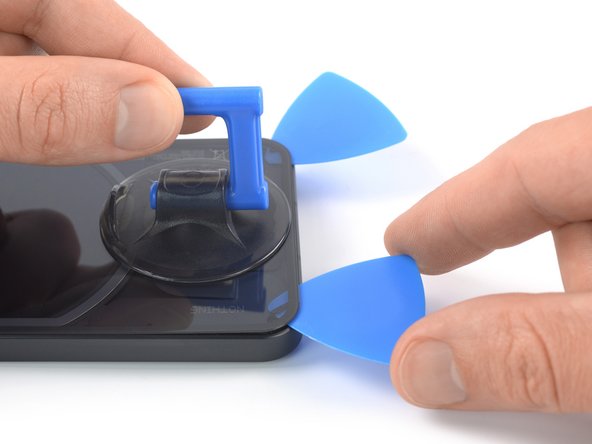
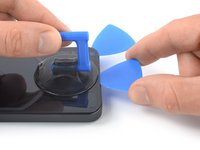
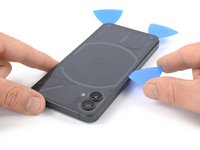
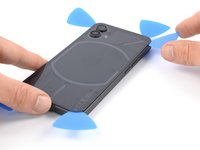
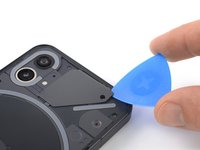
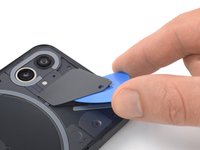
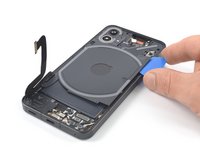
  2. Nothing Phone (1) Battery Replacement, Insert an opening pick: 2 단계, 이미지 3개 중 1개 Nothing Phone (1) Battery Replacement, Insert an opening pick: 2 단계, 이미지 3개 중 2개 Nothing Phone (1) Battery Replacement, Insert an opening pick: 2 단계, 이미지 3개 중 3개
    • Secure a suction handle to the bottom edge of the rear glass, as close to the edge as possible.

    • If the rear glass is cracked, the suction handle may not stick. Try lifting it with strong tape, or superglue the suction handle in place and allow it to cure so you can proceed.

    • Lift the rear glass with the suction handle to create a small gap between the back cover and the frame.

    • If you're having trouble creating a gap, apply more heat to further soften the adhesive. Follow the iOpener instructions to avoid overheating.

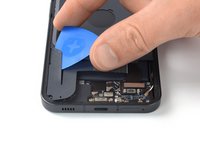
    • Insert an opening pick into the gap you created.

    • Slide the opening pick to the bottom right corner to slice the adhesive.

    • Leave the opening pick in place to prevent the adhesive from resealing.

    댓글 쓰기

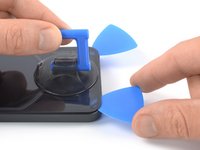
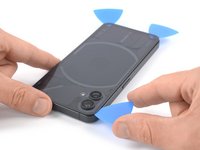
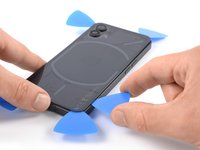
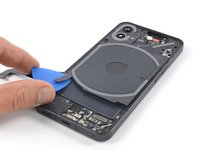
  3. Nothing Phone (1) Battery Replacement, Slice the adhesive: 3 단계, 이미지 2개 중 1개 Nothing Phone (1) Battery Replacement, Slice the adhesive: 3 단계, 이미지 2개 중 2개
    • Insert a second opening pick at the bottom edge of your phone.

    • Slide the opening pick to the bottom left corner to slice the adhesive.

    • Leave the opening picks in place to prevent the adhesive from resealing.

    댓글 쓰기

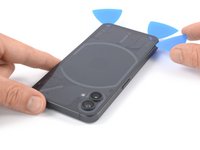
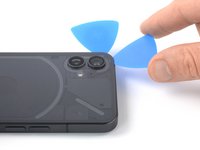
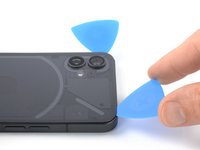
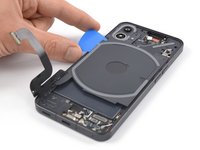
  4. Nothing Phone (1) Battery Replacement, Slice the adhesive: 4 단계, 이미지 3개 중 1개 Nothing Phone (1) Battery Replacement, Slice the adhesive: 4 단계, 이미지 3개 중 2개 Nothing Phone (1) Battery Replacement, Slice the adhesive: 4 단계, 이미지 3개 중 3개
    • When you slice near the glyph, insert only the tip of the opening pick (~2-3 mm) to avoid damaging the LEDs.

    • If the adhesive becomes hard to cut, it has most likely cooled down. Use your iOpener for one to two minutes to reheat it.

    • Insert a third opening pick at the bottom left corner of your phone.

    • Slide the opening pick along the left edge of your phone to slice the adhesive.

    • Leave the opening pick in the top left corner to prevent the adhesive from resealing.

    댓글 쓰기

  5. Nothing Phone (1) Battery Replacement: 5 단계, 이미지 2개 중 1개 Nothing Phone (1) Battery Replacement: 5 단계, 이미지 2개 중 2개
    • Insert a fourth opening pick underneath the top left corner of your phone.

    • Slide the opening pick along the top edge to slice the adhesive.

    • Leave the opening pick in the top right corner to prevent the adhesive from resealing.

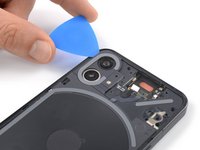
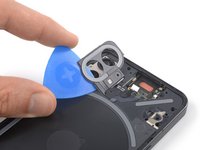
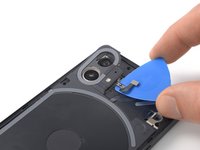
    댓글 쓰기

  6. Nothing Phone (1) Battery Replacement: 6 단계, 이미지 2개 중 1개 Nothing Phone (1) Battery Replacement: 6 단계, 이미지 2개 중 2개
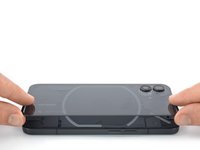
    • Insert a fifth opening pick underneath the top right corner.

    • Slide the opening pick along the right edge of the rear glass to slice the remaining adhesive.

    • At this point, the rear glass should be separated from the frame. If there's still resistance around the edges of the glass, use an opening pick to separate any remaining adhesive.

    댓글 쓰기

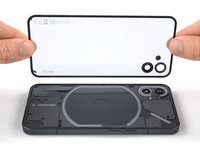
  7. Nothing Phone (1) Battery Replacement, Remove the rear glass: 7 단계, 이미지 2개 중 1개 Nothing Phone (1) Battery Replacement, Remove the rear glass: 7 단계, 이미지 2개 중 2개
    이 단계에 사용된 도구:
    Dust Blower
    $5.99
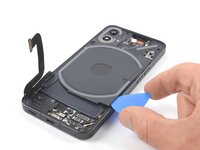
    • Remove the rear glass.

    • Apply new adhesive where necessary after cleaning the relevant areas with isopropyl alcohol (>90%).

    • Since the rear glass of the Nothing Phone (1) is transparent a dust blower may come in handy for cleaning before installing a new rear glass.

    • Secure the new back cover with pre-cut adhesive or double-sided adhesive tape. After installing the back cover, apply strong, steady pressure to your phone for several minutes to help the adhesive form a good bond—a stack of heavy books works well.

    댓글 쓰기

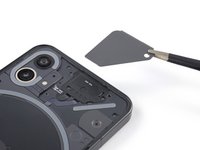
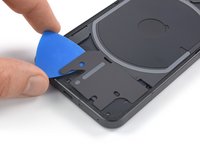
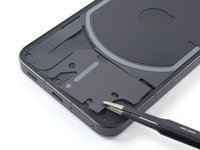
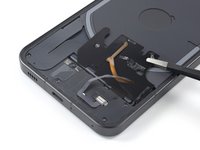
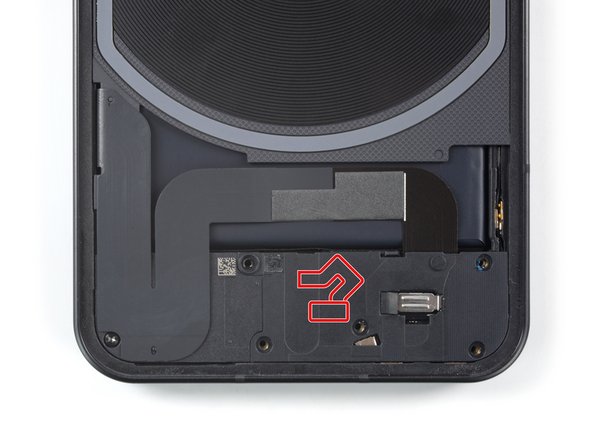
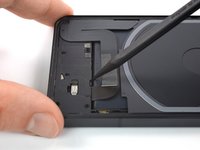
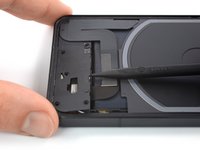
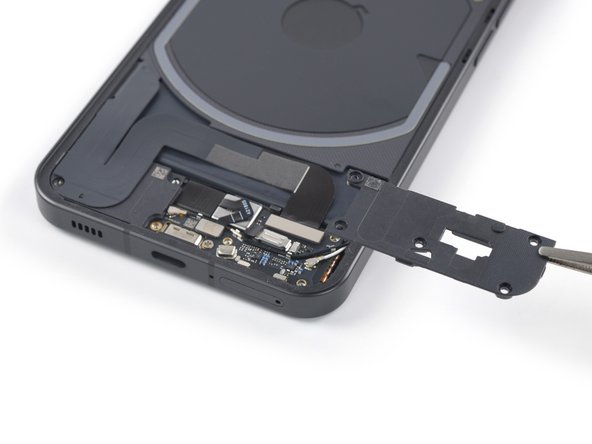
  8. Nothing Phone (1) Battery Replacement, Remove the plastic cover: 8 단계, 이미지 3개 중 1개 Nothing Phone (1) Battery Replacement, Remove the plastic cover: 8 단계, 이미지 3개 중 2개 Nothing Phone (1) Battery Replacement, Remove the plastic cover: 8 단계, 이미지 3개 중 3개
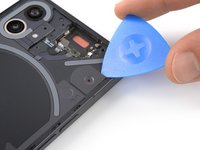
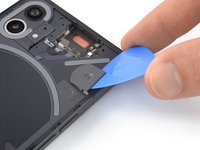
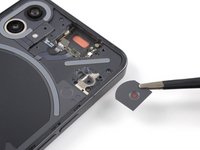
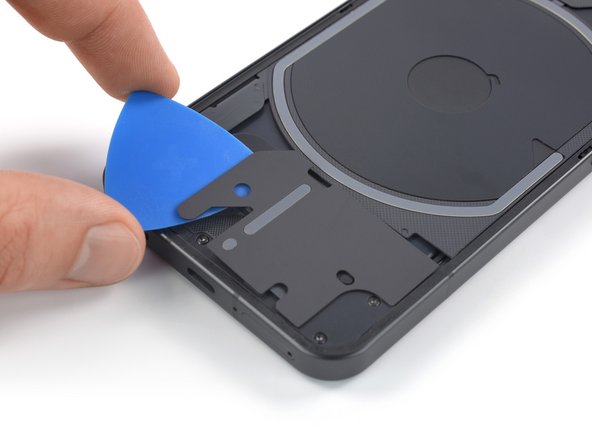
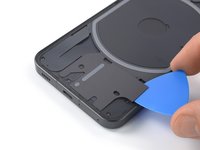
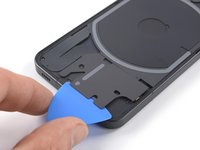
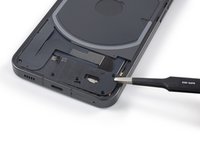
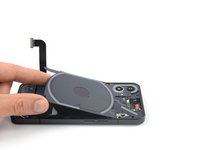
    • The plastic covering the earpiece speaker is held in place by mild adhesive. If you're having a hard time removing it, apply a heated iOpener for 1-2 minutes to loosen the adhesive underneath.

    • Insert an opening pick underneath the grey plastic cover at the top edge of your phone.

    • Use your opening pick to pry up the plastic cover.

    • Remove the plastic cover.

    댓글 쓰기

  9. Nothing Phone (1) Battery Replacement, Unfasten the earpiece speaker screws: 9 단계, 이미지 1개 중 1개
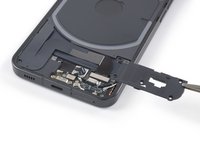
    • Use a Torx T5 screwdriver to remove the two 4.2 mm-long screws securing the earpiece speaker.

    댓글 쓰기

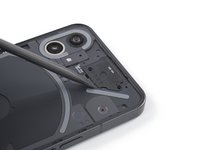
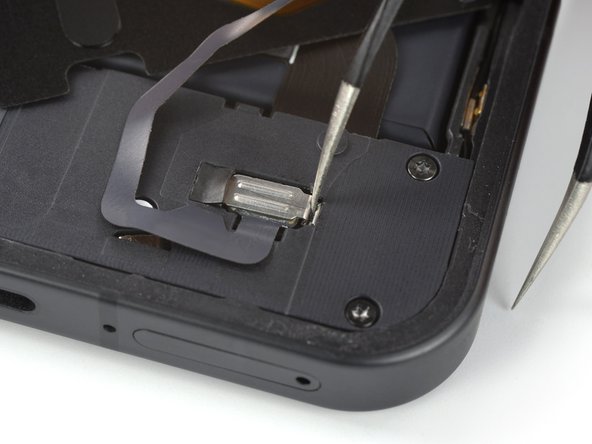
  10. Nothing Phone (1) Battery Replacement, Remove the earpiece speaker: 10 단계, 이미지 3개 중 1개 Nothing Phone (1) Battery Replacement, Remove the earpiece speaker: 10 단계, 이미지 3개 중 2개 Nothing Phone (1) Battery Replacement, Remove the earpiece speaker: 10 단계, 이미지 3개 중 3개
    이 단계에 사용된 도구:
    Tweezers
    $4.99
    • Insert the flat end of a spudger underneath the bottom edge of the earpiece speaker.

    • Use your spudger to pry up the earpiece speaker.

    • Use a pair of tweezers or your fingers to remove the earpiece speaker.

    댓글 쓰기

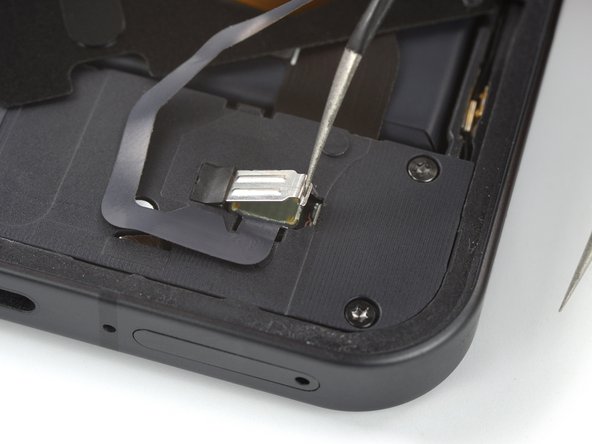
  11. Nothing Phone (1) Battery Replacement, Disconnect the flash assembly LED glyph cables: 11 단계, 이미지 3개 중 1개 Nothing Phone (1) Battery Replacement, Disconnect the flash assembly LED glyph cables: 11 단계, 이미지 3개 중 2개 Nothing Phone (1) Battery Replacement, Disconnect the flash assembly LED glyph cables: 11 단계, 이미지 3개 중 3개
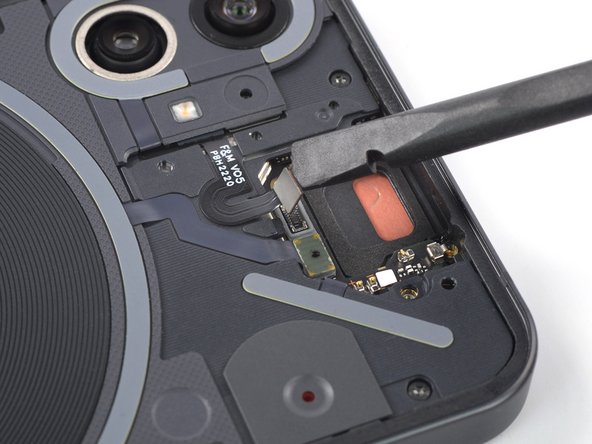
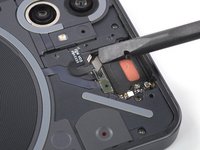
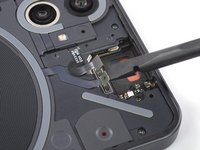
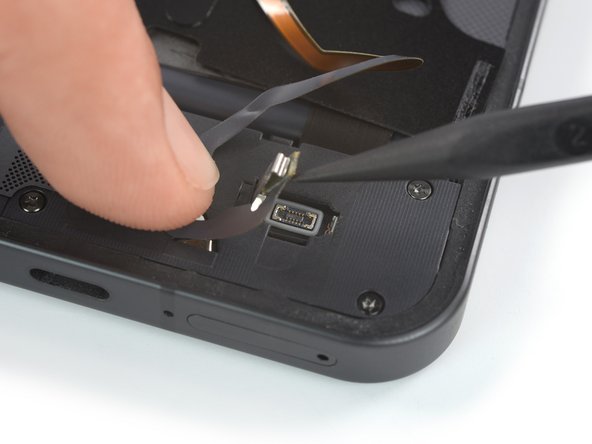
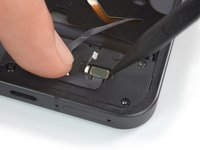
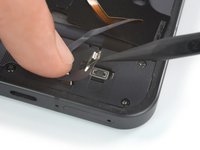
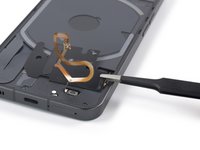
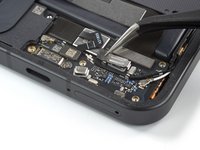
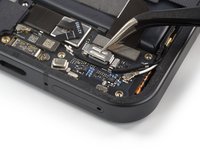
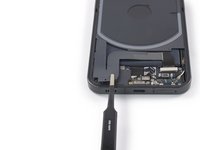
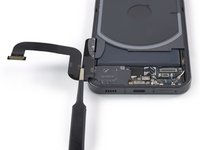
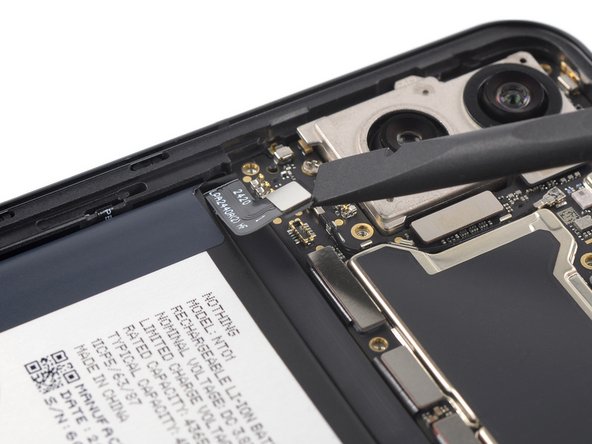
    • Use a spudger to disconnect the flash assembly cable by prying the connector straight up from its socket.

    • Use a spudger to disconnect the LED glyph cable by prying the connector straight up from its socket.

    댓글 쓰기

  12. Nothing Phone (1) Battery Replacement, Remove the recording indicator light cover: 12 단계, 이미지 3개 중 1개 Nothing Phone (1) Battery Replacement, Remove the recording indicator light cover: 12 단계, 이미지 3개 중 2개 Nothing Phone (1) Battery Replacement, Remove the recording indicator light cover: 12 단계, 이미지 3개 중 3개
    이 단계에 사용된 도구:
    Tweezers
    $4.99
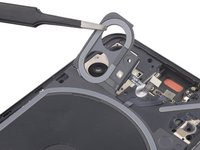
    • Insert an opening pick underneath the recording indicator light cover at the top right corner of the screen.

    • Use your opening pick to pry up the plastic cover.

    • Use a pair of tweezers or your fingers to remove the recording indicator light cover.

    댓글 쓰기

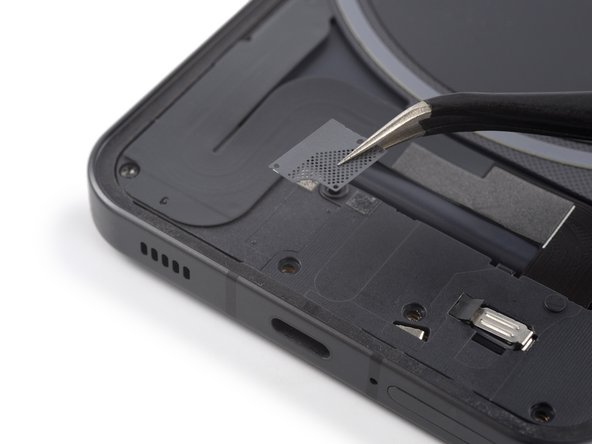
  13. Nothing Phone (1) Battery Replacement, Remove the bottom LED glyph assembly: 13 단계, 이미지 3개 중 1개 Nothing Phone (1) Battery Replacement, Remove the bottom LED glyph assembly: 13 단계, 이미지 3개 중 2개 Nothing Phone (1) Battery Replacement, Remove the bottom LED glyph assembly: 13 단계, 이미지 3개 중 3개
    • Be very careful when working on the bottom LED assembly. There's a cable running underneath its whole surface that can be damaged easily.

    • The bottom LED assembly is held in place by small pieces of adhesive.

    • Slide an opening pick underneath the right, bottom and left edge of the bottom LED assembly to carefully separate it from the daughterboard cover.

    • Do not slide the opening pick deeper than shown in the photos. Otherwise you risk damaging the LED cable.

    댓글 쓰기

  14. Nothing Phone (1) Battery Replacement, Fold over the bottom LED assembly: 14 단계, 이미지 2개 중 1개 Nothing Phone (1) Battery Replacement, Fold over the bottom LED assembly: 14 단계, 이미지 2개 중 2개
    • The bottom LED assembly is still held in place by a small piece of adhesive sitting between the cable winds. Avoid straining or tearing the cable when folding the assembly over.

    • Use a pair of blunt nosed tweezers and carefully fold the bottom LED assembly over to get free access to the LED cable connector.

    댓글 쓰기

  15. Nothing Phone (1) Battery Replacement, Open the connector bracket: 15 단계, 이미지 3개 중 1개 Nothing Phone (1) Battery Replacement, Open the connector bracket: 15 단계, 이미지 3개 중 2개 Nothing Phone (1) Battery Replacement, Open the connector bracket: 15 단계, 이미지 3개 중 3개
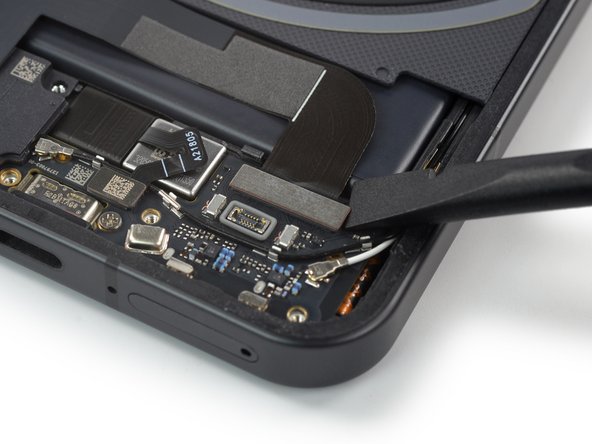
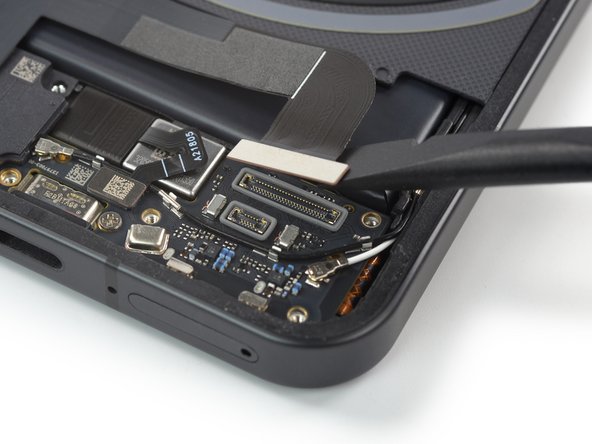
    • The LED connector bracket sits very tight and may require some force to open it.

    • Insert one arm of a pair of tweezers into the gap at the right side of the connector bracket.

    • Push your tweezers toward the left edge of the phone to free the closure flap of the connector bracket.

    • If you're struggling to free the flap, pull the black rubber piece to the left to give the bracket more room.

    • Lift the connector bracket with your tweezers to access the LED connector.

    댓글 쓰기

  16. Nothing Phone (1) Battery Replacement, Disconnect the LED cable: 16 단계, 이미지 2개 중 1개 Nothing Phone (1) Battery Replacement, Disconnect the LED cable: 16 단계, 이미지 2개 중 2개
    • Use a spudger to disconnect the LED cable by prying the connector straight up from its socket.

    댓글 쓰기

  17. Nothing Phone (1) Battery Replacement, Remove the bottom LED assembly: 17 단계, 이미지 2개 중 1개 Nothing Phone (1) Battery Replacement, Remove the bottom LED assembly: 17 단계, 이미지 2개 중 2개
    • Use a pair of tweezers or your fingers to remove the bottom LED assembly.

    댓글 쓰기

  18. Nothing Phone (1) Battery Replacement, Unfasten the daughterboard cover screws: 18 단계, 이미지 1개 중 1개
    • Use a Torx T5 screwdriver to remove the five 4.2 mm-long screws securing the daughterboard cover.

    • The center-most screw is covered by a white sticker.

    댓글 쓰기

  19. Nothing Phone (1) Battery Replacement, Remove the plastic shield: 19 단계, 이미지 2개 중 1개 Nothing Phone (1) Battery Replacement, Remove the plastic shield: 19 단계, 이미지 2개 중 2개
    • The grey plastic shield on top of the daughterboard cover is held in place by mild adhesive.

    • Use a pair of tweezers to carefully separate the grey plastic shield from the daughterboard cover and remove it.

    댓글 쓰기

  20. Nothing Phone (1) Battery Replacement, Fingerprint cable information: 20 단계, 이미지 1개 중 1개
    • When prying up the daughterboard cover in the following step be very careful and avoid levering with too much force or to press your prying tool too deep underneath the cover. Otherwise, the fingerprint cable running underneath can be easily torn.

    댓글 쓰기

  21. Nothing Phone (1) Battery Replacement, Pry up the daughterboard cover: 21 단계, 이미지 2개 중 1개 Nothing Phone (1) Battery Replacement, Pry up the daughterboard cover: 21 단계, 이미지 2개 중 2개
    • Insert the pointed end of a spudger underneath the top edge of the daughterboard cover just above the black rubber guard securing the LED connector bracket.

    • Pry up with the spudger to release the daughterboard cover from its clips.

    댓글 쓰기

  22. Nothing Phone (1) Battery Replacement, Remove the daughterboard cover: 22 단계, 이미지 2개 중 1개 Nothing Phone (1) Battery Replacement, Remove the daughterboard cover: 22 단계, 이미지 2개 중 2개
    • Use a pair of tweezers or your fingers to remove the daughterboard cover.

    댓글 쓰기

  23. Nothing Phone (1) Battery Replacement, Remove the black rubber guard: 23 단계, 이미지 2개 중 1개 Nothing Phone (1) Battery Replacement, Remove the black rubber guard: 23 단계, 이미지 2개 중 2개
    • Use a pair of tweezers to remove the black rubber guard securing the LED connector bracket.

    댓글 쓰기

  24. Nothing Phone (1) Battery Replacement, Remove the connector bracket: 24 단계, 이미지 2개 중 1개 Nothing Phone (1) Battery Replacement, Remove the connector bracket: 24 단계, 이미지 2개 중 2개
    • Use a pair of tweezers to remove the LED connector bracket.

    댓글 쓰기

  25. Nothing Phone (1) Battery Replacement, Disconnect the interconnect cable: 25 단계, 이미지 2개 중 1개 Nothing Phone (1) Battery Replacement, Disconnect the interconnect cable: 25 단계, 이미지 2개 중 2개
    • Use a spudger to disconnect the interconnect cable by prying the connector straight up from its socket.

    댓글 쓰기

  26. Nothing Phone (1) Battery Replacement, Separate the interconnect cable adhesive: 26 단계, 이미지 3개 중 1개 Nothing Phone (1) Battery Replacement, Separate the interconnect cable adhesive: 26 단계, 이미지 3개 중 2개 Nothing Phone (1) Battery Replacement, Separate the interconnect cable adhesive: 26 단계, 이미지 3개 중 3개
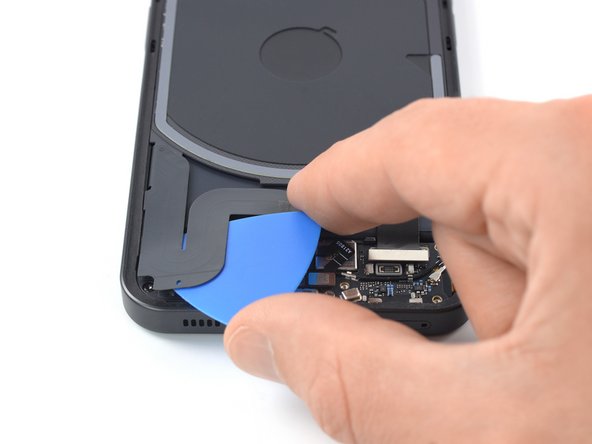
    • The interconnect cable is held in place by mild adhesive.

    • Carefully slide an opening pick underneath the interconnect cable to separate it from the charging coil assembly and the loudspeaker.

    댓글 쓰기

  27. Nothing Phone (1) Battery Replacement, Fold over the interconnect cable: 27 단계, 이미지 2개 중 1개 Nothing Phone (1) Battery Replacement, Fold over the interconnect cable: 27 단계, 이미지 2개 중 2개
    • During the following step do not fold the cable sharply and only bend it to avoid cable damage.

    • Use a pair of tweezers to fold the interconnect cable to the left like you'd open the cover of a book.

    댓글 쓰기

  28. Nothing Phone (1) Battery Replacement, Unfasten the motherboard cover screws: 28 단계, 이미지 1개 중 1개
    • Use a Torx T5 screwdriver to remove the four 4.2 mm-long screws securing the motherboard cover.

    댓글 쓰기

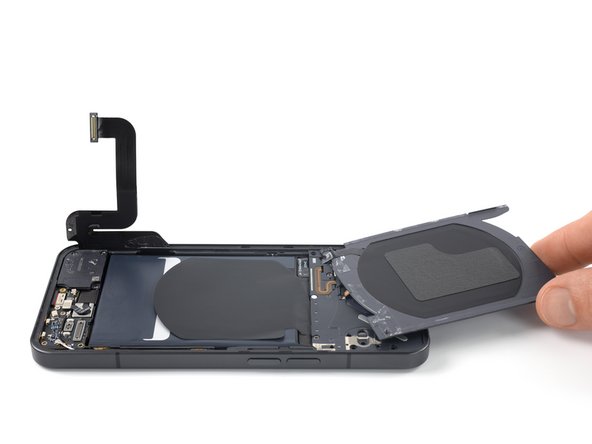
  29. Nothing Phone (1) Battery Replacement, Separate the wireless charging coil adhesive: 29 단계, 이미지 2개 중 1개 Nothing Phone (1) Battery Replacement, Separate the wireless charging coil adhesive: 29 단계, 이미지 2개 중 2개
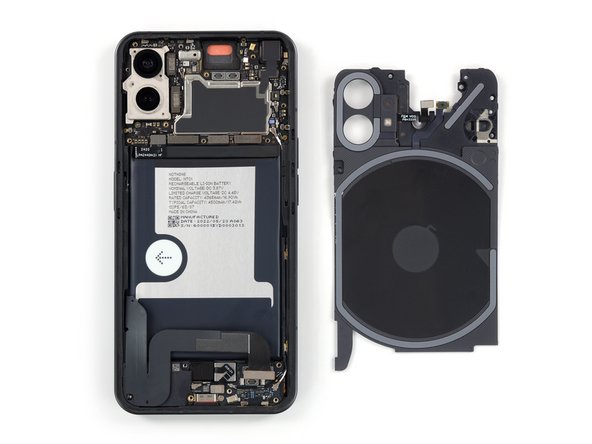
    • The charging coil assembly is held in place by mild adhesive.

    • Insert an opening pick underneath the bottom right edge of the charging coil assembly.

    • Slide the opening along the right edge of the charging coil assembly to separate the adhesive.

    댓글 쓰기

  30. Nothing Phone (1) Battery Replacement: 30 단계, 이미지 2개 중 1개 Nothing Phone (1) Battery Replacement: 30 단계, 이미지 2개 중 2개
    • Insert an opening pick underneath the bottom left edge of the charging coil assembly.

    • Slide the opening along the left edge of the charging coil assembly to separate the adhesive.

    댓글 쓰기

  31. Nothing Phone (1) Battery Replacement, Fold over the charging board assembly: 31 단계, 이미지 2개 중 1개 Nothing Phone (1) Battery Replacement, Fold over the charging board assembly: 31 단계, 이미지 2개 중 2개
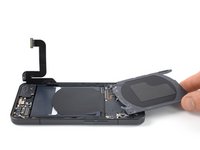
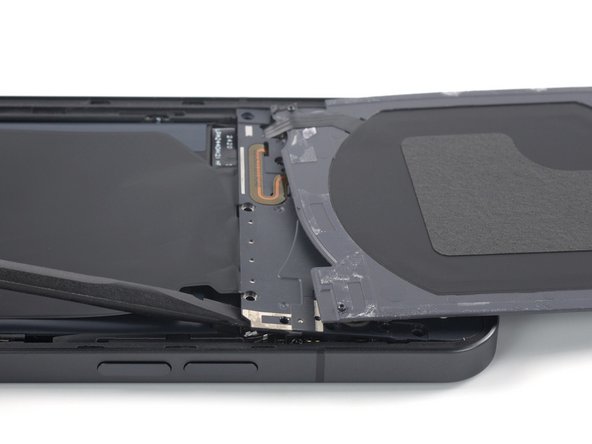
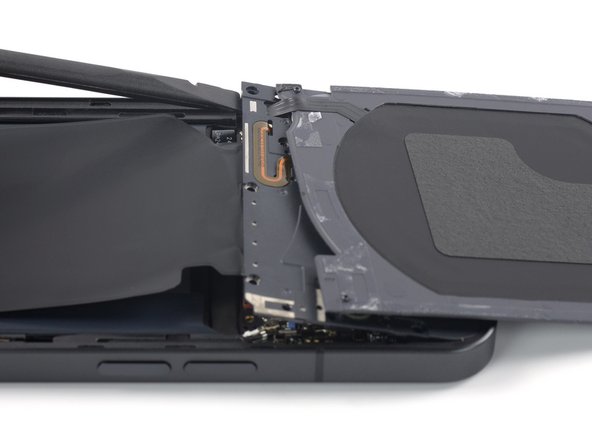
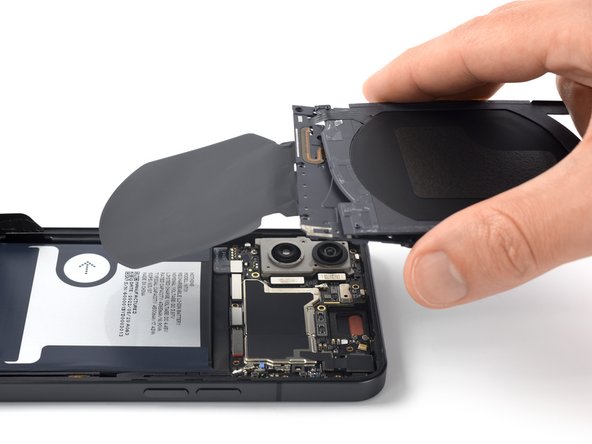
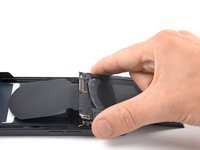
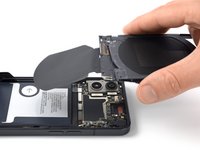
    • When folding the charging coil assembly over avoid straining components and cables.

    • Carefully fold the charging coil to the top edge of the phone to access the motherboard cover screws.

    댓글 쓰기

  32. Nothing Phone (1) Battery Replacement, Unfasten the motherboard cover screws: 32 단계, 이미지 1개 중 1개
    • Use a Phillips screwdriver to remove the three 4.2 mm-long screws securing the motherboard cover.

    댓글 쓰기

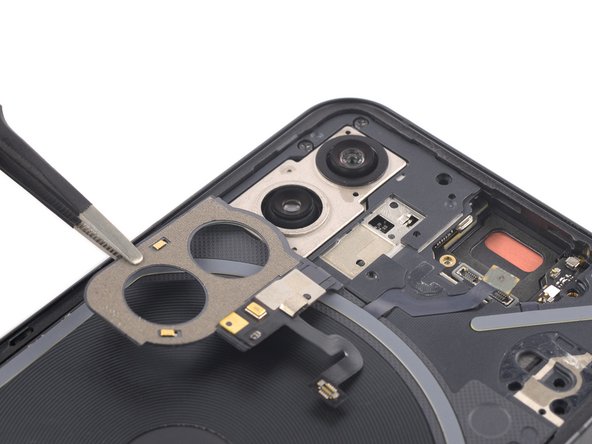
  33. Nothing Phone (1) Battery Replacement, Separate the camera cover and flash assembly: 33 단계, 이미지 3개 중 1개 Nothing Phone (1) Battery Replacement, Separate the camera cover and flash assembly: 33 단계, 이미지 3개 중 2개 Nothing Phone (1) Battery Replacement, Separate the camera cover and flash assembly: 33 단계, 이미지 3개 중 3개
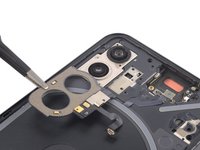
    • Return the charging coil to its original position.

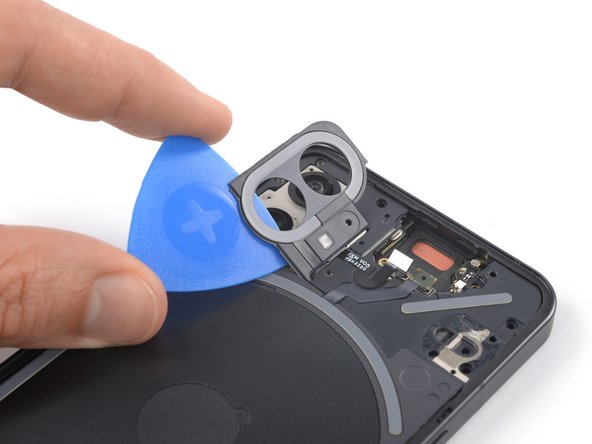
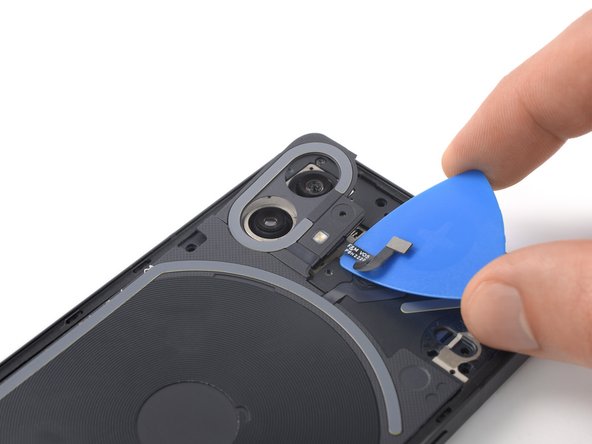
    • Don't try to remove the camera cover and flash assembly all the way. Its cable runs underneath the motherboard cover and is very fragile.

    • Carefully slide an opening pick underneath the camera cover and flash assembly to separate it from the motherboard cover.

    댓글 쓰기

  34. Nothing Phone (1) Battery Replacement, Fold over the camera cover and flash assembly: 34 단계, 이미지 2개 중 1개 Nothing Phone (1) Battery Replacement, Fold over the camera cover and flash assembly: 34 단계, 이미지 2개 중 2개
    • Avoid straining the camera cover and flash assembly cable when folding it over.

    • Use a pair of tweezers to carefully fold the camera cover and flash assembly toward the battery.

    댓글 쓰기

  35. Nothing Phone (1) Battery Replacement, Unfasten the motherboard cover screws: 35 단계, 이미지 1개 중 1개
    • Use a Torx T5 screwdriver to remove the two 4.2 mm-long screws securing the motherboard cover.

    • Return the camera cover and flash assembly to its original position.

    댓글 쓰기

  36. Nothing Phone (1) Battery Replacement, Pry up the motherboard cover: 36 단계, 이미지 3개 중 1개 Nothing Phone (1) Battery Replacement, Pry up the motherboard cover: 36 단계, 이미지 3개 중 2개 Nothing Phone (1) Battery Replacement, Pry up the motherboard cover: 36 단계, 이미지 3개 중 3개
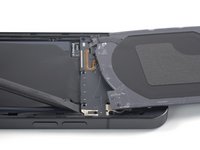
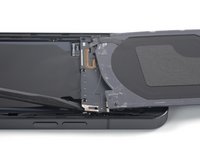
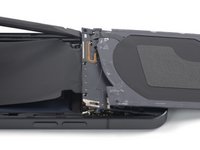
    • Carefully fold the charging coil to the top edge of the phone to access the bottom edge of the motherboard cover.

    • Insert the flat end of a spudger underneath the bottom right edge of the motherboard cover.

    • Pry up with the spudger to release the motherboard cover from its clips.

    • Repeat the prying procedure for the bottom left edge of the motherboard cover.

    댓글 쓰기

  37. Nothing Phone (1) Battery Replacement, Remove the LED glyph assembly: 37 단계, 이미지 3개 중 1개 Nothing Phone (1) Battery Replacement, Remove the LED glyph assembly: 37 단계, 이미지 3개 중 2개 Nothing Phone (1) Battery Replacement, Remove the LED glyph assembly: 37 단계, 이미지 3개 중 3개
    • Remove the LED glyph assembly.

    댓글 쓰기

  38. Nothing Phone (1) Battery Replacement, Disconnect the battery cable: 38 단계, 이미지 2개 중 1개 Nothing Phone (1) Battery Replacement, Disconnect the battery cable: 38 단계, 이미지 2개 중 2개
    • Use a spudger to disconnect the battery cable by prying the connector straight up from its socket.

    댓글 쓰기

  39. Nothing Phone (1) Battery Replacement, Peel off the battery pull-tab: 39 단계, 이미지 3개 중 1개 Nothing Phone (1) Battery Replacement, Peel off the battery pull-tab: 39 단계, 이미지 3개 중 2개 Nothing Phone (1) Battery Replacement, Peel off the battery pull-tab: 39 단계, 이미지 3개 중 3개
    이 단계에 사용된 도구:
    Tweezers
    $4.99
    • Take care not to puncture or bend the battery with your tool—a punctured or bent battery may leak dangerous chemicals or cause fire.

    • Use a pair of blunt nose tweezers or a clean fingernail to peel the pull-tab labeled with an arrow off the battery.

    • Use the blunt nose tweezers to peel off remaining pieces of the pull-tab from the left battery edge.

    댓글 쓰기

  40. Nothing Phone (1) Battery Replacement, Loosen the battery adhesive: 40 단계, 이미지 1개 중 1개
    • The battery adhesive of the Nothing Phone (1) is very strong and loosening it beforehand eases the battery removal procedure and prevents damaging the cables running underneath.

    • Apply a heated iOpener to the screen to loosen the battery adhesive. Apply the iOpener for at least 2 minutes.

    • A hair dryer, heat gun, or hot plate may also be used, but be careful not to overheat the device.

    댓글 쓰기

  41. Nothing Phone (1) Battery Replacement, Lift the battery: 41 단계, 이미지 3개 중 1개 Nothing Phone (1) Battery Replacement, Lift the battery: 41 단계, 이미지 3개 중 2개 Nothing Phone (1) Battery Replacement, Lift the battery: 41 단계, 이미지 3개 중 3개
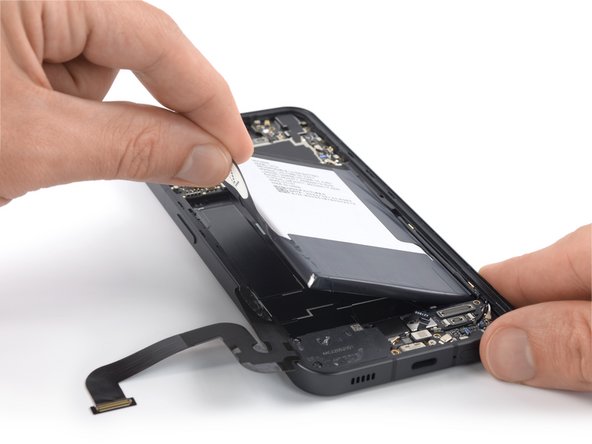
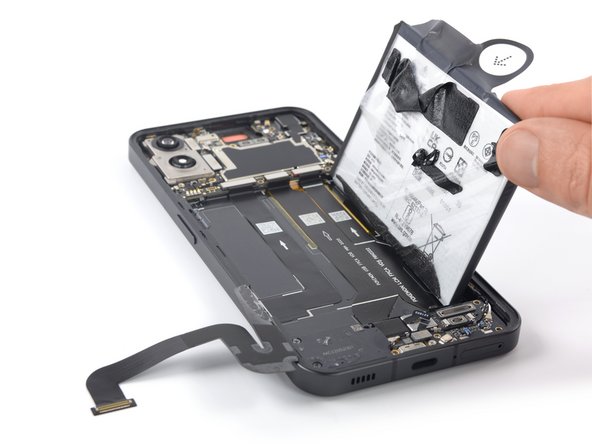
    • Grab the pull-tab and pull up on the adhesive strip to lift the battery out of its recess and swing it up to an upright position.

    댓글 쓰기

  42. Nothing Phone (1) Battery Replacement, Remove the battery: 42 단계, 이미지 1개 중 1개
    • Remove the battery.

    • Do not reinstall a damaged or deformed battery, as doing so is a potential safety hazard.

    • Secure the new battery with pre-cut adhesive or double-sided adhesive tape. In order to position it correctly, apply the new adhesive into the device at the places where the old adhesive was located, not directly onto the battery. Press the new battery firmly into place.

    • During reassembly, temporarily reconnect the battery to the motherboard to help align it correctly. Disconnect the battery after it is seated.

    댓글 쓰기

결론

If possible, turn on your device and test your repair before installing new adhesive and resealing.

To reassemble your device, follow these instructions in reverse order. During reassembly apply new adhesive where necessary after cleaning the relevant areas with isopropyl alcohol (>90%).

For optimal performance, calibrate your newly installed battery after completing this guide.

Take your e-waste to an R2 or e-Stewards certified recycler.

Repair didn’t go as planned? Try some basic troubleshooting, or ask our Answers community for help.

취소: 해당 안내서를 완성하지 않았습니다.

다른 31명이 해당 안내서를 완성하였습니다.

작성자

1다른 기여자 명과 함께

Dominik Schnabelrauch

회원 가입일: 11/23/16

260,053 평판

안내서 682개를 작성함

iFixit iFixit 회원

Staff

122 회원들

안내서 26,573개를 작성함

10가이드 댓글

and where can i buy new battery?

petawe - 답글 공유

Hallo, ersten danke für die coole und aufschlussreiche Erklärung zum Akku Tausch dieses Handys. Habt ihr eine Ahnung wo man diesen Akku her bekommen kann?

LG Jörg

Jörg Hammer - 답글 공유

Hallo, nach langer Dauer habe ich herausgefunden wo man einen Akku für das Norhing Phone (1) bekommt. Ich habe ihn vor kurzem selbst verbaut und er funktioniert einwandfrei.

https://a.aliexpress.com/_EzNY1sh

LG Jörg

Jörg Hammer - 답글 공유
how was the performance of the new battery after some time? Does it still hold it's charge like when it was new? I never know how good these random chinese batteries are but can't find anything from a more reputable brand

Cai Strickland - 답글 공유

Nothing fone is very how was the performance of the new battery after some time? Does it still hold it's charge like when it was new? I never know how good these random chinese batteries are but can't find anything from a more reputable

Official Yadav - 답글 공유

댓글 쓰기

조회 통계:

지난 24시간: 42

지난 7일: 386

지난 30일: 1,540

전체 시간: 52,920